You install the plugin, find the button, click it - and the first impression is usually this: it's a way to start claude without switching to a separate terminal window. Handy, sure. But installing a whole plugin just to get one button would be a strange deal.
That impression is misleading. The IDE had a built-in terminal before the plugin too, and nothing stopped you from typing claude into it yourself. The plugin does something else: it connects the agent to the editor so the two can see each other. What you have open and selected, what the linter is complaining about, what a proposed edit looks like line by line - you no longer have to relay any of it yourself. Launching with one button is the most boring part of the whole package.
Claude Code is a terminal tool, and it works perfectly well without an IDE: open a terminal, type claude, then just write in plain English.
The difference isn't whether the agent starts or not. The difference is what you check its work against. It changes the files on your disk for real. With the editor closed, all you get is a report: "added error handling to three methods". Sounds plausible. Nothing to compare it with.
The plugin closes exactly that gap. Below is what it gives you and where people trip up most often.
1. What the editor connection gives you
The official plugin does five things. Here they are in order, starting with the one the whole thing was made for.
- Diff in the IDE window. A diff is a list of changes: which lines were removed, which were added, what changed between the old version and the new one. The agent's edits open in the editor's familiar diff viewer instead of showing up as text in the terminal. Before on the left, after on the right.
- Selection context. The open tab and the selected fragment reach the agent on their own. No need to copy code into the chat and explain in words which piece you mean.
- Sending code to the agent. Select some code, press the shortcut, and a reference to exactly those lines goes into the prompt, in the form
@src/auth.ts#L1-99. - Diagnostics from the IDE. Linter and syntax errors, the ones the editor underlines in red, Claude can request from the IDE on its own, without you retelling them. People tend to find out about this one last, and it's one of the most useful. It doesn't check them automatically after every edit, though, so if you need that, just ask it to look at the errors in the file.
- Quick launch. The Claude logo on the IDE panel or a keyboard shortcut, and the agent opens without you leaving the editor.

2. Installing: two pieces, not one
This is where people trip up most often. The plugin doesn't carry Claude Code inside it. It runs the claude command in the IDE's integrated terminal and connects to it. So you need to install both parts:
- Claude Code itself - if it's missing, the plugin will tell you straight out:
Cannot launch Claude Code; - the Claude Code [Beta] plugin by Anthropic PBC - it installs from the
Marketplace, and after that it's best to fully restart the IDE, sometimes more than once.
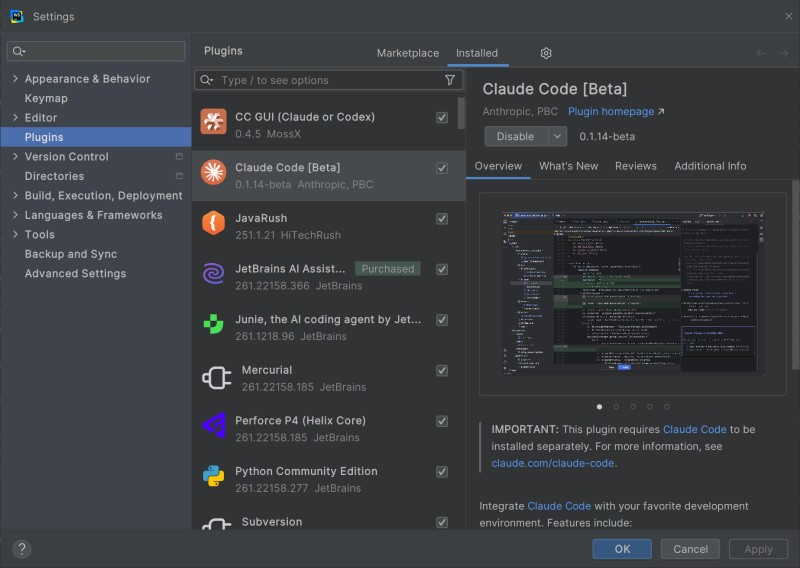
If claude is installed but isn't where the IDE looks for it, set the full path in Settings → Tools → Claude Code [Beta] → Claude command.
3. Shortcuts you need right away
| Action | Windows / Linux | macOS |
|---|---|---|
| Open Claude Code | Ctrl+Esc | Cmd+Esc |
| Send the selected code to the agent | Ctrl+Alt+K | Cmd+Option+K |
| Open Claude Code if the shortcut didn't work | click the Claude logo on the IDE panel | |
That last row isn't there for looks. Shortcuts don't always work: sometimes the system grabs the key combination, sometimes another plugin does. Nothing is broken, and it's no reason to start fixing the IDE. Just use the mouse - slower, but it works everywhere.
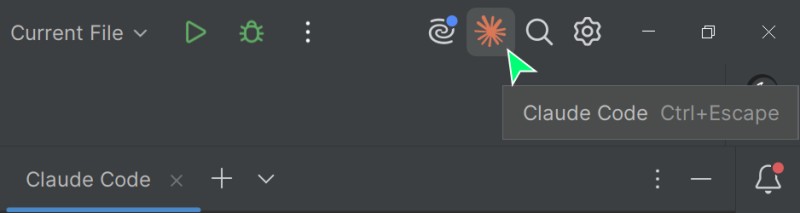
You won't have to search for long: the plugin icon is the Claude logo, the same one you see everywhere in the interface. Hard to mistake it for anything else.
Send to Claude Code
The second shortcut is the one you'll use most. Select a piece of code, press Ctrl+Alt+K, and a reference to exactly those lines jumps into the agent's prompt. The same thing is in the actions menu for the selection, under Send to Claude Code.
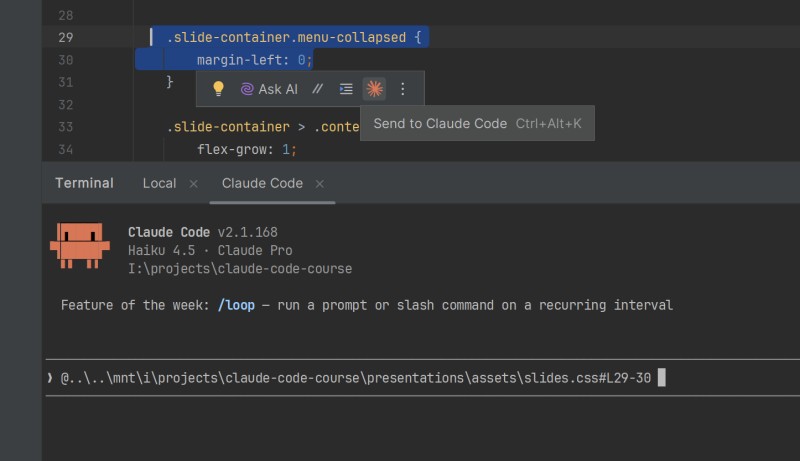
A line like this appears in the prompt - the file path and the range of lines:
@presentations/assets/slides.css#L29-30Then you add the task after it in plain English:
@presentations/assets/slides.css#L29-30 remove margin-left, it breaks the layout on narrow screensBoth sides win: the agent doesn't waste steps looking for the file, and you don't spend context on that search.
If you don't have the plugin
You can also put together a line reference with the IDE itself: right-click the line - Copy / Paste Special - Copy Reference. The clipboard will hold src/utils/slides.js:16.
The format is different - no @, and a colon instead. It no longer pulls the file into the context automatically; it's just text in your request. Still, as a "look here" pointer it works: the agent reads the path and opens the right spot on its own.
4. Two ways to start, and the /ide command
Start claude from the IDE's built-in terminal, and all the features turn on by themselves - you don't have to do anything.
Start it from an external terminal (a separate window, Windows Terminal, iTerm), and there's no connection to the editor until you ask for it:
# connect Claude Code to the open IDE
/ide
I'd just make it a habit to start the agent from the IDE terminal. Then you never have to remember /ide at all: you need it in exactly one case - when the terminal is external.
One more thing, about the folder you start from. The agent looks at the files where it was started, so from a neighboring folder it will work with the wrong files. In your own project, start it from the root, the same one that's open in the IDE.
Course tasks are different: start the agent from the task folder, not from the root of codegym-project. Every task there is a separate folder with its own files and its own rules for the agent, and from the project root the agent would see the entire course at once.
5. Where to show the diff
Where exactly the changes show up is a setting, not a given:
# open Claude Code settings
/config
There's a diff tool option in there: auto shows edits in the IDE, terminal keeps them in the terminal. This option only appears when the agent is connected to the IDE, so from an external terminal run /ide first. If the diff stubbornly stays in the terminal, look here instead of hunting for a bug in the plugin.
In the terminal the diff comes in as text, roughly like this:
diff --git a/src/main/java/RefundQueue.java b/src/main/java/RefundQueue.java
index 3a7f2bc..9d41a80 100644
--- a/src/main/java/RefundQueue.java
+++ b/src/main/java/RefundQueue.java
@@ -42,7 +42,7 @@ void prioritize(RefundRequest refundRequest) {
-    if (refundRequest.isUrgent()) {
+    if (refundRequest.isUrgent() || refundRequest.amount() > 100) {
         moveToTop(refundRequest);
     }
 }
Here's how to read it: the line with a minus was there, the line with a plus is what it became. Everything else is header information: which file this is and which line the fragment starts at.
And now the reason it's worth turning on the IDE view. In modes where Claude asks for permission before every edit, the question doesn't just arrive as text in the terminal: IDEA opens the change in its own diff window with Reject and Apply buttons. You look at the highlighted lines in the context of the whole file and decide right there.
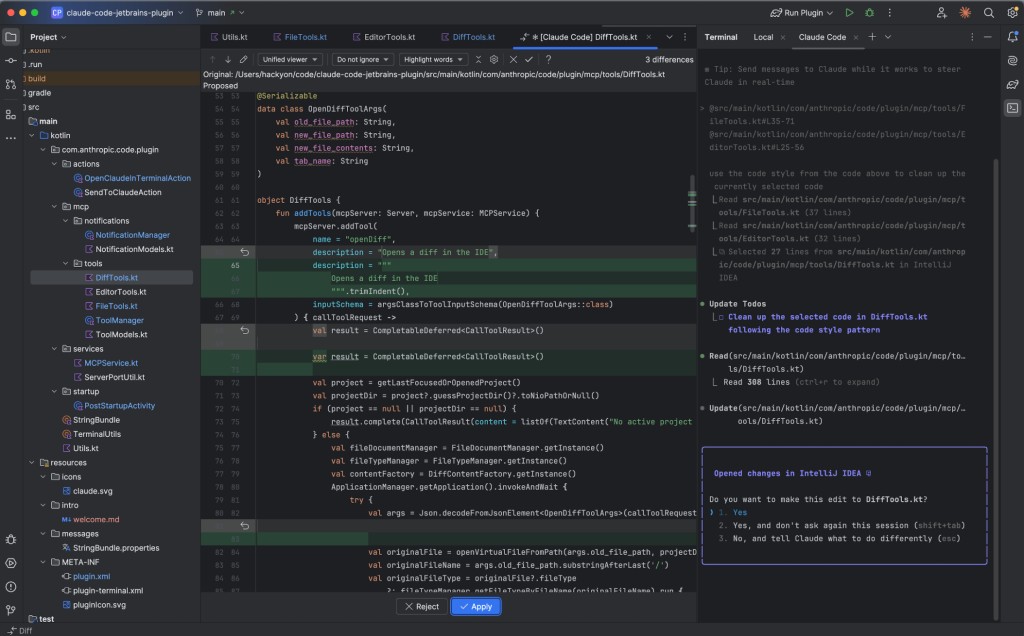
Compared with a text diff in the console, it's almost unfair: you get syntax highlighting, the surrounding lines, the navigation you're used to. The "accept or not" decision is made by looking at the code, not at a description of the code.
6. Three common traps
Esc doesn't interrupt the agent
In the JetBrains terminal, the Esc key moves focus to the editor by default, so it simply never reaches Claude Code. Not a pleasant situation: the agent is doing the wrong thing, you press Esc, and nothing happens.
You only need to fix it once:Settings → Tools → Terminal, uncheck Move focus to the editor with Escape. I'd do this right after installing the plugin, without waiting for the first time it bites you.
"No available IDEs detected"
The agent can't see the editor. Check these in order: the plugin is installed and enabled; the IDE has been fully restarted; claude was started from the built-in terminal, not from an external window.

WSL: the agent in Linux, the IDE in Windows
A special case of the same error. If Claude Code lives in WSL2 and the IDE in Windows, the connection is usually blocked by WSL2 network isolation or by the firewall. The fix is either a firewall rule or switching WSL2 to mirrored networking - both options are described in the plugin documentation. Mirrored networking is only available on Windows 11 22H2 and later; on Windows 10 the firewall rule is what you have.
7. What it's all for
The IDE connection gives you the main thing: you see what the agent is doing while it's doing it. From there, the rhythm goes like this:
- Claude proposes a change;
- you look at the diff and decide whether to accept it;
- Git records what you accepted.
The third step is only sketched here. The Git rhythm, commits and rollbacks are a big topic of their own, and the course will come back to it. For now, one thing is enough to remember: the save point comes after your review, not before it.
The cycle is only this neat on a diagram. In real work you'll accept half the edits without looking, because they're just a variable rename, and then get stuck on one for ten minutes and ask for a redo. That's fine. The point isn't to proofread every line, but to have that option at the moment an edit looks odd.
Without an editor, that option just isn't there: you end up checking against a description instead of the code.
Open any project in IDEA and click the Claude logo on the panel. The Ctrl+Esc shortcut (Cmd+Esc on macOS) does the same thing, but it doesn't always work - that happens, and then you just use the mouse.
Next, select a couple of lines in a file and press Ctrl+Alt+K - a reference to those lines will jump into the prompt by itself. Ask for something small: "add a comment to this method". Watch the edit open in the diff window, and press Reject - knowing how to reject is a skill too.
GO TO FULL VERSION