At first glance a terminal looks intimidating: a dark window, a blinking cursor and none of the buttons you're used to. The reality is more mundane. It's a direct way to tell the computer what to do: one command shows the files, another takes you to the right folder, a third starts a program.
Most early snags with an agent aren't about how the request is worded - they happen because the terminal is sitting in the wrong folder. So we'll sort out folders and paths first and get to the claude command after that. At the end we'll apply all of it to codegym-project, where every task lives as a separate project.
The terminal - a direct way to control a project
A terminal is a window where you control the computer with text commands. Instead of hunting through menus for the right button, you name the action precisely: show the files, open a folder, start a program.
The mouse is faster right up until you have to repeat the same action for the tenth time. Here's what the terminal gives you in return:
- a command does one specific thing - the result shows up in the same window, no guesswork;
- a sequence is easy to repeat - check the folder, look at the files, move and start;
- you can see state the interface hides - above all, the current folder.
You don't have to pick one. IDEA is handy for finding files by eye and opening them with a click, the terminal for running an exact command and seeing the answer right away. In practice the two work side by side all the time.
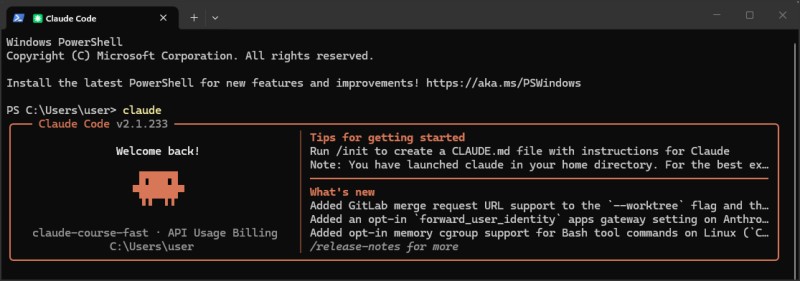
When you type claude, the agent starts working from the terminal's current directory. So it pays to figure out where the terminal is first, and only then start the agent.
Five commands for everyday work
Five actions. To start with, that honestly is enough. On Windows we use PowerShell, on macOS and Linux the standard terminal. The short commands look the same in all three cases.
| Command | Stands for | What it does |
|---|---|---|
pwd | print working directory | Prints the full path to the folder the terminal is in right now. |
ls | list | Shows the files and folders in the current directory. |
cd demo-project | change directory | Moves into the demo-project folder next door. |
cd .. | .. means the parent directory | Moves the terminal one folder up. |
claude | The name of the program to start | Starts Claude Code from the current directory. |
In PowerShell the short commands are just convenient aliases: pwd calls Get-Location, ls calls Get-ChildItem, and cd calls Set-Location. No need to be scared of the long names, and no need to memorize them yet either. They do show nicely what each command means, though.
Now a quick run on macOS or Linux. The terminal starts out in the projects folder, then moves into demo-project:
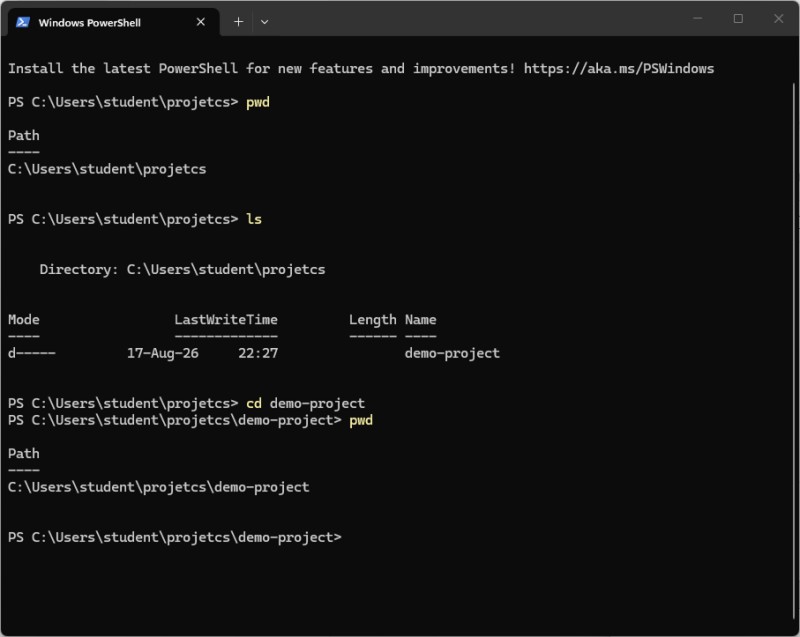
Look at the last part of the path: projects has changed to demo-project. No magic involved. The cd command didn't open a new file or copy anything, it just moved the terminal's current location to a different folder.

Keys that save time
A couple of habits here pay off quickly. The terminal keeps a history of what you've typed and helps you complete long names:
↑- shows the previous command. Press it a few times to go further back through the history;↓- takes you back toward newer commands in the history;Tab- completes the name of a command, file or folder. For example, typecd demand pressTabto getcd demo-project;←and→- move the cursor within the line, so you can fix one letter without retyping the whole command;Ctrl+C- usually stops a running command if you started the wrong thing or the process won't finish;Ctrl+L- clears the visible part of the terminal, but doesn't delete any files or your command history.
The ones you'll use most are the up arrow and Tab. The first brings back a command you've already typed, the second cuts down on typos in long paths.
Folder, directory and path
You copied a path into a command, moved to another folder - and the exact same command no longer works. It's not a typo: paths come in two kinds, and one of them depends on where the terminal is right now. Let's go through both.
Names first, and they're simpler than they seem. A folder and a directory are the same thing. Interfaces tend to say "folder", while people talking about the terminal say "directory".
A path is the address of a directory on disk. Windows, macOS and Linux use different separators, but the logic is the same: each piece of the path takes you one level deeper. First the drive or the root directory, then the user, the shared projects folder and, finally, the specific project.
A full path and an absolute path are the same thing, just two names for it. Such a path starts from the very top of the file system: from the drive letter on Windows or from the / character on macOS and Linux. It leads to the same place no matter which directory the terminal is currently open in.
A relative path is the opposite: it describes the route from the current directory. It comes out shorter, because you don't have to repeat the beginning of the address. But move to another folder and the meaning of the path changes.
Say the project contains this file:
demo-project/
└── src/
    └── index.html
The terminal is open at the root of demo-project. Here are two ways to get to the same index.html:
| System | Full, or absolute, path | Relative path from demo-project |
|---|---|---|
| Windows | C:\Users\student\projects\demo-project\src\index.html | .\src\index.html |
| macOS | /Users/student/projects/demo-project/src/index.html | ./src/index.html |
| Linux | /home/student/projects/demo-project/src/index.html | ./src/index.html |
The dot . means "the current directory". So .\src\index.html and ./src/index.html read as "from the current folder, go into src and take index.html". The dot is often left out: src\index.html and src/index.html mean the same thing.
If you go up from demo-project into the shared projects folder, the old relative path won't work anymore. From the new location you'll need .\demo-project\src\index.html on Windows or ./demo-project/src/index.html on macOS and Linux. The full path stays exactly the same.
A path with spaces goes in double quotes, otherwise the terminal will decide that a new argument starts after the space:
cd "C:\Users\student\My Projects\demo-project"Why the current directory matters
A terminal is always in some directory, even before the first command. It's called the current or working directory. That's where commands start looking for files and working out relative paths.
You need to copy a file from "Downloads" into "Accounting secrets" inside "Documents". You copy the file, walk the whole path to the right folder and only there click "Paste". The file is written to disk at one specific address. Nobody pastes a file "somewhere in Documents" - every time you get to the exact spot, you just do it with the mouse and don't think about it.
The terminal works the same way, only instead of a file explorer window you have a path line. You're still the one choosing the directory, and that's where the agent starts working from.
You can technically open a terminal at the root of the C:\ drive. Is it a good idea? No. And not because Claude Code will rush to read every file on the disk - it won't. The problem is that you've picked a bad starting point:
- the agent has no clear boundary for a single project - right next to it are system files, user folders and your other projects;
- relative paths start somewhere other than you expect -
srcsuddenly isn't thesrcyou meant; - the path itself doesn't tell you which project you're working on right now.
There's one more small thing that's easy to trip over: the file open in IDEA and the terminal's current directory are two separate states. You can be looking at a file from one project while the terminal is still sitting in another. Switching editor tabs doesn't move a terminal that's already open.
The starting point
The project root is the top folder that holds the related files of one project: code, settings, documentation and whatever else it needs. No need to learn the formal definition by heart. It's easier to look at the role: this folder brings one whole project together.
For example, a shared projects folder can hold several independent projects:
projects/
├── demo-project/
│   ├── README.md
│   └── src/
└── calculator/
    ├── README.md
    └── src/
In this tree projects is a container. The first project's root is demo-project, the second's is calculator. You can technically start the agent from the shared folder, but there's less useful context there: two unrelated projects sit side by side.
In practice the rule is short: find the top folder of exactly the project you want to change, open a terminal there and start your tools from it. That way commands, files and project instructions all end up in one clear area.
The agent studies the structure and files around the task to understand the context. Start it too high up, and other projects end up next to it as well. With a vague request, the agent may decide they're part of the task too, and along the way change things nobody asked it to change.
In the middle of work it's easy to see the result you expected and miss the extra edits in a neighboring project. That's why the right working directory isn't a formality but a clear boundary for the agent.
How codegym-project is organized
And now for the CodeGym case this was all leading up to. The IDEA plugin downloads tasks into one big codegym-project tree. From the outside it looks like a single project, but inside there's an important twist: every task is a separate project.
Not one file in a shared pile, but a project of its own: with its own folder, its own files and its own rules for the agent in .claude. One task, one project. literally.
A simplified version of the tree looks like this:
codegym-project/
└── src/en/codegym/claude/course/level01/
    ├── task05/
    │   ├── .claude/          # agent rules for task05
    │   └── arkanoid.html     # the file for this task
    └── task09/
        ├── .claude/          # separate rules for task09
        ├── arkanoid.html
        ├── clicker.html
        └── tictactoe.html
These are the same offices from the analogy above, only now with numbers on the doors: task05 and task09. Each has its own documents and its own rules, and codegym-project is the whole building. Calling an assistant into the lobby isn't enough - you need to name the office where the current work is.
A neighboring task doesn't add to the context of the current one. You don't need the files of task05 to solve task09, and the rules from one folder don't replace the rules of another. So for work on CodeGym, the project root is the folder of the specific task, not the shared codegym-project.
Working on task09? Open the terminal in task09 and start claude there. The shared course root is too broad for that.
Starting the agent in the task folder
Good news: you won't have to type the long address by hand. IDEA can open a terminal right in the folder you select.
Below is the manual way. Yes, Claude Code can move between directories on its own and run commands in the right folder. It's still worth working through it once: you don't depend on the agent's hints, and you can see the boundaries of the current task right away.
- Find the
taskXXyou need in the project tree. - Right-click the task folder.
- Select
Open In-Terminal. - Check the current directory with the
pwdcommand. - Check the files with the
lscommand. - Make sure the path ends with the right
taskXX, then runclaude.
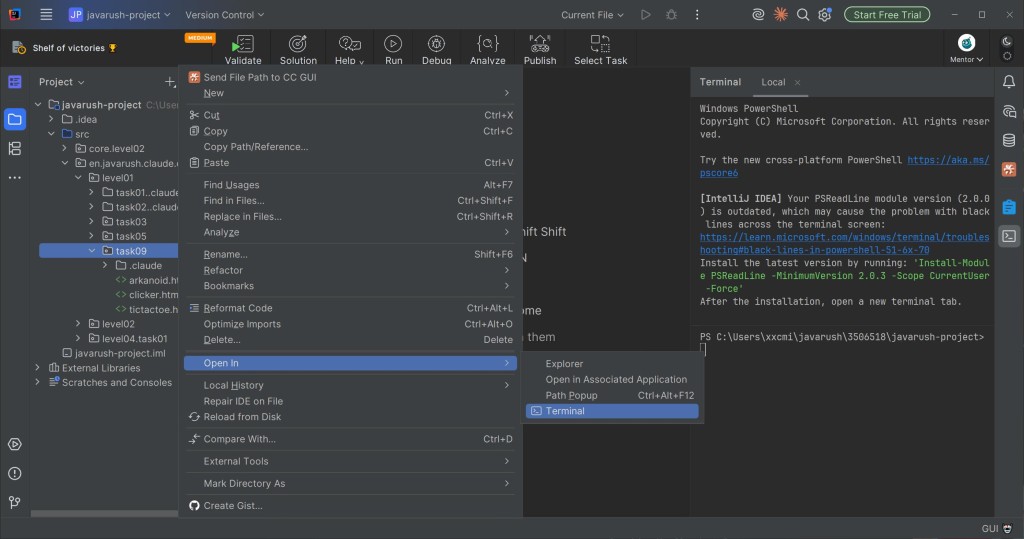
IDEA sometimes shows nested package folders as a single line with dots, for example en.codegym.claude.course.level01. Don't retype that line as a path on disk. It's easier to open the terminal via Open In - Terminal or copy the real path with Copy Path/Reference.

If the terminal is already open in codegym-project, you can move there manually:
cd src/en/codegym/claude/course/level01/task09
pwd
ls
claude
New task - new working directory
Switched from task05 to task09? The open agent session won't follow the IDEA tab on its own. End it with the /exit command, open a terminal in the new task, check the path again and start claude.
Don't mix different tasks in one session. Earlier files, decisions and assumptions stay in the conversation, so the agent can carry old context over into the new work. You end up with a jumble of two tasks that's hard to untangle later.
We'll cover why session context matters so much and how to manage it later in the course. For now, stick to a simple rule: new task, new session.
You can keep several terminal tabs open, but each one should have a clear task. When you're just starting out, it's easier to close the old session before switching, so you don't have to guess which project the agent is currently working on.
Does the path end at C:\, your home folder or codegym-project instead of taskXX? Stop the session, go to the task folder and start the agent again. Fix the address first, then carry on with the work.
How it all fits together with Claude Code
Let's put it all into one picture. The terminal gives Claude Code more than just the launch command: it also sets the starting point for the project structure, relative paths and local instructions. The current directory shows where the work begins, and the root of a single project gives the agent a coherent set of files without noise from next door.
Two consequences follow from this, and both are easy to forget in the middle of work. An open IDE tab doesn't change the directory of a session that's already running, so moving to another task means both a new directory and a separate session. And in codegym-project, the root of a single project isn't at the top of the tree but at the level of a specific taskXX.
In practice, three quick checks before the claude command are enough:
- Look at the path with
pwd. - Look at the files with
ls. - Make sure you see the one project you need, and only then start the agent.
And that's it. The terminal doesn't make the work harder here, it makes an invisible setting visible: you know exactly where you are and which project you're handing to the agent.
GO TO FULL VERSION