1. One course, two places to take it
The browser is an easy place to start: open the page, read the lecture, do the first task. The agent is there too - Claude Code is built right into the browser panel, so you can work on tasks with it from day one. There are two limitations: everything stays in the browser, and each task gets its own separate project.
IDEA is a professional tool where everything is within reach at once: the code, the task statement, the terminal and the agent in one window, and the project lives on your own disk. At first it may feel like using a sledgehammer to crack a nut. A few tasks in, you'll find that working without an IDE already feels awkward. I'd switch right away: getting used to a real work tool is cheaper while the tasks are still simple.
If you didn't use the installer: install the plugins manually
The installer from level 1 has already added the CodeGym and Claude Code plugins and set up signing in to your account. If you ran it, you can skip this section. Not sure whether you ran it? Open the plugin list: if CodeGym and Claude Code are already there, you're all set - keep scrolling.
- Install the CodeGym plugin. On Windows and Linux open
File → Settings → Plugins, on macOS -IntelliJ IDEA → Preferences → Plugins. On theMarketplacetab, typeCodeGyminto the search box and clickInstall. Don't restart IDEA yet: install the second plugin first.![]()
- Install the official Claude Code plugin. Still on the
Marketplacetab, typeClaude Codeinto the search box, selectClaude Code [Beta]and clickInstall. Once both plugins are installed, restart IDEA. - After installation, click
Sign inon the plugin's top bar. On the CodeGym website, open Settings → Security and login, copy the secret key and paste it into the sign-in window in IDEA.![]()


Once you're signed in, the CodeGym plugin downloads the course project, and you can open tasks right in IDEA.
2. Where to find the task list
On IDEA's left vertical toolbar, click Tasks. The list of available tasks opens.
Find the task card you need and click it. In the window that appears, choose Open.
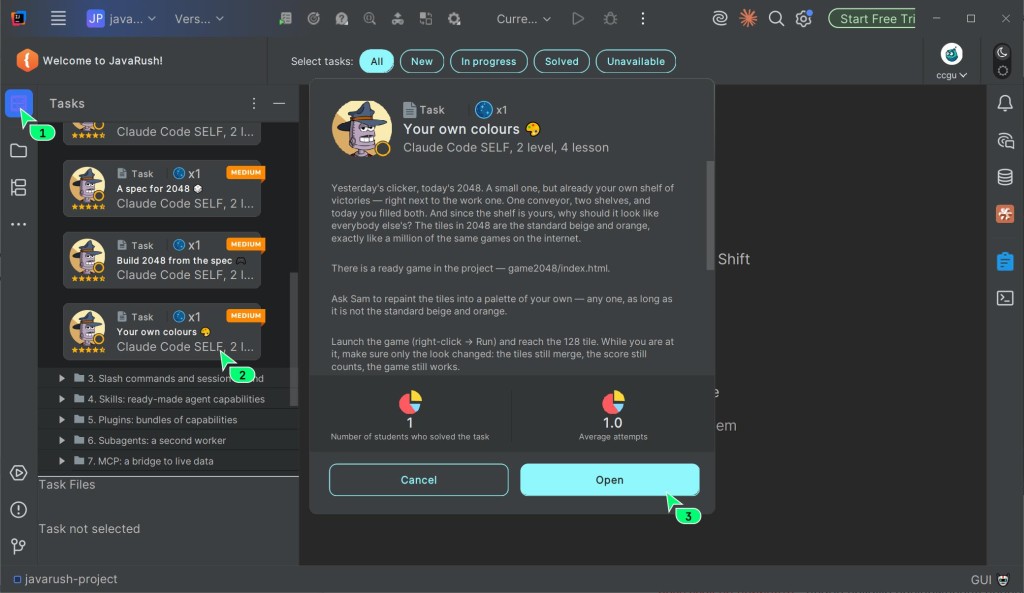
All the tasks from the website are available in the plugin. If you've already solved a task on the website and it passed the check, your code is loaded into the project in IDEA.
At first the task window looks cluttered. To get started, you need exactly two things:
Condition- the task statement: what you need to do and which requirements to meet;- the project tree on the left - the task files you work with. They can be of different types and have different names:
index.html,Main.javaor something else - look for the one the statement asks for, not a familiar name.
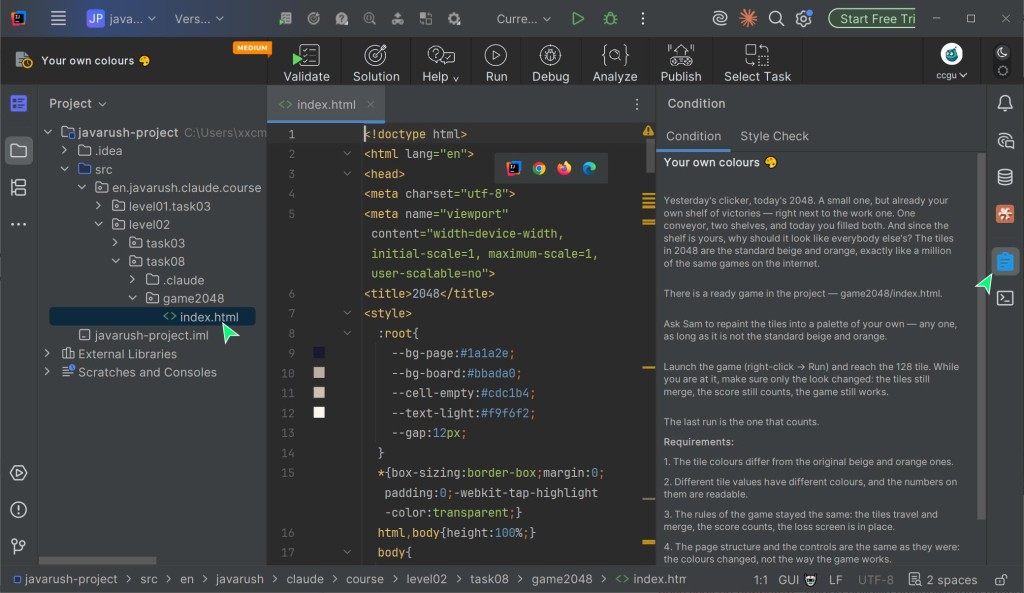
The logic is simple: read Condition first, then find the right file in the project tree and get down to solving the task.

3. The agent sees the files, but not the statement
When you open a task, the plugin downloads its files to your disk. Claude Code works with files, so it does see the folder tree, the code and the rest of the task files - as long as it was started in the right folder (that's the next section).
But the statement and the requirements live in the Condition panel, and the agent doesn't see that panel automatically. Figuring out what the task means and picking out the requirements is part of your learning, and it's important to go through it on your own.
The temptation is understandable: paste the statement into the chat and let the agent work out what's being asked of you. Don't paste the whole statement. You'd skip the most important step - reading the statement, finding what matters and understanding the requirements.
First read the whole statement and make sense of it. After that, you can paste just the important parts into the chat with the agent. Even better, describe the goal and the requirements in your own words. That way you really understand the task, and Claude Code stays a helper rather than a substitute for learning.
4. Each task is a separate project
The main point up front, so you can read on without worrying: you won't have to keep track of folders all on your own. The agent notices when it's working on the wrong task, tells you so and offers to switch to the right folder - and if you allow it, it switches by itself.
Below is the manual route: how to do the same thing with IDEA's own tools. It's there so you understand what's actually going on and don't depend on the hint.
Now the key fact about how the course is set up. Each task here is a separate project. Not a file inside one shared project, but a standalone project: its own folder, its own files, its own agent rules in .claude. The course has as many projects as it has tasks.
The plugin puts them all into a single tree, codegym-project, so you don't have to open a separate window for every task. It looks roughly like this:
codegym-project/
└── src/en/codegym/claude/course/level01/     # course level
    ├── task05/                # a task = a separate project
    │   ├── .claude/           # agent rules for this task
    │   └── arkanoid.html      # task file
    └── task09/                # another task = another project
        ├── .claude/           # with its own rules
        ├── arkanoid.html      # task files, there can be several
        ├── clicker.html
        └── tictactoe.html
Why this matters. Usually a project tree is just one project: the files in it are related, and it helps the agent to see all of them. You start it at the root, it reads the project rules, sees the neighboring files - and all of that works in your favor.
Here that habit lets you down. There's one tree, but it holds as many projects as there are tasks, and they have nothing to do with each other: task09 knows nothing about task05, and each task has its own .claude rules. To the agent, the project root isn't "your project" but a warehouse of unrelated projects. There's no useful context in the neighboring tasks, and from up there it will pick up the rules of the task you need only partly and not right away: the task's instructions and skills load only once it opens that task's files, and the task's settings don't load at all.
This leads to something worth grasping right away: what the agent sees depends on where you start it. Type claude at the project root, and the whole course comes into view: other tasks, other code, other rules. The agent will search for the file it needs among hundreds of unrelated ones, and in the worst case it'll edit a file from a neighboring task.
So the rule is simple: start the agent in the folder of the task you're solving.
How to start the agent in the task folder
- Find the task folder in the project tree on the left.
- Right-click it and choose
Open In-Terminal. A terminal tab opens, already sitting in that folder. - Type
claude.
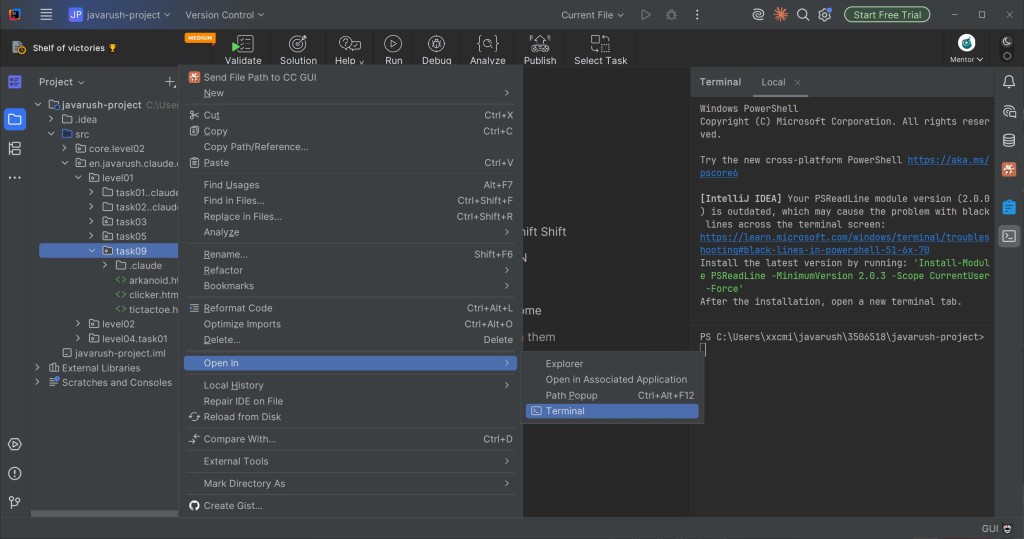
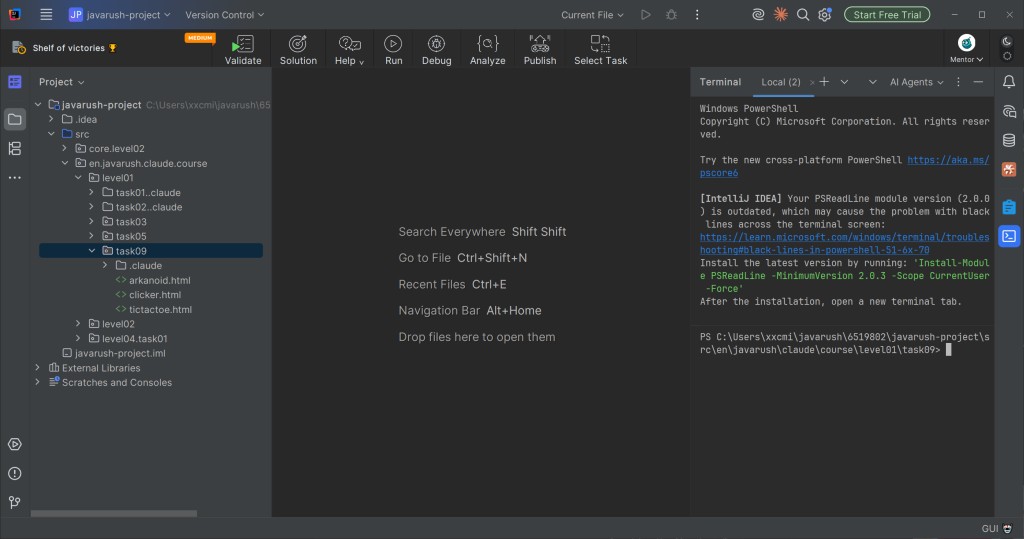
Sounds like an extra step. In practice it's a single right-click, and you do it once per task.
There's no magic behind that click: IDEA simply types the cd command to the selected folder for you. You can do the same thing by hand in a terminal that's already open:
cd src/en/codegym/claude/course/level01/task09
claude
One trap: in the project tree IDEA shows the package as a single dotted line - en.codegym.claude.course.level01 - while on disk these are nested folders. There's no point retyping that path from the screen, because on disk it looks different. It's easier to copy it: right-click the task folder - Copy Path/Reference.
That merging has a follow-up, and this one isn't harmless. IDEA collapses into one line any chain of folders where a folder holds just one other folder and nothing else. In a task that so far contains nothing but .claude, that folder ends up in the same line too. It looks like the task folder, but a right-click on it applies to the deepest folder in the chain.
Open In - Terminal on such a line opens the terminal in src/en/codegym/claude/course/level01/task02/.claude, not in src/en/codegym/claude/course/level01/task02. Run claude there, and the agent takes a folder holding its own settings for the project: it starts creating your solution files right inside .claude instead of the task folder.
The safest fix is to turn the merging off altogether. Above the project tree, click the three-dots button, open Appearance and uncheck Compact Middle Packages. After that every folder gets its own line in the tree, and a right-click lands where you aimed.
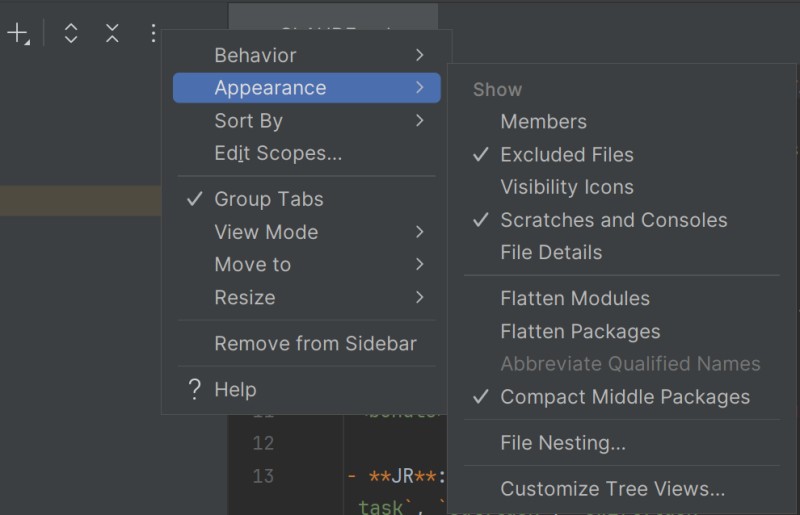
If the terminal is already open and its path ends in .claude, go one level up with cd .. and only then start the agent.
Moved on to the next task
The working folder is set when the agent starts, and it doesn't follow you around. But you don't need to do anything complicated either: the agent will notice that the task has changed and offer to switch to its folder.
Prefer to do it yourself? Go to the new task's folder and start claude there, with the same right-click or with the cd command. You can also open a separate terminal tab for the new task, so both are at hand.
The agent tells you where it is
You don't have to track this by hand. In the status line under the chat, the course profile for Claude Code shows which task it's working on: JR · claude.course · task02.
And if a different task is open in your IDE, a yellow warning appears in the same place, saying that the IDE has task01 open. It means you're looking at one file while the agent is working in another folder. If you see this, stop and figure out what exactly got out of sync: either the agent was started in the wrong folder, or you opened a file from the wrong task.
The study session log
There's one more reason to start the agent in the task folder specifically, and it's worth saying plainly.
The course profile for Claude Code is set up to keep a work log. While you're solving a task, a .codegym folder appears inside it, and a record of your work goes there: your requests to the agent, the beginning of its responses, which files it changed, which commands it ran.
Here's what a task folder looks like after you've worked in it:
task09/
├── .claude/                  # agent rules for this task
├── .codegym/
│   ├── cc-transcript.txt     # work log, plain text
│   └── cc-transcript.json
├── arkanoid.html             # the task's own files
├── clicker.html
└── tictactoe.html
Why it's needed: the platform uses this log to check your solution to the task. It's your "show your work" notebook - it shows not only the result but also how you got there. Sounds a bit unsettling, I know. But without the log, all the platform can see is what you ended up with.

The log stays on your disk, next to the task: you can open the file and read it. And it's created wherever the agent was started. Start it from the project root, and that's where the log ends up, not in the task folder. One more reason not to skip the cd.
5. How to submit a solution for checking
When your solution is ready, click the Verify button in the task window. The plugin sends the current version of your solution to the CodeGym server.
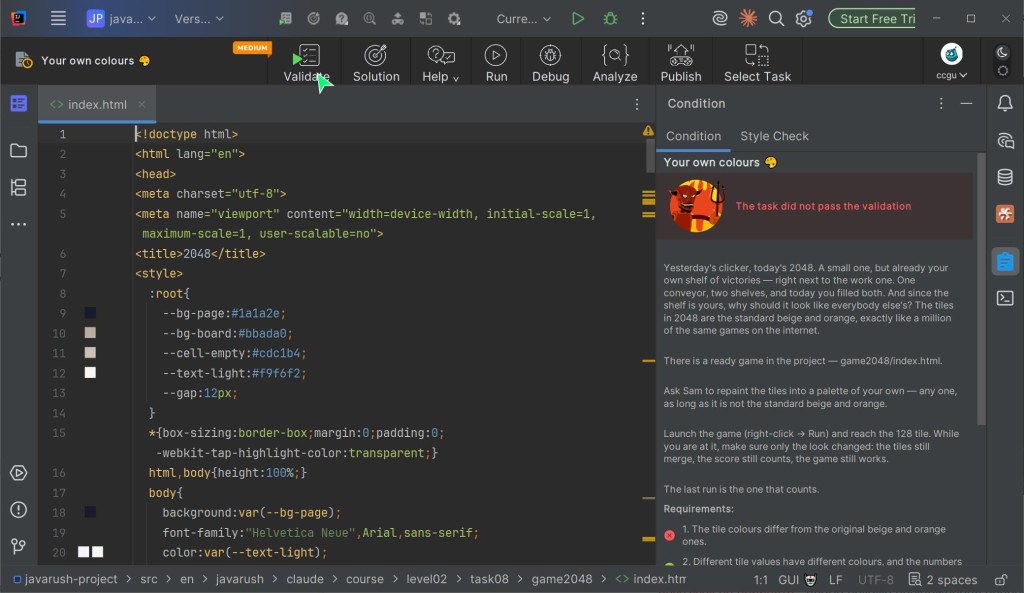
Once the check is done, the result appears in the same place, in the task interface. From there, one of two things happens:
- solution accepted - the requirements are met and the task counts as done;
- solution not accepted - the plugin shows the checker's message, and after that you can go back to the statement and fix your solution.
A rejected attempt doesn't mean the project is broken. It's just regular feedback. Read the message, open Condition again, compare it with your solution and fix one clear point. One, not everything at once: that way you can see what actually helped.
You can submit a solution as many times as you like. That's exactly what the check is for: make an attempt, get the result, fix it, submit again.
6. Plugin settings worth knowing
Task sync: the website and the plugin
The plugin shows the tasks of your active course - the one selected in your account on the website. You can have several courses there, but only one is active at any time.
The task list and task statuses update on their own: roughly every five minutes and after every successful submission. A task you solved on the website shows up in the plugin as already solved.
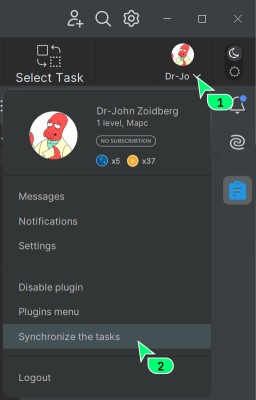
To update right now, click your avatar in the top right corner and choose Sync tasks. After you change the active course, this step is a must: until you sync or restart IDEA, the plugin keeps showing the tasks from the previous course.
How to hide the plugin's navigation bar
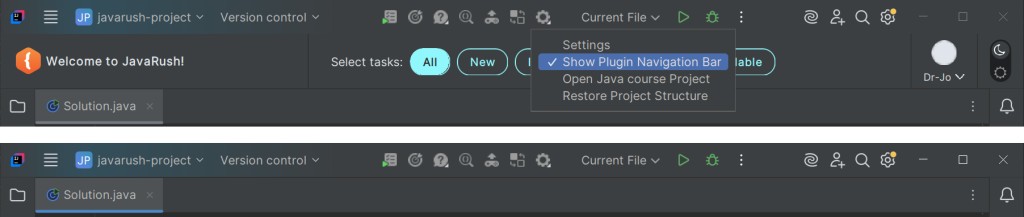
It sounds odd, but here's the order: first you have to make the bar appear. It only shows up when Beginner Mode is turned off - that's a simplified view of the plugin with some of its features hidden. And the checkbox that hides the bar lives on the bar itself, under the gear icon.
- Click your avatar in the top right corner and choose
Settings - Beginner Modeto turn it off. - A navigation bar appears at the top of the plugin. Click
Settings (⚙️)on it and clear the "Show plugin navigation bar" checkbox.
I hide it straight away myself: screen space is worth more than a couple of buttons.
GO TO FULL VERSION