You ask the agent to fix a page, and files with puzzling names appear in a simple project: index.html, style.css, script.js. Or perhaps they were already there, and the agent's report says "changed the styles" without making it clear what it actually touched.
Let's look at the three core technologies a browser works with: HTML, CSS, and JavaScript. We'll use a simple static page with no build step to keep things clear. In a real repository, files may have different names and locations, so before making changes it helps to ask the agent to show you the project structure and find the files responsible for the element you need. This article won't teach you to write the markup by hand. That's what you have an agent for.
A page is text that the browser reads
Let's start with a simple static page: its source consists of ordinary text files. You can open them in a text editor and read them yourself. No extra build step is needed here. The browser reads the HTML, loads the resources linked from it, and uses them to draw the page on the screen.
The starting point for a project like this is usually index.html. The browser opens it, parses the markup, and follows its links to load styles, scripts, images, and fonts.
In a project with a build step, the source may live in components while a dedicated tool produces the final HTML, CSS, and JavaScript. The roles below are still a useful map, but there's no reason to look for exactly three files with these names.
Our simple example has three files with different roles:
- HTML - what is on the page: a heading, a paragraph, a button, an image;
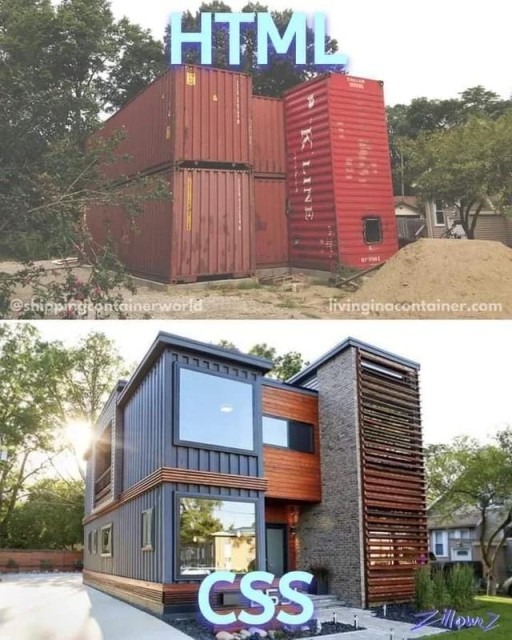
- CSS - what it looks like: colors, fonts, spacing, rounded corners, smooth transitions;
- JavaScript - what happens: on a click, on text input, or when a timer fires.
Let's take them one at a time.
HTML: what markup is made of
HTML is markup, not drawing. You don't describe what a button looks like. You say "there's a button here", and the browser draws it the way it knows how.
The basic unit of markup is a tag. Most often tags come in pairs: an opening tag and a closing tag, with content between them.
Each part has its own name, and the whole thing is called an element. This word will come in handy: when people talk about a page, they usually say "element" to mean a tag together with everything inside it.
Tag names are shortened English words: p comes from paragraph, a from anchor, and img from image. There's no need to memorize them all, but those names can often help you guess what an unfamiliar tag does.
A closing tag has a slash in it. Some elements have no closing tag at all. For example, <img> can't contain text or nested tags. Instead, it gets the address of an image from the src attribute.
Tags nest inside one another like boxes inside boxes, and they close in reverse order: the inner one first, then the outer one. If you get the order wrong, the browser won't crash. It'll try to guess what you meant. Usually not very well.

The second idea is an attribute. It's an extra detail inside an opening tag that says something about the element: where a link leads, where to get an image, or what to call the element.
<a href="https://example.com">Open the website</a>
<img src="cover.png" alt="Cover">
<button id="play" class="btn">Play</button>
The class attribute in the last line will matter in a couple of minutes: it applies styles to the button. The id="play" attribute gives the button a unique name that the script can use to find it.
Now for a complete page. It's shorter than you might expect:
<!doctype html>
<html>
<head>
  <title>My page</title>
</head>
<body>
  <h1>My first page</h1>
  <p>A plain paragraph of text.</p>
  <button id="play" class="btn">Play</button>
</body>
</html>
There are two parts: <head> holds document metadata such as the browser tab title and links to styles; <body> contains everything the reader sees on the screen. The first line simply tells the browser that this is modern HTML.
The diagram shows the key property of markup: everything on a page sits inside something else. <body> sits inside <html>, the button sits inside <body>, and the text sits inside the button. That's why the code is indented: the indentation shows which elements are nested inside others.
The practical takeaway is simple. The browser tab title and style links live inside <head>, and you don't see them on the page at all. Everything else goes inside <body>. When the agent writes "added a block to body" in its report, it means exactly the second box: something new was placed on the page, not among the document metadata.
HTML has more than a hundred tags, but most real pages keep using the same few:
| Tag | What it does |
|---|---|
<h1> ... <h6> | six levels of headings, from the highest level to the lowest |
<p> | a paragraph of text |
<a> | a link, with its address in the href attribute |
<img> | an image, with the file path in the src attribute |
<button> | a button |
<ul> and <li> | a list and a list item |
<div> | a container block, a box for other elements |
<span> | a piece of text inside a line that you want to handle separately |
The last two have no meaning on their own and don't draw anything. They're empty boxes that styles and scripts can easily grab onto. That's precisely why you see so many of them on almost any page.
CSS: how a page gets its look
Bare markup doesn't look like much: black text on white, a gray system button, everything pressed against the left edge. Most of the difference between that and a designed page comes from CSS.
CSS consists of rules. A rule answers two questions: what are we applying it to, and what are we changing?
.btn {
  background: #6c5ce7;    /* background color */
  color: #ffffff;         /* text color */
  padding: 12px 24px;     /* space inside the element */
  border-radius: 12px;    /* rounded corners */
}
The first line is the selector: it says which elements the rule applies to. Inside the curly braces come "property: value" pairs, each ending in a semicolon.
The dot before btn means a class. Remember the class="btn" attribute on the button? This is where it comes into play: you put a label on the element in the markup, then refer to that label in the stylesheet. You can put the same label on ten buttons, and one rule will make all ten look alike.
CSS has hundreds of properties, but you only need a handful to read someone else's file and understand roughly what is happening:
colorsets the text color, whilebackgroundsets a background color or image;font-sizeandfont-familyset the size and typeface;paddingis space inside an element, whilemarginis space outside it, between neighboring elements;border-radiusrounds the corners, which somehow does half the work of making an interface feel polished;transitionadds smoothness: a change takes 0.2 seconds instead of happening in a jump.
Most often, rules live in a separate file. The page loads that file through a line in the document head:
<head>
  <link rel="stylesheet" href="style.css">
</head>
Remove that line and the stylesheet won't load. The text and elements remain in the markup, but their familiar layout and appearance may disappear. Sometimes the page even becomes harder to use.
The page on the left and the one on the right contain the same heading, two lines of text, and one button. No element was added or removed. In this example, only the stylesheet changed.
This is a map for where to start looking, not a hard technical boundary. A new layout may require the agent to change classes or containers in the HTML, and a bad CSS rule can cover a button and stop clicks from reaching it. So after a visual change, read the diff, open the page, and test the affected actions.
JavaScript: how the page responds
HTML and CSS can already display a page and give it smooth transitions or animation. But the button in our example still has no action of its own: you click it, and the score doesn't change.
JavaScript usually adds custom logic to a page. The button already has a unique name in the HTML: id="play". From here the pattern is simple: find the element, wait for an event, then change something.
// find the button by its id
const button = document.getElementById("play");
let score = 0;

// set what to do when the button is clicked
button.addEventListener("click", function () {
  score = score + 1;
  button.textContent = "Score: " + score;
});
The first click changes the label to "Score: 1", the second to "Score: 2". If nothing happens, first check that the HTML says id="play" and the script uses the same name, play.
Three details matter here. const and let create a variable, a named box that holds a value. addEventListener tells the page to listen for an event: a click, text input, or the mouse moving over an element. Inside the curly braces sits a function, a piece of code that runs when the event happens.
Notice the last line: the script changes the button's text. This is important: JavaScript can change both markup and styles while the page is running. It can add a paragraph, hide a block, or recolor a button. The boundary between the layers is a division of labor, not a wall.
In practice, start looking in JavaScript when an element reacts to data, handles a click, or calculates something. CSS often handles a smooth appearance, a color change, or simple movement. This is a starting point, not a final diagnosis: after the edit, open the page and check the look and behavior yourself. A screenshot isn't enough.
One button in three files
Let's bring everything together in one element. The "Play" button lives in three files at once, and each one has a different job.
<button id="play" class="btn">Play</button>.btn {
background: #6c5ce7;
border-radius: 12px;
}const playButton = document.getElementById("play");
playButton.addEventListener("click", function () {
playButton.textContent = "Game started";
});When the files are connected, clicking the button changes its label from "Play" to "Game started". Now you can test the example without inventing a missing function.
And now the useful part: what happens if you remove each part in turn?
- remove the HTML and everything disappears: there's nothing left to style or bring to life;
- remove the CSS and the button stays in place and still works, but looks like a gray system button from the nineties;
- remove the JavaScript and the button looks good but does nothing. You can click it all day and nothing happens.
This gives you a simple map for describing a task. If you dislike how something looks, start with the styles. If you dislike what happens, start with the script. If the element doesn't exist at all, start with the markup. But that's only where you start: a real change may touch a neighboring layer, so check the agent's result in the diff and in the browser.
What is in the project folder
The most common set for a simple page looks like this:
index.html markup, entry point
style.css styles
script.js behaviorTwo lines in the markup connect them. The stylesheet is linked from the document metadata; the script goes at the very end, just before the closing </body>, so that every element already exists by the time it runs:
<head>
<link rel="stylesheet" href="style.css">
</head>
<body>
<!-- page markup -->
<script src="script.js"></script>
</body>It can work differently. A large project may have dozens of files arranged in folders such as css/ and js/, with images and fonts nearby. Or it can go the other way and put everything in a single file, which we'll cover next. The roles of markup, styles, and logic remain, but file names and the way those files are connected can vary.
When styles and scripts live inside the page
Three files are the most common arrangement, but not the only one. The same CSS can live in three different places, and sooner or later you'll run into all three.
You've already seen the first: a separate file plus a <link> line. The second is a <style> block written directly in the markup, with no separate file:
<head>
<style>
.btn {
  background: #6c5ce7;
  border-radius: 12px;
}
</style>
</head>Everything inside is the same: a selector, curly braces, and "property: value" pairs. Only its location has changed. People often write it this way when there's just one page and a separate file would add needless overhead.
The third place is inline styles. The properties sit directly on the element in a style attribute:
<button class="btn" style="background: #e17055; font-size: 20px">Play</button>No selector is needed here: it's already obvious which element the rule belongs to. That means no curly braces and no dot before a class name, just "property: value" pairs separated by semicolons, all on one line.

This is convenient exactly once. Then the drawbacks begin. The rule applies to one element only: ten buttons mean ten copies, and later you have to change all ten. An inline style usually overrides the corresponding declaration in an external stylesheet. If you set the button color in its style attribute and then edit the same property in style.css, the color may not change. That's why the style attribute is one of the first things to check. You don't need the detailed priority rules yet.
Scripts tell the same story, except there are two possible locations. A separate file is linked with <script src="...">, or you can write code directly between the tags:
<script>
  document.getElementById("play").addEventListener("click", function () {
    alert("Game started");
  });
</script>
Here's the whole map in one table, for future reference:
| Type | Where it lives | What it looks like in HTML |
|---|---|---|
| styles | a separate file | <link rel="stylesheet" href="style.css"> |
| styles | a block in the page | <style> ... </style> |
| styles | directly on an element | style="color: red" |
| script | a separate file | <script src="script.js"></script> |
| script | a block in the page | <script> ... </script> |
The extreme case puts absolutely everything together: the markup, a <style> block, and a <script> block all live in one index.html. There's nothing wrong with that. For a small page it can even be easier: one file, open it in a browser, and it works, with no linked files to misplace. The trouble starts later, when the page grows and you have to find something in that wall of text. At that point, the contents are usually split into files, giving you the familiar set of three.
Before asking the agent to "change the styles", find out where those styles live. If the project has only one index.html, there may be no style.css, and the edit will land inside the markup. If an element won't change, ask the agent to check three things: whether the right stylesheet is linked, whether the selector matches, and whether an inline style or a stronger rule is getting in the way. That narrows the search without guessing what is to blame.
How this works with Claude Code
Now you can see what happens when the agent starts working on a page:
- in a simple static project, the agent can write and connect the HTML, CSS, and JavaScript itself. In a different kind of project, first ask it to show the structure and name the files responsible for the element you need;
- how much you see before the agent edits a file depends on your settings and permission mode. If the agent shows a proposed change in advance, review it. After the change is made, always inspect the diff and the resulting files. A name such as
style.csshints at a file's role, but proves nothing on its own; - check visual changes with your own eyes and click through the affected elements; check behavior changes with real actions. A screenshot won't reveal that a counter has stopped counting;
- if something breaks, describe the symptom you can observe rather than the layer you suspect: "after the change, the button is visible, but clicking it does nothing". Then the agent can check the connections between HTML, CSS, and JavaScript.
GO TO FULL VERSION