You have a folder with a finished page and no link. Let's put it on Cloudflare Workers and hand the procedure over to Claude Code: we'll build a skill that turns publishing and updating into one short request.
1. Cloudflare Workers for static files
The word Workers sounds like "programs that run on a server", and that's true. Just not the whole truth: you can attach a folder of files to a Worker, and then the server simply serves them, like ordinary hosting. You don't write a single line of code.
For a page made of HTML, CSS and images that mode is enough. In the documentation that folder is called static assets, and in the project settings it takes up exactly one field, the one with a path.
Cloudflare serves the files through its own network of servers and caches them closer to visitors.
A Worker with nothing but a folder attached runs nothing. You can add a program to it later and the folder stays where it is - but that's a different story, and a different bill.
2. What it costs
Requests for static files are free and not limited in number. That's a term of the plan, not a promise that nobody counts the visits.
Then where does the well-known number come from - 100,000 requests a day? That's the limit on calls to a Worker script, that same program on the server. A page with nothing but a folder attached has no script, so it never counts toward that limit.
The top route on the diagram is the one our page takes: the file is served without calling a server-side program. The bottom one comes into play if you add a Worker script later.
The free plan does have limits, but they cover something else, the size of what you publish:
| Limit | Free plan |
|---|---|
| Files in one deploy | 20,000 |
| Size of one file | 25 MB |
| Workers per account | 100 |
For a page with a dozen images these limits are usually plenty. Before a big project, check the current Cloudflare terms: the limits can change. 25 MB per file, by the way, looks generous right up until the first video.
3. The account
Signing up at cloudflare.com is the usual thing: email and password, then a confirmation email. No card is needed for the free plan. You don't need to add a domain of your own either - the service will offer that, but that's part of the other half of the product: protecting and speeding up sites that already exist.
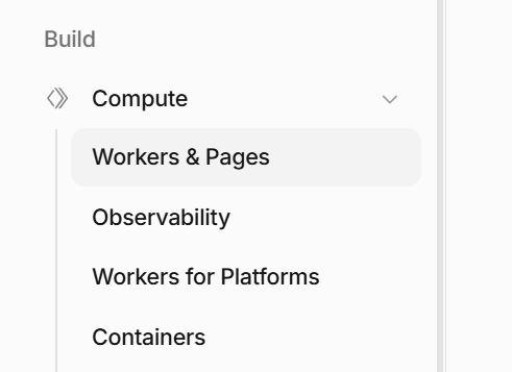
Once you're in, the section you want is called "Workers & Pages", and it isn't out in the open: in the left menu, first the Build group, inside it Compute, and only in there - "Workers & Pages". The dashboard gets rearranged from time to time, so if the section isn't along that path, search by name: the search box at the top left opens with Ctrl + K. The two words in the name are two Cloudflare products; you want the first half, Workers, and you'll end up there on your own without picking anything.
One more thing comes up on your first deploy: Cloudflare will ask you to pick a subdomain name for the account. All your projects will live on it, and an address is made of two parts - the project name plus your subdomain:
my-landing.example-account.workers.dev
|          |               |
|          |               Cloudflare's shared domain
|          your account subdomain
project name
changing that name later is a pain, so it's better not to type in the first thing that comes to mind.
4. The first deploy
First, a quick look at how publishing works in the dashboard. This is an optional tour of the service: if you'd rather set up the agent deploy right away and keep one address, jump to the preparation below.
You always hand over the whole folder, and the main page inside it has to be named exactly index.html and sit in the root:
landing/          <- this is the folder we hand over
  index.html      <- the main page, the name is required
  wrangler.jsonc  <- the agent creates it before the first deploy
  style.css
  img/
    hero.png
That's the default rule: for a request with no file name, the server serves index.html from the matching folder. Nesting works the same way - about/index.html opens at the address /about/.
You never get a file listing here: if there's no index.html in the root (say you handed over the folder one level up and it ended up in a nested one), the link will just give a 404.

Before you publish, look through the folder you picked: the files in it become public. Take out personal files and drafts you weren't going to show.
By hand through the dashboard
The projects section has a button that starts a new project. Then you're asked to hand over the files: you can pick a single file, or a whole folder. Upload, confirm - and Cloudflare deploys them and gives you a link. Button names and the order of screens change here more often than articles come out, so stick to the meaning rather than the labels: start a project, hand over the files, get an address.
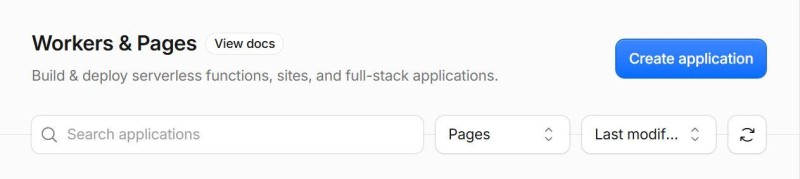
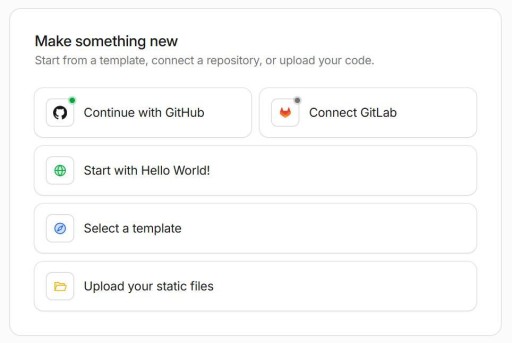
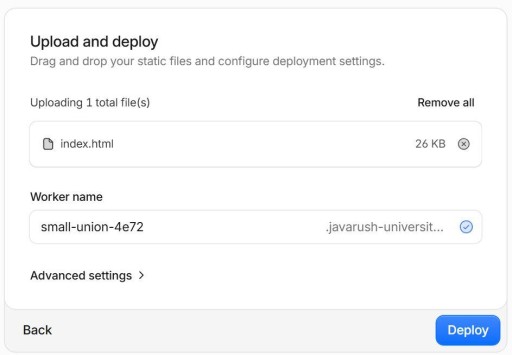
Open the address you got, https://…workers.dev, and check the page and the images. You can do that from the same computer. A phone is handy for double-checking that the page is reachable and looks right on mobile.
Publishing through the dashboard leaves no local config behind. The skill from our example won't tie a folder to a project like that on its own: with no config it'll make up a new name and a second address. Cloudflare does let you update an existing Worker through Wrangler, but for that you have to write a config with that Worker's name yourself.
What it takes for the agent to do this
For everything you publish from here on, we'll set up a skill. You only need to prepare once, on your computer.
You won't need much software. You already have the account, and you also need Node.js - check it with node -v, and if the command isn't found, install it first. There's no need to install wrangler itself: npx will download a fresh copy on its own when the time comes.
- Account
- wrangler login
- wrangler deploy
- Link
The second step on the diagram is signing in, and it's best to get it out of the way right now, before anything else:
npx wrangler login # a browser opens, with a confirm button in itRun the command in the terminal. Skip this step and the whole procedure will stall on it on the very first run, and it'll look like a broken skill, though the skill has nothing to do with it. To check that it worked, use npx wrangler whoami - it shows who you are signed in as.
For this route, signing in through the browser is enough. The API token is covered in the optional continuation at the end.
The third step on the diagram, npx wrangler deploy, is the one the agent will run from the page folder. First we give it the rules for preparing the config and for publishing.
5. Your own deploy skill
With a single page, a request in the chat is enough. But add a second, a third, a tenth - and every time you have to explain the same things to the agent: which folder we take, what to name the project, what to do with the settings file. By the third time it gets old.
What the skill has to be able to do
Five steps, and each one solves a specific problem rather than being there for completeness:
- Take the folder you named and make sure
index.htmlsits in its root. A cheap check that catches the most common mistake before the deploy rather than after. - Work out the project name - derive it from the folder name instead of asking every time.
- Look inside the folder, next to
index.html, for awrangler.jsoncfile. If it isn't there - create it; if it is - take the name from it and rewrite nothing in it. - Run the deploy from that folder and show the command before running it.
- Return the public address and remind you to check the page and the images at it.
The project name comes from the folder
This is the main decision in the whole procedure, and it's the one you can't leave to the agent to improvise. If no rule sets the name, the agent will make one up - and next time it will make up a different one. You end up with a second project at a different address, and the first one stays hanging around.
The rule is simple: the folder name is the project name. A Worker name can only hold lowercase letters (a-z), digits and hyphens, so everything else - dots, spaces, underscores - turns into a hyphen, and a short suffix of four random characters goes on the end:
landing/                 ->  landing-42c2
my.first.page/           ->  my-first-page-8e10
portfolio-2026/          ->  portfolio-2026-b7a3
The suffix is there so that two folders with the same name in different projects don't claim the same address. It is generated once, when the settings file is created, and it has to come from a command rather than out of the agent's head: otherwise it'll take the suffix from the example, and everyone who read the same article ends up with the same one. After that the suffix is always read from the config. That's exactly why the skill looks at an existing config first and only then writes anything.
Editing the name field in a finished config isn't a rename. Cloudflare will start a new project at a new address, and the old one goes on living with the old link - the very one you already sent to someone.
That's why the procedure makes it a step of its own: if there's a config, take the name from it and leave it alone.
The agent writes the settings file
The agent writes the project name and the publish settings into wrangler.jsonc, so that the deploy runs with no questions in the terminal. The config sits next to index.html, so the path to the files in it is a dot, "this same folder":
{
  "name": "landing-42c2",
  "compatibility_date": "2026-09-07",
  "assets": { "directory": "." }
}
The compatibility_date field picks the platform behavior that was current on the date you give it. For a new config the agent puts today's date, the way the Cloudflare documentation recommends; on a repeat publish it keeps the old one.
Putting the config one level up, next to the folder, is a bad idea: the file name is fixed, one directory can hold only one file like that, and the second folder will either overwrite the first one's config or get published under the first one's name. Inside the folder every project stands on its own, and the deploy runs straight from there.
A side effect of that layout: the config sits in the same folder as the page, so it gets uploaded to the host along with it, and anyone can open it by URL. There are no secrets in it - a name, a date and a dot - and anyone bothered by that puts an .assetsignore file next to it and lists what not to publish.
Three rules worth spelling out in the task, because the agent won't guess them:
- no file - create it and show what was written;
- a file is there - leave the name and the date as they are, even if today's date is different;
- rewrite the file only when the content actually changes.
Four requests worth keeping at hand
The first one is the task for the skill itself. It's longer than the rest, because this is the only time you describe the whole procedure:
Build a skill for deploying static pages to Cloudflare Workers.
Put it in .claude/skills/ of this project.
At the end, show the path to the SKILL.md you created and how to call the skill explicitly.

First read the current Cloudflare documentation on Workers
and static assets: the commands and the config fields may have changed.
If anything in the description below disagrees with the docs - tell me,
do not quietly rewrite it.

In the skill description, list the phrases it should trigger on,
at least these: "publish the folder", "publish it again", "deploy to Cloudflare".

Procedure: I take a folder and check that index.html is in its root.
I derive the project name from that folder's name: it keeps only
lowercase Latin letters, digits and hyphens, everything else (spaces,
underscores, capitals, non-Latin letters) I turn into a hyphen.
At the end I add a four-character suffix after a hyphen.
I do not invent the suffix, I get it with a command:
node -e "console.log(crypto.randomUUID().slice(0,4))"
The wrangler.jsonc config sits inside the folder being published, next
to index.html, and assets.directory in it equals ".".
If there is no config - I create it: name, compatibility_date,
assets.directory. For a new compatibility_date I take today's date
in YYYY-MM-DD format. I show what I wrote.
If there is a config - I take the name and the date from it and keep them.
I rewrite the file only when the content actually changes.
If there is a config but assets.directory points somewhere other than this
folder, or the config has a main field - I stop and say so, I do not deploy.
If I am asked to publish again and there is no config in the folder - I stop
and ask, I do not create a new project.
Deploy: npx wrangler deploy from the project folder. I show the command first.
In my reply I return the public address and remind you to check the page
and the images at it. On an update the address has to stay the same.
If there is no Node.js, or you are not signed in - I say so
instead of trying to work around it.
If the account has no workers.dev subdomain yet - I say so:
a non-interactive deploy fails on that.
Once it's built, open the file the agent showed you, .claude/skills/<name>/SKILL.md: the rules above should be in it. Before the second request, call the new skill explicitly, the way the agent showed. If the skill isn't found, ask the agent to check the path and whether it's available in the current project.
The second one is a check before you act. Handy before the first deploy of a folder, when you want to see the plan before anything goes live; if there are several folders, run it for each one:
Do not create or change any files, do not run wrangler. Just show me
what you are going to do with the landing folder: what project name,
what config you will write, what command you will run.
One caveat: the suffix appears at the moment the config is written, so for a folder that has no config yet, the name in the plan and the name on the real run may not match. Everything else will.
The third and the fourth are the working ones, the whole point of the exercise:
Publish the landing folder to Cloudflare Workers.I fixed index.html in landing. Publish it to Cloudflare Workers again.After the first publish, open the link you got and check the text and the images. Then change one noticeable phrase in landing/index.html and send the fourth request. Refresh the page at the same address: the new phrase should show up. If the address has changed, ask the agent to check the name in the config before the next deploy.
That's the main route finished: the skill is built, the page is published, and the update has been checked at the same link. Before each publish all that's left is to pick the right folder and look at the agent's command.
6. Extra scenarios
You can stop reading here until you have a reason to prepare many folders at once or to run a deploy without signing in through a browser.
When a procedure is not enough
A skill written as instructions works well while there are a handful of folders, or a few dozen. Past that, what gets in the way is that the agent rereads the procedure every time and carries it out by hand: across fifty folders that's slow, and not always the same twice.
That's when you rewrite the procedure as a script: it walks the folders itself, writes the configs, skips the ones where nothing changed, and prints a summary. The skill doesn't go away - it just calls the script instead of writing the configs itself, and it still runs the deploy on its own.
Writing it isn't your job either. The agent already has a detailed description of the procedure - your skill - so the request comes out short:
Write a Python script that does what my deploy skill describes,
only across all the folders in the project at once.

It takes the folders that have index.html in the root;
it does not look inside node_modules, .git or dist.
For each one it builds the name by our rule and writes wrangler.jsonc
into the folder.
If a config is already there - it takes the name and compatibility_date
from it, and rewrites the file only when the content really changed.
If a config cannot be read - it leaves the file alone, says so
and skips the folder.
By default it only shows the plan and writes nothing;
writing happens on an explicit flag.
I need a filter to run only the folders I pick.
The script only prepares the configs, it does not run the deploy.
At the end it prints a table: folder, project name, what was done.
If anything here is ambiguous - ask, do not fill in the blanks quietly.
Showing the plan lets you check the list of folders before anything is written. Keeping the name and the date protects existing configs from accidental changes. The script itself only prepares the settings; publishing is still the skill's job.
The access token
On your own computer you've already signed in with npx wrangler login. Wrangler stores that sign-in, and the agent's commands use it too.
If you need an automated run without signing in through a browser, or narrower permissions, that's what an API token is for. You create it in your profile: avatar, profile, the API tokens section. The direct address is dash.cloudflare.com/profile/api-tokens.
The creation form looks intimidating: permission groups, resources, filters of some kind. In fact there are four decisions in it, and half the fields you can leave alone entirely.
- Token name. Six months from now you won't remember what it was for, so write something to the point: "deploying pages from the laptop", not "token 2".
- Permissions. There's no need to collect them one by one, and it's not a good idea. The list of ready-made templates has Edit Cloudflare Workers - it already holds everything publishing needs.
![]()
- Resources. Limit the token to one account, the one you publish to. Even if you have only the one account, pick it explicitly: accounts can multiply, and the token will stay as it is.
- Lifetime and IP filter. Optional fields. A lifetime makes sense when the token is needed for one evening or for someone else's machine; in ordinary work, leave them as they are.
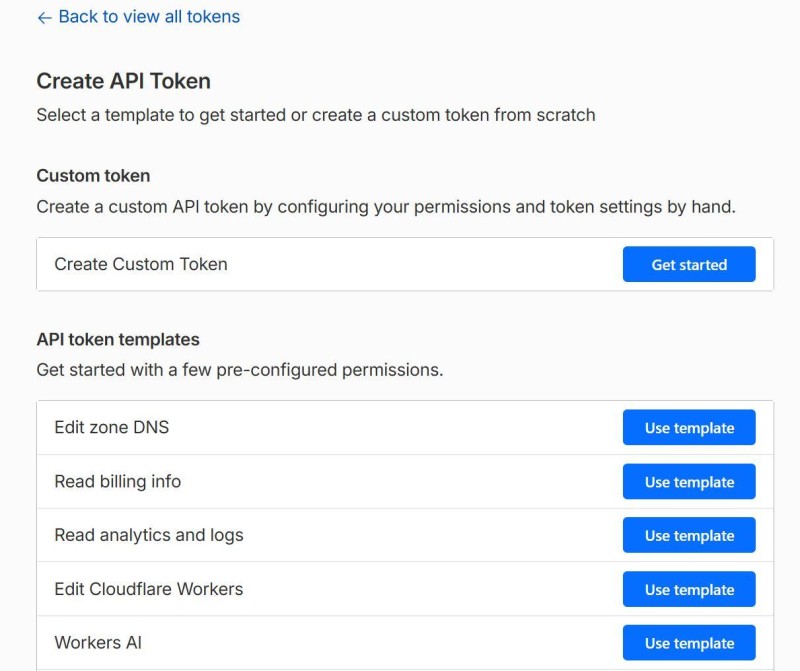
Permission sets change over time, and one day the project gains something else - storage, a database, mail. A token that worked yesterday suddenly stops fitting, and it looks like a refusal out of nowhere.
No need to panic: in cases like that wrangler says exactly which access it was missing. You can show that whole line to the agent and ask what to add to the token's permissions - it'll read the service documentation faster than you could recall it from memory.
After that, put the token into the CLOUDFLARE_API_TOKEN environment variable and the account into CLOUDFLARE_ACCOUNT_ID. An environment variable is a setting on your machine that programs read by themselves; wrangler will find both without you. How variables work and where they belong is a conversation of its own; here it's enough to know that this is a place, not a line in a chat.
| Where the command runs | What to sign in with |
|---|---|
| Your own computer, a browser at hand | wrangler login |
| A server with no browser, someone else's machine, an automated run | An API token in an environment variable |
Your conversation with the agent is stored and travels over the network, and a token with Workers permissions lets anyone publish and delete anything in your name. If the agent asks for the token, the right answer names the place it can be read from, not the string itself.
If a token has ever leaked, revoke it in the dashboard and create a new one. That's cheaper than guessing whether anyone saw it.
GO TO FULL VERSION