The page is built and open in your browser. It looks like a website and behaves like one: the links are clickable, the buttons respond. You send it to someone, and they reply "it doesn't open". Or it opens, but with no styles and no images. Nothing is broken. The page lives in exactly one place, on your own disk, and the browser's address bar says so - you only have to know where to look.
The question "how do I put a site on the internet" sounds like there's a button somewhere to find. A more useful one: where does a site have to live so that I'm not the only one who can see it? The answer comes in pieces: a server, two addresses, a path, hosting and deploy. Then - how to update what you published, why a host needs a key, and what the agent does when you ask it to "publish this".
1. The file lives on one computer
Look at the address bar when you have the page open from disk. That's not a link; it's a path to a file:
file:///C:/projects/landing/index.html    # path to a file on your disk
https://landing-demo.tiiny.site/          # address on another computer
The first line is your disk. Here the browser works like a file viewer: it opens the file, reads it, shows it. It never goes anywhere over the network. The second line is the address of another computer. The first one opens only on your machine, the second one from any device with an internet connection.
That's where "it doesn't open" comes from. Sending a file and publishing a page are different things. A page usually isn't one file but a folder: index.html, with style.css and images next to it. Send just index.html and it'll open for the other person, but it'll have nowhere to look for the styles and images. Hence "it opens, but it looks wrong".
And a second limit, a simpler one. In the evening you close the laptop, put it in your bag and take it home. That's it: it's asleep and can't serve anything to anyone. For a page to be visible to everyone at any time, its files have to sit somewhere other than your machine.
"Works on my machine" and "opens for everyone" are two different states. The rest of the article is about what lies between them.
2. The server
The key word is server. It's not a mysterious box with blinking lights, just a computer that's always on and serves files to other people. That's the whole point of it: to be reachable when you're not.
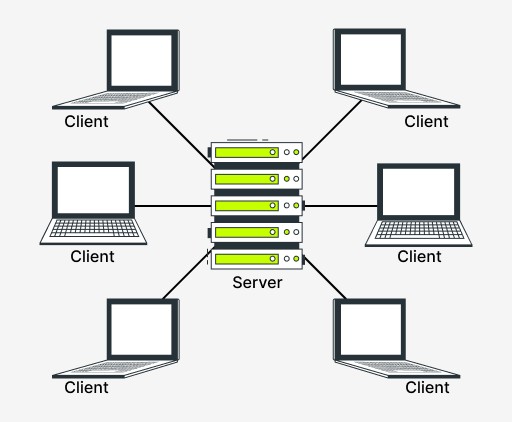
It feels like you can do without one. You send a friend a picture in a messaging app - it flies from your phone straight to them, right? No. It goes to the app's server first, and reaches your friend from there. That's why you can send it, turn off your phone and go to sleep, and your friend opens the picture two hours later. A server sits in the middle even where you can't see it.
Same conclusion for your page: for everyone to see it, the files have to sit on a machine like that. The internet isn't a shared cloud where things end up on their own, but another computer that doesn't sleep. At first that's even a little disappointing, too down-to-earth. But at least it makes sense.

3. Domain and IP
There are a lot of servers in the world, and you need some way to reach the right one. By address. A server has two of them, like an ordinary building: coordinates and a sign over the door.
The first one is the IP. A numeric address like 192.0.2.1: precise, but unreadable to a human, bare coordinates. This is exactly how computers address each other.
The second one is the domain. A name for people, like example.com. That's the sign: you don't tell a friend "meet me at the building at coordinates fifty forty-five, thirty fifty-two". You say "at the coffee shop on the corner".
192.0.2.1        # IP: the server's numeric address, for machines
example.com      # domain: the same place, with a name for people
How the two are connected: when you type a name, the browser first asks the name directory which IP is behind that name, and only then connects by the numbers. The directory is called DNS, and that's all you need to know about it for now: you type a name, the rest happens by itself.
And one more part of the address that's easy to miss: https:// right at the start. It's not part of the name but the way you connect: the conversation with the server is encrypted. Browsers each show this in their own way, but http:// without the s is marked as not secure by all of them. Hosts set up the encryption for you.
4. Path and the default file
A server usually holds a pile of files. The path says which one you want - the part of the address after the domain. If the domain is the building, the path is which counter inside it.
You read an address left to right, and it's not a magic string but three answers. https://example.com/about/team.html means "on the server example.com, open the file about/team.html".
The path is literally the path to a file on the server's disk: the folder about with team.html inside it, just like a path to a folder on your own computer. Large sites often build their pages on the fly, but the logic is the same: the address leads to a specific place.
And if the path is empty? You type https://example.com/ - which file should open? The answer was agreed on long ago: the server serves index.html from the site's root folder, and almost every host does it that way. Hence a rule that will come in handy shortly: index.html sits in the root of the folder you publish, not in a subfolder.
5. The whole route
Now all the parts are in place, and you can put them together in one chain.
- You type an address
- Name directory
- Server and path
- Page on your screen
You type an address. The browser asks the name directory for the IP behind the domain, contacts the server, and the server finds the file by path and serves it. The browser receives the same HTML text that could have been sitting on your disk, and draws the page.
The main point: the browser draws markup and styles the same way whether the file came from disk or from a server. The difference is who else can reach that file. That said, the browser does limit some JavaScript features for files opened from disk, so a page sometimes does more on a server than the same page opened locally.
6. Hosting
You have no server in a data center, and you don't need one. Instead there's hosting - a server for rent: you hand it the folder with your page, it puts that folder on its own always-on server and gives you back a public link. That's all.
The link will be on the host's domain, with your name on the left: landing-demo.tiiny.site, name.github.io. The domain belongs to the host, and you get the name in front of it: sometimes you pick it, sometimes the host assigns one. Your own domain like mysite.com is possible too, but let's leave buying and setting one up for another time: to show a page you don't need it.
For a page made of ready-made files that needs no program on the server (such a page is called static, a topic of its own), hosting can be free. You won't have to become a sysadmin.
The agent can hand the folder to a host itself: with a command, or through a ready-made skill - instructions for one specific host. What it does along the way and what it'll ask you is covered at the end of the article.
7. Deploy
And now the word this was all leading up to. Deploy: you copy your files to a place where they are available to more than just you - from your disk to the host's server. The folder stays with you and appears there.
After a deploy the same folder sits in two places, and the link points to the one on the right. The left one hasn't gone anywhere, and you can keep working with it.
Here's what actually gets uploaded:
landing/
  index.html
  style.css
  img/
    hero.png
All of landing/ is published, so style.css and the images still sit next to index.html and are found at the same paths. And index.html is in the root of that folder. Publish the folder one level up and the link will show a list of folders, or nothing at all.
How the folder gets to the server differs from host to host. The simplest route by hand: open the host's website, drag the folder or an archive of the files onto it and click the deploy button. There's also a route through a terminal command, and one through a repository. The point is the same: a copy of your folder on their server. The method also depends on who is doing the deploy: you can use the website; the agent only has the command.
Two words from all this come up constantly. Locally - on your machine, for you alone. Publicly - on a server, for everyone. A deploy is the bridge between them, and it's shorter than it looks: one folder and one copy of it.
On the computer that holds the folder, the page will open anyway and prove nothing: it's easy to open the local file by accident and never notice. The honest test is a phone on mobile data: it shares nothing with your laptop, and if the page opened there, it opened for everyone.
8. How to update what you published
You fixed the heading in index.html, reloaded the page on your phone - and it's still the old one. That's how it should be. the host holds a copy taken at the moment of the deploy, and you edited the original. For the link to show the new version, the folder has to be sent again: an update is just another deploy.
There's a subtlety here. You can send it again to the same address only if the host recognizes you. Hence two kinds of links.
Temporary. Some hosts give you a link with no account at all - enough to show the page and talk it over. It doesn't live long: with Tiiny Host, for example, about an hour. The host may ask for an email even for that, which isn't registration but a way to tie the upload to something. A link like that can't be updated; you can only publish the folder again at a new address.
Permanent. With an account the link doesn't disappear, and you can choose the address, update it and delete it; free plans usually limit the number of sites and updates. The account is free on the same hosts that give out temporary links. It comes with a key, but you don't always need one.
If the agent does the deploy, the difference between the first time and an update comes down to one phrase:
Publish the landing folder to a host. I need a link I can open on my phone.

I fixed the heading in index.html. Publish landing again, at the same address if you can.
The second request is honest. "If you can" leaves it to the agent to work out whether the link is temporary or permanent, and it'll tell you which one you got. I'm not showing the agent's replies: they differ for every host and every skill.
9. The access key
A hosting account comes with an access key: a long string of letters and digits that the host uses to recognize you. If you deploy by hand, you don't need the key: you sign in to the site, drag the folder over, press deploy - the host already knows who you are. The agent does need the key: it won't go through the website; it sends the folder with a command, and the host can only recognize a command by its key. With the key, a deploy puts your files under your permanent address; without it, all you get is a temporary link.

Whoever holds the key publishes in your name, the same as with an apartment key left out on the street. Your conversation with the agent is stored on disk and travels over the network, so don't paste the key into it, even if the agent asks for it.
The key has a place of its own, and tools read it from there themselves: an environment variable, or a file that the deploy skill reads on its own. If the skill asks where to save the key, answer with a place, not with a string in the chat.
The reverse happens too: the key arrives in the conversation by itself, as the service's reply to the agent's request. Save it to that place, and keep in mind that the conversation has already seen the secret.
The first time you publish, you don't need a key: a temporary link or an upload through the website is enough.
10. How this works with Claude Code
When you ask the agent to "publish this", roughly the following happens.
- The agent looks at the folder and sees a page made of ready-made files. If there's no skill for a host, it'll offer to install one or ask where to publish. You choose the host.
- It sends the files with a command. In modes where the agent asks for permission, you see the command before it runs: it says which folder it's sending and where, and it's worth reading rather than clicking "yes" out of habit. If it asks for no confirmations - such modes exist and are sometimes on from the start - ask it to show you the command and the folder before it sends anything.
- The result is a link in the agent's reply. Open it on your phone: the agent has no second device and won't check this itself.
- An update is the same request, "publish it again". It'll land at the same address only if the host recognizes you by your key. Otherwise the agent will honestly come back with a new temporary link, and that's not a failure.
- The agent may ask you for an email for a temporary link; that's not a secret. The key - no: if it asks, the answer is a place the key can be read from, not a string in the chat.
It should be the folder with the page, not your whole disk, not the folder with your keys and not your drafts. Deleting a site from a host is also a command, and it's worth seeing that one before it runs for the same reason.
GO TO FULL VERSION