One skill made a page noticeably better, and the next step suggests itself: install not one but ten at once. Right on cue a colleague sends a link: "install this, it's useful". All of it goes in with a single command, and that's the trap. A plugin looks like a list of abilities, but it's really code that'll run on your machine with your permissions and take up room in every conversation with the agent.
Let's look at how a plugin differs from a skill and what can be inside one, where marketplaces come from and how to tell a solid source from a random one, what Claude Code shows you before you install and how to read it. Then we walk through the whole process: install, try it on your own task, disable, remove. At the end - what to do before every install, and why the same thing is worth doing with any skill the agent brought back from the internet.
1. Skills and plugins
A carpenter has his procedures written down: how to prepare the bench, how to sharpen, how to run a batch off a template. While he works alone, they sit in his notebook. Then the guy at the next bench asks for one, the apprentice for another, and a month later the shop across the street calls, and mailing everyone a separate sheet gets old. So he packs a few procedures into a crate, puts the shop's stamp on the side and drops a note inside: what's in here and how to use it. A crate like that can be handed over whole, updated and given a version number.
That's what a plugin is. Not one more ability, but a wrapper around several of them.
| What | What it is | Answers the question |
|---|---|---|
| Skill | an ability, one procedure | what the agent knows how to do |
| Plugin | a wrapper around abilities | how to hand it out and update it |
On its own a plugin isn't a separate ability; it's a way to hand out several. Everything it can do, it does through what's inside: abilities, helpers, automatic reactions, connections. So the question "what can this plugin do" always turns into another one: what's inside.
You build your own plugin when other people start asking for your skills. If you're not sure what you actually need - a skill, a helper with a role of its own, or a plugin - ask the agent, but have it ask you questions first instead of building right away: it'll produce a draft, and you're the one who checks what's inside. The rule of thumb is simple: you repeat the same request - skill; side work clutters the conversation - helper; you need the same set in another project - plugin. How a plugin gets built step by step is a separate topic. This article is for the people who receive the crate.
2. What is inside a plugin
Most often the crate has five compartments, and they aren't equally harmless.
- skills - procedures the agent applies on its own based on their description, or on your command;
- agents - helpers with a role of their own, which the agent hands part of the work to;
- hooks - automatic reactions to events: they run commands without you asking, once something has happened;
- MCP servers - connections to external services; through them the agent reads and changes things beyond your computer;
- LSP servers - code hints for a particular language; they need a separately installed program.
Those bottom two compartments are the reason a crate gets taken seriously rather than shoved into a corner. A plugin with hooks and MCP can do what you wouldn't expect from a "set of abilities": run commands and reach out to external services. What's inside is a live tool with the power on, not a poster for the wall. Hooks, MCP and agents each deserve a conversation of their own; here it's enough to know what they mean as part of the package. There are compartments beyond these five, default settings or the agent's output style for instance, but they don't change the picture.

If you don't have the card in front of you, ask the agent to open the plugin's repository and tell you what's in its folders.
3. The name carries a prefix
Skills from a plugin are named with a prefix: /plugin-name:skill-name, for example /commit-commands:commit. The guy next door may have a "cleanup" too, and as long as the crate has a stamp, you won't mix them up.
The price is a long name: you pay for a shared set by typing more. Your own skill in the project folder has no prefix.
There's an upside too. The prefix in the / menu always shows where a command came from and whose crate it is.
4. A marketplace and two steps
Crates come from a warehouse. A plugin marketplace is a list of other people's plugins that somebody maintains. Working with it takes two steps: add the marketplace, then install plugins from it one at a time. Adding the marketplace installs nothing by itself; all you get is the list.
For most people the first step is already done. The command /plugin opens a panel with four tabs: Discover - search for plugins across all your marketplaces; Installed - the plugins you have; Marketplaces - the marketplaces you have added; Errors - loading errors. The official Anthropic marketplace is there from the first run; and its plugins show up in Discover right away: pick one, open it, install it. The same list lives at claude.com/plugins, if you'd rather look without Claude Code.
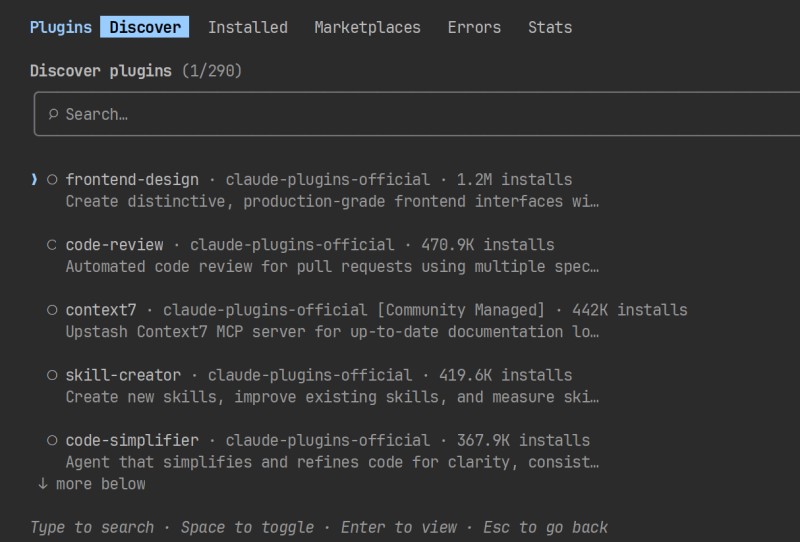
A second marketplace shows up when the plugin you need isn't in the official one: the community marketplace, or someone's repository with a marketplace file in it. You add it with one command, and a plugin from it goes in with one too:
/plugin marketplace add anthropics/claude-plugins-community   # add the community marketplace
/plugin install plugin-name@claude-community                  # install one plugin from it
/plugin list                                                  # check that the plugin is listed
You add someone else's marketplace with the same first command, just with its address.
One detail that trips people up more than anything else (me included). The marketplace name you install from doesn't come from the repository name; it comes from the marketplace's own description: the repository is called anthropics/claude-plugins-community, but you install from claude-community. The Marketplaces tab shows you the name.
The official marketplace holds plugins of different kinds. The GitHub integration is MCP, a connection to an external service. Code hints for a language, say typescript-lsp, are LSP. security-guidance checks every change the agent makes for common vulnerabilities.
5. Three levels of trust in a source
A plugin won't get picked up from a folder on its own: you have to install it explicitly, and that isn't red tape. Inside is code that'll run with your permissions, meaning it can do everything you can do on this computer. So the first question about any plugin isn't "what can it do"; it's "where is it from".
The official marketplace. Anthropic maintains it, but most of the plugins in it come from partners and other authors, not from Anthropic itself. It calls for less scrutiny than someone else's repository, but the description and contents are still worth reading.
The community marketplace. Third-party plugins that passed Anthropic's automated review; nearly every one is pinned to a specific version in the marketplace. That's a filter, not a guarantee: nobody has checked that the plugin does exactly what it promises.
Any repository or folder. No review at all. You check for yourself who wrote it, whether there's a clear description and what's in the folders.
A plugin runs code on your machine with your permissions. Anthropic does not vet what's inside a third-party plugin and does not verify that it does exactly what it promises. Popularity and "everyone installs it" don't count as reasons to install.
All three levels can turn up in a single working session: a design plugin from the community marketplace, another one from Anthropic's, a third from someone's repository with a single plugin in it. That's fine, as long as you know which level you're on at any given moment.
Scale your caution to the plugin. The more it can do, meaning the more hooks and MCP it has, and the further the source is from the official one, the closer you look.
6. What Claude Code shows before you install
The source sets how closely you look. Claude Code shows you the details itself: open the plugin from the Marketplaces tab of the /plugin panel or with the /plugin install name@marketplace command, and you get its card. The card in the Discover list is shorter: it has no cost estimate.
It has three lines that are the whole point. The last two appear only for plugins from the official marketplace.
- Will install - the contents: how many skills, agents, hooks, MCP and LSP are coming;
- Context cost - how much the plugin adds to the agent's context window: Every turn - on each of your requests, When invoked - when the agent loads its skills and agents;
- Last updated - when the plugin was last updated.
Will install:  skills: 8   agents: 1   hooks: 2   MCP servers: 1
Context cost:  Every turn: ~400 tokens   When invoked: ~1.5k tokens
Last updated:  2 weeks ago
The numbers and the line format are illustrative; they vary by plugin and by Claude Code version. Reading the contents is easy, but it's a first approximation: if there are only skills inside, the plugin most likely reads and suggests; if there are hooks or MCP, it runs commands or reaches out, and that's a reason to open the description and find out which ones exactly. The card doesn't show everything: a plugin can also bring executable files and default settings that aren't listed on the card. For an unfamiliar source, look into the repository as well.
For plugins from local marketplaces and your own, the contents and the cost may not show at all, and in their place is a line saying the components will be discovered during installation. For a plugin like that, the only way to learn the contents before installing is to open its repository and look at which folders are in there.
And a third question the card won't ask: is this plugin right for you. Even a good plugin is one you can skip. Maybe it duplicates your own skill, drags in scripts for a different operating system, or solves a problem you don't have.
7. Who gets the plugin
Who gets the crate is decided up front, at install time. There are three options.
- user - you, in all of your projects;
- project - everyone who works with this repository: the entry goes into
.claude/settings.jsonand travels with the project; - local - you, and only in this project; your colleagues don't see it.
There's also a managed scope: an administrator installs the plugin and you can't change it. Most people won't run into it.
One rule: the narrowest scope that fits. Fewer places where the plugin is enabled means fewer situations in which it runs at all, and less to clean up later. A narrow scope doesn't make a questionable plugin safe: wherever it's enabled, it can still do all the same things. Project scope deserves a word of its own: you're deciding for other people too. For a colleague who opens the repository, the plugin will be enabled but not installed: a warning shows up in the Errors tab of the /plugin panel, and they have to install the plugin themselves.
When you install from the panel, it asks you for the scope; /plugin install also opens a card where you pick it.
8. Install it and check
If the installation goes smoothly, it ends with one of two lines. Either the plugin is already active, or you're asked to run /reload-plugins. In the second case, run it; if the command warns you that reloading will reread the conversation, repeat it with --force. You don't need to restart Claude Code.
/plugin list tells you the plugin landed: it's in the list, and its skills have appeared under the prefix in the / menu.
An open crate takes up the bench. An enabled plugin adds the declarations of its skills to the agent's context window from the first second: names and descriptions. The full contents get pulled in only when a skill goes to work, but the declarations stay there the whole time. Connections to external services bring in tool names right away and descriptions as needed; automatic reactions take up almost no room in the window. The fuller the window, the more expensive and the slower every answer is.
You only see the real cost by comparing: /context shows what the window is filled with. Run it before installing and after.
The plugin's description says what it's supposed to do. Only a run will show what it does on your task: one task of your own before installing, the same task after, and a comparison of the results with your own eyes.
1) no plugin: your own task, remember the result
2) install the plugin, run /reload-plugins if needed
3) the same task again
4) compare and decide: keep, disable, remove
The result of that comparison is deliberately left out: everyone gets their own. The test is simple: you can say in two sentences what the plugin does, and name one reason to keep it or drop it - from your own run, not from the description.
9. Disable, remove, drop the marketplace
Three actions, and they are different. /plugin disable turns a plugin off but doesn't delete it: it stops taking up the window, and /plugin enable brings it back. /plugin uninstall removes it entirely. /plugin marketplace remove drops a marketplace, and every plugin installed from it goes with it. That one is easy to forget.
/plugin disable plugin-name@marketplace-name    # turn it off without losing it
/plugin uninstall plugin-name@marketplace-name  # remove it entirely
/plugin marketplace remove marketplace-name     # drop the marketplace and everything installed from it
The commands open the same panel and leave it open; Esc closes it. The Installed tab does the same things without commands: plugins with problems are shown at the top, disabled ones collapsed at the bottom. If you remove a plugin that's enabled for the whole project, Claude Code will ask: just for you, or for everyone.

Cleanup. Claude Code collects plugins you installed yourself and haven't used for two weeks across ten sessions in the Installed tab under the heading "Not used recently", and the card shows when the plugin last did anything. Separately, /doctor names the unused plugins together with what they cost in context. a set of tools stays a set as long as you remember what's in it and why.
Updates. Official marketplaces update themselves and ask you to run /reload-plugins; third-party ones don't by default. An update is almost a fresh install: the contents can change, and the card is worth opening again.
If something broke, including during the install itself, the Errors tab will show the reason. After that, try disabling it, reinstalling it, and as a last resort clear the plugin cache and install again. If the official marketplace has disappeared from the Marketplaces tab, /plugin marketplace add anthropics/claude-plugins-official brings it back.
10. Not just plugins
A skill the agent downloaded from someone's repository at your request and dropped into the project folder is the same case, only without a marketplace, a card and a scope. There's nobody to check it but you.
The questions are the same. Where it's from. What's inside: SKILL.md reads in a minute, but you check the whole folder - the scripts and the files it points to as well. Which tools it approves for itself in advance: the allowed-tools field. It shows what's pre-approved without a separate permission prompt, not the full list of what can happen. A skill from a third-party service's repository may well allow itself to run commands, and for a skill that sends something out, that's normal. But it's worth seeing before the first run, not after.
There's one difference from a plugin. A skill has no card, but all of its contents sit right there in plain text, and you can read them before the first run.
11. What to do before every install
Six steps, in the order they appeared in the article.
- Source. The official marketplace, the community marketplace or someone's repository - that sets how closely you look at the rest.
- Contents. The card and its "Will install" line; hooks and MCP mean commands and reaching out, and for those you open the description.
- Cost. "Context cost" on the card (for the official marketplace), and
/contextbefore and after: the plugin is paid for out of every request you make. - Scope. The narrowest one that fits; project scope is a decision for your colleagues too.
- Trial run. One task before and after, a conclusion from your own test rather than from the description.
- Decision. Keep, disable or remove; in a couple of weeks the Installed tab will remind you of what went unused.
A plugin's contents can change after an update, and official marketplaces update themselves. Before important work, open the card again instead of going by the one you remember from last year.
The stamped crate was invented so procedures could be handed over whole and without mailing sheets around, and it works both ways. The person receiving the crate looks at the stamp, opens the lid and puts on the bench only what's needed today.
The plugin panel and the wording of its messages change from version to version; if your screen differs from what's described here, go by what the lines mean rather than by their exact look.
GO TO FULL VERSION