The connection is almost ready. The agent has put the config together, named the service and stopped at a single field: API key. The service handed you a long string, and the string itself gives no hint about where it should go. Into a chat message? Into a file next to the code? Straight into the config, just to be sure it works?
Let's sort this out with one mental model. We'll look at where the value is set, which process receives it, and how to confirm the setup works without revealing the secret itself. The model is the same for a local run, for an MCP connection and for a published application. What changes is just whose environment you're configuring.
What an access key gives you
A key ties a request to an account or a project and to the permissions you were granted. The key tells the service who is calling, what that caller is allowed to do and how much they've already used. What exactly a key means is up to the specific service. Sometimes it opens the whole account, sometimes it gives read-only access to a single project.
Alongside the word "key", instructions also mention a token. In everyday writing the two are often used interchangeably, but the details of the mechanism differ: how you obtain it, how long it stays valid and what permissions it carries. It's better not to treat them as exact synonyms - what the service actually issues is described in its documentation.
Why a service needs to tell you apart at all is easier to see with an everyday example. You created an account, picked a plan with a monthly request limit and got a key. From then on the service uses that key to count your requests, compare them against the limit and, on a paid plan, send you the bill. A key that ends up with strangers means someone else is using up your limit and running up your bill.
The key itself doesn't decide anything. It points the service to the owner's settings, and the service then decides whether this particular request is allowed and whether it counts against the limit.
Some services deliberately mark certain values as public, and those are meant to go into the page code. You can't tell a public value from a secret one by the variable name. The documentation says what each value is for, so that's where to look. The examples below all use obvious placeholders like fc-EXAMPLE-0000000000 (a real key looks nothing like that).
Where an application can keep a secret
Picture this. You put the key straight into the page code, ran the project and got a response from the API. Everything works. You publish it, the application opens, requests go through - job done, or so it seems.
But along with the code, every visitor's browser gets the key as well. All it takes is opening the developer tools, finding the key in the JavaScript or in a request, and copying it. From then on that person can send their own requests on your behalf. They'll eat into your limit until the service starts rejecting your own requests.

The problem isn't a particular build tool. Everything the page sent to the browser is available to whoever owns that browser: HTML, styles, JavaScript, request URLs and headers. Even if the key was taken from a local .env at build time, once it was inlined into the JavaScript it shipped to the visitor along with the rest of the code.
The backend is code that runs on a server. Visitors get its responses, but not its source code and not the environment variables of the server process. That's why the backend can keep the key to itself and call the external service on behalf of the application.
The request flow changes. The browser sends an ordinary request to your backend, with no secret key. The backend reads the key from its own environment, adds it to a separate request to the API and returns only the result to the browser.
Now the visitor sees the backend's address and the response data, but not the external service's key. The secret stays with the process that uses it.
Roughly speaking, a secret has one of two possible owners:
- a local process - Claude Code with a connected integration, a script or a dev server. It starts on your computer and gets the key right there;
- the backend of a published application - code on a server that calls the external API itself. Its environment is configured in the hosting dashboard.
These are two separate setups. A key from your computer's environment won't show up on the hosting platform by itself, even if the service and the variable name are the same.
Moving the key to the backend hides it from the browser, but a public backend still needs protection from other people's requests.
Before Claude Code asks you to set a value, ask it to name two things: which process will use the key, and how the value will reach that process. If there's no answer, there's nothing to configure yet.
How an environment variable works
An environment variable is a named value that a program receives when it starts. It has a name, for example FIRECRAWL_API_KEY, and a value, which is that long string. Configs and code refer to the name; the value lives separately and isn't stored next to the code.
So where does the program get it from? A program started from a terminal inherits that terminal's environment. Set a variable in one window, start Claude Code from it, and Claude Code sees the variable. Open a second window and set the variable there, and a process that's already running isn't affected: it got its environment at startup.
This is the most common reason behind the complaint "but the key is set and it doesn't work". The value was set in the wrong window, or set after the process started. Restart the process from the terminal that has the variable, and that's usually it.
Here's an example with an obviously fake value:
# bash: variable for the current terminal
export FIRECRAWL_API_KEY=fc-EXAMPLE-0000000000
# PowerShell: the same thing
$env:FIRECRAWL_API_KEY = "fc-EXAMPLE-0000000000"With a placeholder in an example, writing it like this is fine. Don't type a real key this way. The whole line goes into your command history and stays there after you close the terminal. For a real value there's input without echo - you paste the string, nothing appears on screen, and only the command itself ends up in the history:
# bash: the value is entered without echo
read -s -r FIRECRAWL_API_KEY
export FIRECRAWL_API_KEY
# PowerShell: hidden input, then unpacking the value into an environment variable
$secure = Read-Host "FIRECRAWL_API_KEY" -AsSecureString
$env:FIRECRAWL_API_KEY = [System.Net.NetworkCredential]::new('', $secure).PasswordCheck the setup in a way that keeps the value off the screen, out of logs and out of screenshots. To answer "is it configured or not", two lines are enough:
# bash
[ -n "$FIRECRAWL_API_KEY" ] && echo "set" || echo "not set"
# PowerShell
if ($env:FIRECRAWL_API_KEY) { "set" } else { "not set" }Don't print the length or the first few characters either. it adds nothing to the check, and a fragment of the key is already part of the secret.
There are many ways to set a variable permanently, and every system has its own. You don't need to dig into them right now: for local work the terminal is enough, and on a hosting platform variables are set in its own dashboard.
An environment variable is a way to keep a secret out of your code, not a security measure. The value isn't encrypted, and any program running in the same environment can read it freely. That's exactly why it matters whose process you're configuring.
Why you need .env and .env.example
Setting variables by hand in every new terminal gets old fast, so values are collected in a text file called .env. Each line in it holds one name-value pair.
The important detail people skip most often: the file doesn't configure anything by itself. Something has to read it and load the values into the process environment - the application, a library, or the launcher that starts your program. You can't just create .env and assume any program will pick it up. Find out what actually loads the file in your case instead of guessing.
And next to it you'll usually find two more files:
# .env - stays on your machine only
FIRECRAWL_API_KEY=fc-EXAMPLE-0000000000
# .env.example - a template for whoever opens the project
# values are empty, only the names are here
FIRECRAWL_API_KEY=# .gitignore
.env| File | What it is for | What is inside |
|---|---|---|
.env | local values for running the project | real names and values, only on your computer |
.env.example | a hint for whoever opens the project | the same names with empty values, sometimes a short comment |
.gitignore | a rule that keeps the local file out of the repository | a line with the file name |
The point of the split is simple. .env.example answers the question "which variables does this project need" and can safely live in the repository, because it holds no values. Real keys never go into it, not even temporarily.
If you're not familiar with Git yet, all you need to remember here is what .gitignore does. It lists the files that shouldn't be added to the repository. We cover Git and .gitignore in detail at level 13.
Now for the .gitignore trap that people run into all the time. The rule only applies to files Git isn't tracking yet. If .env was committed at some point, adding a line to .gitignore won't untrack it. The file stays under version control, and changes to it will keep landing in commits. The Git documentation says as much. Ignore rules just don't apply to files Git already tracks. gitignore documentation.
The main condition sits in the middle of the diagram. The very same line in .gitignore only helps while .env is untracked. A file that is already tracked needs a separate step.
So before you write a real secret into the file, make sure Git isn't tracking it. git status will tell you whether the file appears among the changes. If the file is already tracked, you untrack it with git rm --cached .env and commit that change - the file stays on disk but is no longer under version control.
Keep in mind that this only affects future commits. A value that has already made it into the history stays there, and that has to be handled differently - more on this below.
How to pass a key to an MCP connection
MCP is a way to connect an external tool to Claude Code. The connection is described in a .mcp.json file, and that file usually lives in the repository with the project, which means the whole team sees it. So it must not contain any secrets.
A minimal HTTP connection to the Firecrawl service looks like this:
{
  "mcpServers": {
    "firecrawl": {
      "type": "http",
      "url": "https://mcp.firecrawl.dev/v2/mcp",
      "headers": {
        "Authorization": "Bearer ${FIRECRAWL_API_KEY}"
      }
    }
  }
}
There's no key in the file. The header contains ${FIRECRAWL_API_KEY}, a reference to an environment variable by name. Claude Code fills in the value from the environment of the process it's running in. The name goes into the repository, and everyone keeps their own value. Claude Code can expand variables like this in the url, headers, env, command and args fields. Claude Code docs on MCP.
The diagram shows two things from different places meeting in the request header. The header template comes from the shared config, and the value is filled in from the process environment. At no step is the key written to a file that goes into the repository.
The URL and the way to pass the key come from the service's own documentation. For Firecrawl it's the Authorization header, and the documentation specifically asks you not to put the key in the MCP URL. Why? A URL is plain text: it ends up in the config, in logs and in command history, and the key would end up there with it.
Some services support signing in through the browser. The client opens the sign-in page itself, and you never have to pass an API key by hand. Firecrawl has a separate URL for this. Firecrawl docs on MCP.
If the tool doesn't respond, check these in order:
- the variable name in the config and the name you set match down to the last character;
- the value is set in the process Claude Code was started from;
- the process was restarted after the variable was set.
When the variable is missing, Claude Code doesn't fail silently. It loads the config, leaves the text ${FIRECRAWL_API_KEY} unexpanded and prints a warning with the name of the missing variable. The value itself is never printed anywhere, so diagnosing it this way is safe. And no, you don't need to dump the entire environment to find the problem.
This example is here to help you make sense of a connection that's already set up. How to choose and add a server, and what permissions it gets, is a separate topic; the only thing that matters here is where the secret lives in this setup.

If the key has already leaked
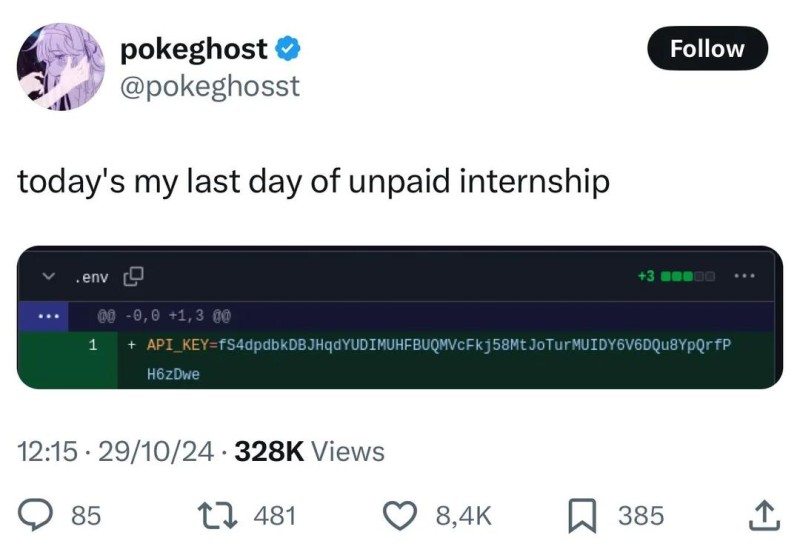
It's a common situation. A key ends up in a message, a commit or a screenshot. No reason to panic, but no reason to put it off either. What to do, in this order:
- revoke or rotate the key in the service's dashboard. This is the only step after which the old string stops unlocking anything;
- set the new value wherever it's needed: locally, on the hosting platform, in the connection settings;
- deal with the place where it was exposed - delete the message, fix the file, restrict access;
- check in the dashboard how the key was used and what spending the service reports.
The order matters, and the first step always stays first. A deleted message or a new commit on top of the old one does not make the old secret safe. The message may have been read, the repository cloned, the history saved. As long as the key is valid, it works for everyone who has it.
A separate note on repositories. If a secret made it into a commit, GitHub has a guide on removing that kind of data. Removing sensitive data from a repository. Just keep in mind that fully cleaning the history rewrites existing commits, which affects everyone who works with that repository. You agree on an operation like that with the owners; you don't run it solo because a tutorial said so. Replacing the key is another story. You do it right away, and nobody needs to sign off.
What to hand off to Claude Code
The agent can take care of almost all the mechanics in this article, with one exception: you enter the secret yourself. Here's what's worth handing over:
- prepare the config with the variable name, not the value;
- name what exactly loads the variable into the process, and which process it needs to end up in;
- check that the secret is not in the client build or in files tracked by Git;
- run an access check and report back (without printing the value, obviously).
What stays with you is entering the real key through the mechanism meant for it: hidden input in the terminal, a local file, the hosting dashboard. The secret never goes into a chat, a screenshot or the agent's report, not even "for a second, just to check".
The prompt might look roughly like this:
Connect the service via its API. I will set the key myself.
Take the URL, the method and the way to pass the key from the documentation.
Put the environment variable name in the config, not the value.
Tell me which process needs to get the variable and what loads it.
Check that the key is not in the client build or in files tracked by Git.
Run the access check without printing the value or any part of it.
Report the result: configured, not set, or access denied.
One last thing, about reading the report. "The variable is set" and "access works" are different statements, and one shouldn't stand in for the other. A missing value is also not the same as the service refusing access. In the first case there's nothing to sign the request with; in the second the service responded but didn't grant access. If the agent just says "done", ask what exactly it checked.
A secret does not get sent to a chat, shown in a screenshot or pasted into a file that goes into the repository. Everything else in this article is a way to follow that rule without getting in the way of your work.
GO TO FULL VERSION