You open a project folder in your IDE for the first time: dozens of nested folders, names that mean nothing to you, not a single file you wrote yourself. You're about to start making changes - small page edits first, then new games. Before you begin, you need to work out where the files you need live and what rules the project runs by.
It's easy to start opening folders one after another, hoping to stumble onto the right spot (everyone does that at least once). You'll get further by figuring out the overall structure and the project's rules first. They'll help with a small edit now, and later on when you want to add a new game: you'll have to pick file names, find a place for them, and check the result together with Claude Code.
Find the way into the project first
Start with the file tree in the IDE panel and look for README.md in the project root. It's a plain text file someone wrote for a person, not for a program: by convention it explains briefly what this project is and how to run it. Though sometimes all it holds is the project name and the hope that you'll figure out the rest on your own. People are lazy, and the README won't write itself :)

A README usually gives you three things: what the project is for, how to run it, and links to more detailed instructions - a separate file on the architecture, say, or on code style. For a small page edit that's already enough to see the big picture.
The README may be missing, or it may have fallen behind the code. Treat it as a starting point. What it says about commands and folders still has to be checked against the project files. If the description promises one structure and the tree shows another, keep that as a question to follow up on.
This is a good place to bring in Claude Code: ask it to read the README and list the paths that matter for your particular task - no edits yet, just the search. The agent reads files faster than you do and can suggest right away where to look for the leaderboard.
What the folder tree tells you
Let's take an example: a small browser portal with a game showcase, scoring, and a leaderboard. Part of its tree looks like this:
project/
├── README.md
├── package.json
├── vite.config.js
├── pages/
│   └── leaderboard.html
├── src/
│   ├── leaderboard.js
│   └── reward-flow.js
├── assets/
├── tests/
└── dist/
Before you've read a single line of code, the tree already hints at a few things:
| Folder or file | The role you can guess at |
|---|---|
README.md | a description of the project and how to run it |
package.json | the list of dependencies and project commands |
vite.config.js | Vite's run and build settings |
pages/ | the pages the browser opens |
src/ | source code: the scripts the pages pull in |
assets/ | images, icons, and similar static files |
tests/ | automated checks for the code |
dist/ | the build output, produced automatically |
A folder name is a hint, not a confirmation. The file src/leaderboard.js looks like the right one, judging by the name; now you have to read it and find where it gets pulled in. The table above lists the roles you'd expect these folders to have, and those still need confirming. The presence of tests/, in particular, says nothing yet about how the checks are run.
It's also worth telling source code apart from whatever that code generated or something installed from outside. dist/ is usually assembled by a build tool out of what's in src/, and the third-party dependency folder (often called node_modules/, though there isn't one in our example) wasn't written by anyone on your team at all. Starting your reading there is almost always pointless: an edit will either be wiped out by the next build, or it belongs to someone else's code that you don't edit directly. Package managers, installing dependencies, the lockfile format - that's a separate conversation, not one for this article.

One more thing: the set of folders in the example isn't a standard. In another project the pages might sit in public/ and the sources in app/. The logic of the search stays the same. only the names change.
The rules for working with the project
Say you've worked out what the folders are for. Before you add files, it's worth finding out how things are done here. In one project all the pages sit in a shared folder; in another, each game is kept together with its own scripts and images. Either can work fine, really. The trouble starts when a new game follows a third pattern and nothing anywhere explains that decision.
Look for the conventions by following links from the README. The file CONTRIBUTING.md, if there is one, usually explains how to make changes. The docs may carry rules about where files go, and CLAUDE.md instructions for the agent. An individual folder sometimes has a README of its own with details about its contents. Don't expect all of that in every project, though. A few of the rules you need often fit into the root README and that's it.
For a first edit it's enough to find out which source files you're allowed to change, how they're named and placed here, how the project is run, and how the result is checked. If the instructions forbid editing the build output, find the source. If they ask you to update the description whenever a page is added, fold that into the task from the start.
When there's no written rule, look at two or three similar examples. For a new game, the neighboring games are more useful than a random docs folder. If they place files the same way, that can serve as a model, but one old file doesn't prove the whole project works that way.
It can get more awkward: the README sends pages to pages/, while the most recent games live somewhere else. A specific question to the project owner helps here: "The instructions say pages/, but two new games are in games/. Where should the next one go?" Don't quietly pick whichever option you like, and don't move the whole tree around for the sake of consistency.
Naming rules for files and folders
Naming is an agreement about what things are called. A good name helps you find the right file in the tree and understand what it does before you open it. In our portal, leaderboard.html tells you it's the leaderboard, while page2.html tells you nothing beyond the fact that somebody numbered it.
A name has meaning and form. The meaning answers "what's in here?", and the form sets the letter case and the word separators. The daily rewards page, for example, could be named several ways:
| Style | Example file name | How the words are joined |
|---|---|---|
| kebab-case | daily-rewards.html | lowercase letters, a hyphen between words |
| snake_case | daily_rewards.html | lowercase letters, an underscore between words |
| camelCase | dailyRewards.html | first word lowercase, the rest capitalized |
| PascalCase | DailyRewards.html | every word capitalized |
These are ways of writing a name, not a ranking. If the project's pages use hyphens, a new page gets a name in the same style. Different groups of files can follow different conventions, though: there's no need to lowercase the familiar README.md just to match the HTML pages. Names that tools expect are kept as they are too.
Suppose the agreement for the ordinary files in our portal is English words in kebab-case. Then snake-preview.png is clearer than img3.png: it's the preview for Snake. The folder game-icons/ says more about its contents than stuff/ does. A name like leaderboard-final-new.html goes stale right after the next edit. A working page is better off with a stable name based on what it does.
Pick one term per thing. If the games in a project are called games, a folder named plays for the same group forces the reader to work out whether there's a difference. And don't shorten words into riddles like ldrbrd/ unless that abbreviation is part of the project's conventions.
Spelling it exactly right matters too. The file name and the path to it have to match, case included: Snake.png and snake.png shouldn't be treated as interchangeable. A mistake here can go unnoticed on one machine and then show up in a different environment - not the nicest thing to debug. In our example, the agreement to use lowercase cuts down on discrepancies like that.
Rules for nesting folders
The name is picked. The next question is where to put the file. A nested folder earns its place when it groups something you can name: game pages, the images for one game, shared icons. Every new level should make the contents easier to find.
Picture the alternative: the portal grows, and every file gets dumped straight into the root:
project/
├── README.md
├── package.json
├── snake.html
├── tetris.html
├── leaderboard.html
├── snake.js
├── tetris.js
├── snake-preview.png
└── tetris-preview.png
In a small example you can still make sense of it. Twenty games in, though, the pages, scripts, and images start getting in each other's way. Our portal already splits things into pages/, src/, and assets/, so when games are added it makes sense to carry that on. Here's a fragment of what the structure might look like afterwards:
project/
├── pages/
│   ├── leaderboard.html
│   └── games/
│       ├── snake.html
│       └── tetris.html
├── src/
│   ├── leaderboard.js
│   └── games/
│       ├── snake.js
│       └── tetris.js
└── assets/
    └── games/
        ├── snake/
        │   └── preview.png
        └── tetris/
            └── preview.png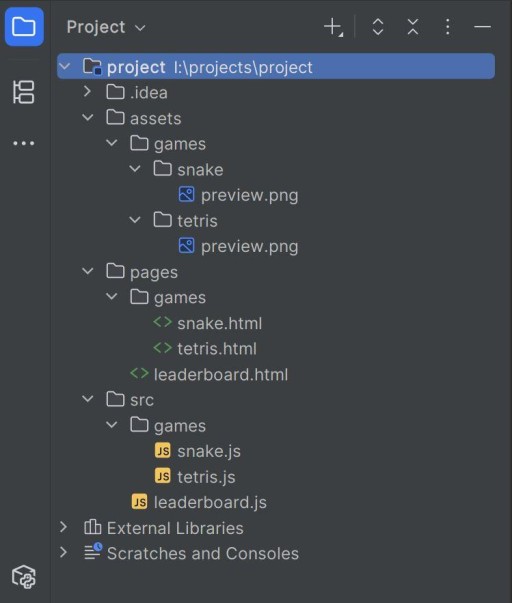
The game pages are gathered in one group, their scripts in another. The game's name ties the files to each other. The images have a folder per game, so the short name preview.png is enough: the full path already explains whose preview it is. That separate folder will come in handy for the game's other images too.
The opposite extreme is a path like pages/portal/content/browser/games/arcade/snake/screens/main/index.html. Opening a single page means walking through a lot of levels, and some of those names add almost nothing. If the project has no separate portals, screens, and categories, a structure like that creates work without any payoff.
There's no universal "no deeper than three folders" limit, whatever you may have heard. Check what each level is for: what does it group, and does it help tell this group apart from the ones next to it? A folder with a single file is sometimes required by a tool or by the project's rules. But creating one just because "something else might show up here later" is usually premature.
The tree above shows one way our example could grow. If every game in your project is already kept whole in its own folder, carry on with that. A new game by itself is no reason to rearrange the rest.
Where shared and local files belong
Snake has picked up an image of an apple, and the portal as a whole has a shared logo. Both files are images, but they're used differently. Only one game needs the apple; the logo shows up on the showcase, in the leaderboard, and on the game pages.
A file that belongs to one game is used only in that game. In this section we call such files local: that's about where they're used, not about being stored on your computer or on a server. In our version of the tree, the apple goes to assets/games/snake/apple.png. A shared file is needed by several parts; the logo could get its own assets/shared/portal-logo.svg, if the project agreed on a folder like that. The word shared says exactly that, but the folder name by itself gives the file no special properties.
The same distinction is useful for styles and scripts. The styling of Snake's playing field belongs to Snake; the styling of the common header belongs to the whole portal. When you're choosing a place, the question is who uses the file right now. There's no need to move everything into a shared folder up front in case it gets reused later.
The other way round is awkward too: copying one logo into every game's folder means hunting down all the copies when it's replaced (and missing one). If it really is a single shared resource, it's better to point at a single file. Two similar images belonging to different games, on the other hand, can stay independent: looking alike doesn't mean they'll always be changed together.
On the diagram, three arrows lead to the shared logo and only one to the apple image. So after replacing the logo it's worth looking at all three pages, and after replacing the apple, at Snake. Before an edit, it helps to ask Claude Code to find which files reference the resource: there can be more actual links than the folder name suggests.
What to check after a move or a rename
Renaming a file takes a second, sure, but its old name may already be written into links and settings. A move also changes its position relative to the other files. Tidying up the tree, in other words, is as much an edit to the project as changing the contents of a page.
Here's a separate example of a move: the page pages/snake.html was moved to pages/games/snake.html. The script stayed where it was, in src/games/snake.js. In this example the relative path is resolved from the HTML page's address. After the move, the script tag has to change:
<!-- In pages/snake.html before the move -->
<script src="../src/games/snake.js" type="module"></script>

<!-- In pages/games/snake.html after the move -->
<script src="../../src/games/snake.js" type="module"></script>
Each ../ moves the path one folder up. Now you have to climb out of games/ into pages/, then to the root, and only from there go into src/. The script itself hasn't changed, yet the old path to it is already wrong.
There are links pointing the other way too: the game's card on the showcase may still lead to the page's old address. Before the move, search the project for mentions of the old path. After the move, update the links, script tags, build settings, and examples in the docs that need it. For a renamed script, check the imports as well - the lines other scripts use to pull it in.
An IDE can update some of the links automatically, but you still have to look the result over. Not every path is written on one line. sometimes the address is assembled from a folder name and a file name. So searching for the old name helps you find the dependencies, and running the relevant scenario helps you spot the ones you missed.

How to check the result of an edit
Start by finding the run, build, and check commands in the project's docs. If it's a project with a package.json, line the instructions up against its scripts section. Command names depend on the project; a tests/ folder on its own doesn't tell you what to run. If there are no instructions, just ask how things are checked here rather than guessing at a command you happen to know.
After that, what you check depends on what you changed. Once the Snake page has moved, open it through its card on the showcase: that way you check both the link and the game loading. Make sure the images load and the game starts. If you changed the shared logo, take a look at the leaderboard and one more game page as well.
A successful build is useful, but it doesn't replace any of this: a link to the old address can survive into the built project too. Write down what you managed to check and what you didn't. For example: "The build passed, Snake opens from the showcase and starts; the narrow-screen layout wasn't checked."
Finally, look through the list of changed files. Adding one game should bring its own files plus an edit to the showcase. Renamed folders belonging to other games, or images rewritten in bulk, need an explanation. That look through the list takes less time than tracking down an unexpected breakage later.
How to hand the rules to Claude Code
A request like "add the game neatly" leaves the agent far too many decisions. Name the task instead, and ask it to study the conventions first. The path for a new game should follow how the project is built, not whatever the agent happens to prefer.
Stable, verified rules can go into CLAUDE.md. For our sample portal the fragment might look like this:
## Files and folders
- Name ordinary files and folders with English words in kebab-case.
  Keep the established names README.md and CLAUDE.md as they are.
- Game pages go in pages/games/, game scripts in src/games/.
- A single game's resources go in assets/games/<game-name>/.
- Shared portal images go in assets/shared/.
- On a move or a rename, update the links to the file
  and the relative paths inside it.

## Checking
- Take the run and check commands from README.md.
- Open a new game from the showcase and check that it starts.
- After changing a shared resource, check the pages that use it.
This is an example of rules that were agreed on, not a universal template for a tree. Before writing a block like this for yourself, check the paths and commands against the real files. If the agent only guessed at what a folder is for, ask it to show the evidence. a guess has no business becoming a permanent instruction.
Now the task of adding a game might read like this:
Add the memory-match game to the portal, following the attached description.
Read README.md, CLAUDE.md and the instructions for the folders this task touches.
Look at how the files of two existing games are laid out.
Suggest names and paths for the new page, its script and its images.
Say which showcase file has to change, and how to check the result.
If the instructions disagree with how the project is built, ask.
Show the plan first, wait for my approval, then make the edits.
The plan already gives you concrete decisions to judge: where the game will land, which files become shared, whether the work will touch neighboring pages. After the edits, ask for a list of the changed files and the checks that were run. That makes it easier to line the result up against what you agreed to.
GO TO FULL VERSION