You ask for a banner, and the agent offers to update an old module while it's at it. It helps to see a plan like that before any edits happen and cross out the extra item. For that you need a clear task description. And the mode you pick, too.
A permission mode decides how Claude Code's actions get approved: what can run right away, what needs your go-ahead first, and what gets blocked. Individual actions also depend on your settings and on permissions you've already granted. The mode itself doesn't judge the quality of the solution.
We'll go through every mode using a local Claude Code session in the terminal as the example.

A request vs. a permission
Two things are easy to mix up here. They look alike, but they work differently.
The first is what you write in the task description. A section listing exclusions, a line like "show me the plan first, don't change anything", a list of files that are off limits. These are scope boundaries: they explain the task and have a real effect on what the agent proposes to do. But they're text, and text doesn't change technical permissions.
The second is the permission mode, which is a session setting. You can perfectly well write "don't change anything" while working in a mode where edits are accepted automatically. The agent is supposed to respect the request, but the sentence itself doesn't technically block any edits.
There is one exception, and a partial one at that. In auto mode the classifier reads the conversation and treats "don't push" or "wait for my review" as a signal to block those actions. But that isn't a rule in your settings: if the message with the restriction drops out when the context gets compacted, the restriction goes with it. For a hard boundary you need settings, not a sentence.
Writing "make a plan first" in your prompt is useful: it sets the order of work. But it tells you nothing about the current mode. That's what the indicator in the session's status bar is for. Which mode a session starts in depends on the version, the interface, your subscription, and your settings, so glance at the indicator first. don't just assume.
Modes from safest to most dangerous
It's easier to keep the modes in your head as a ladder rather than a list. At the top the agent does almost nothing without you; at the bottom it doesn't ask at all. Five rungs, plus one mode that doesn't fit on this scale.

There's one thing worth watching here: how many actions go through without asking you. The lower you go, the bigger that number gets. The cost of a mistake too. At the top you spend time on confirmations; at the bottom you find out about a bad edit only after it's made.
A quick word on each:
plan- the agent explores the project and proposes changes before implementing anything; edits to source files are blocked while it's on. There's one exception: if the session was started withbypassPermissionsallowed, planning in the terminal no longer blocks edits, and the agent is merely asked not to change anything. Handy when you want an answer about the code, not changes to it. Whenautois available, the classifier also checks the commands the agent runs to explore, so you may get even fewer prompts here than indefault. It sits higher on the ladder because it doesn't change anything in the source files. Once the plan is ready, Claude Code asks how to continue: approve and switch toauto, approve and confirm edits by hand, or keep planning.default, usually shown on screen as Manual - asks before edits, commands, and network access. Reading the project goes through without a prompt, and so does anything you've already given permission for, so you won't have to confirm every action all over again. Sometimes you'll get a prompt even for a command that looks harmless. That's not nitpicking:findwith the-execflag runs any command, and-deletedeletes whatever it finds, so forms like these don't go through until you answer.acceptEdits, shown on screen as "accept edits" - applies file edits in the working directory on its own, along with a number of file commands,rmandmvincluded. This one is for speed when you work in familiar files that you'll reread afterwards anyway.auto- does almost everything on its own. Reads and edits in the working directory go through immediately, while commands and network access are checked by a separate model, the classifier. It blocks some of them; more on that below.bypassPermissions, also known as the--dangerously-skip-permissionsflag - asks about almost nothing. All that's left are your explicit rules in settings (deny and ask rules) and a couple of built-in safeguards. People call it YOLO mode, and the name is honest.
The sixth one, dontAsk, sits apart on the diagram, and here's why. The rungs differ in how much goes through without asking you, and the lower you go, the more the agent is allowed. dontAsk works the other way round: it doesn't ask either, but instead of agreeing, it refuses. What runs is whatever wouldn't need a question in normal mode either (reading files in the working folder, safe read-only commands), plus whatever was approved in advance. Anything that would have needed a question is denied without a single one. The session simply never waits for an answer. It's meant for places where there's nobody to answer, like automated pipelines and locked-down environments, and in everyday work at the keyboard you won't need it.
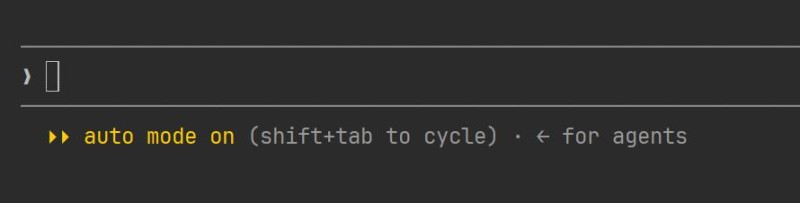
You switch modes yourself, not by asking in the chat. In the terminal that's Shift+Tab, which cycles through the modes, or the /plan command to enter planning. You can also set the mode at startup:
claude --permission-mode planYou type that command in the terminal from the project folder, and /plan inside a session that's already open. In an editor the switcher looks different and sits below the input box, but the reference point is the same everywhere: the current mode indicator.
bypassPermissions makes sense where you don't mind losing the whole environment: a throwaway task in a container or a virtual machine. On a real project, one bad command will cost you more than all the confirmations you saved put together. And this mode won't help you get back what was deleted: it only lets commands through, with nothing to roll them back.
Two caveats, so you don't overrate the ladder. Planning is not a backup: it gives you no restore point and doesn't undo anything already done; it only shows you the plan before it turns into edits. And no rung moves the boundaries of the task. They stay where you described them.
When auto gets in the way instead of helping
There's one expectation about auto worth correcting up front. The mode is called "auto", so it seems like absolutely everything goes through. It doesn't: stopping some actions is exactly what the classifier is there for.
What it blocks by default includes production deploys and migrations, sending data to external addresses, force pushes, mass deletion in cloud storage, granting permissions, downloading and running code from the internet, and irreversibly deleting files that existed before the session started. The logic behind the list is simple enough. These are the things you can't roll back on your own.
What happens next depends on how many blocks have piled up. A single blocked action lands in the list of recently denied ones (/permissions, the Recently denied tab), and you can retry it from there with a manual approval. Meanwhile Claude gets the refusal and tries another route. If the classifier blocks three times in a row or twenty times in a session, the mode pauses and Claude Code goes back to regular prompts, then turns auto back on once you approve. The thresholds are fixed, and no, you can't configure them.
That shows you where the mode starts getting in the way. As long as the task has one questionable command, auto works as intended: you approve it by hand and move on. But when the task is made up of such commands (you're spinning up an environment, running migrations, working with someone else's infrastructure), things get odd. You still end up confirming nearly every step by hand, just with extra detours: the agent hits a block, looks for a workaround, and the mode keeps pausing and switching back on.
At that point it's simpler to climb higher up the ladder yourself. Which rung depends on what exactly is in the way:
default- the most direct option. Claude asks before every edit and command, and nothing gets denied at all. Slower, but every step is right in front of you;acceptEdits- when you're fine with the file edits and the only questionable things are commands like deploys or migrations. But keep in mind: this mode letsrmandmvin the working directory through without asking, whereas inautothe classifier would stop deletions of existing files.
This isn't a way around the block, and it's worth keeping the two apart. You're not switching the check off, you're taking it on yourself. And deleting system paths like the root of the drive or your home folder won't go through without your approval, even in bypassPermissions. In that mode and in auto, Claude Code will ask you, and in the terminal you get a couple of minutes to answer. Where there's no way to ask, auto denies the command, and dontAsk always denies it. The point is something else: not going the long way round when you were going to confirm everything by hand anyway.

The second reason to move up has nothing to do with blocks. The classifier decides whether an action is dangerous, but not whether the work is heading in the right direction. If the agent is editing the same thing for the third time and the result still isn't right, in auto it will simply make a fourth attempt, again without asking. The Claude Code team advises against pushing on at that point: go back to plan, agree on the approach again, and only then continue. The same principle works at the start, too. A task you understand fully can go straight to a looser mode. If you're not yet sure yourself what the result should be, start with plan.
The classifier knows only what it can see about your project: it trusts the working directory and the remote repositories configured before the session started. A repository added partway through the work isn't on that list, so reaching out to it looks like going outside the project. That's why "it blocked a harmless command" more often means missing context than a problem with the command itself.
What this changes in your work
Day to day, it all comes down to four habits. Nothing fancy.
- glance at the indicator when you start. It shows the mode; for a specific action, permissions you've already granted matter too;
- check the proposed plan against the task's boundaries before it's carried out. An extra item can be fixed with a sentence, and that's the cheapest fix there is;
- read the wording of the option you use to approve the plan: it tells you which mode the session will continue in after leaving
plan; - check the result once it's done. No mode is responsible for the task being solved correctly. Your own check is.
A permission mode answers the question "what can happen without me", not "was this done right". The second question stays with you whatever you choose.
GO TO FULL VERSION