In this article you'll figure out what Git is and why you need it, create your first repository on GitHub, and set up your working environment. We deliberately work with Git through the IDE's graphical interface - it's easier to follow and less stressful at the start, since you don't have to keep dozens of commands in your head.
The examples and screenshots are from JetBrains IDEs; action names and their locations may differ in your version. Use a separate practice repository for the exercises. In a work project, follow its rules for branches, commits, and pushing changes.
There's a second reason for this approach, though. Under the hood, Claude Code does exactly the same Git operations - only with commands in the terminal. When it offers to make a commit, create a branch, or push changes, that comes down to ordinary Git commands. Once you understand what happens behind the IDE's buttons, you'll understand what Claude Code is proposing too, and you'll be able to check and approve it with your eyes open.
Why you need version control
When you start working on a project, it seems like the main thing is for the code to work. But pretty soon it turns out that code changes more often than it works reliably. You fix a bug, add a feature, change your mind, roll it back, add it again.
Picture yourself working on your own project. Everything's going fine until it's time to experiment. You decide to change something, but you're afraid of breaking the working version. What do you do? Copy the project, of course. And before long your disk is full of masterpieces like these:
MyProject/
├── main.py
├── main_backup.py
├── main_final.py
├── main_final2.py
├── main_really_final.py
├── main_really1_really_final2.py
Sound familiar? Now imagine a friend joins the project. They like copying files too - just in their own way. How do you tell which version is the latest one that works? How do you find out who changed what? How do you get everything back if an experiment fails?
Without a saved history, you end up sorting through file copies by hand, and that's where the trouble starts:
- it's easy to lose working code or mix it up;
- there's no single way to find and restore a saved version;
- it's hard for two or three people to work together;
- chaos, and a fear of experimenting.
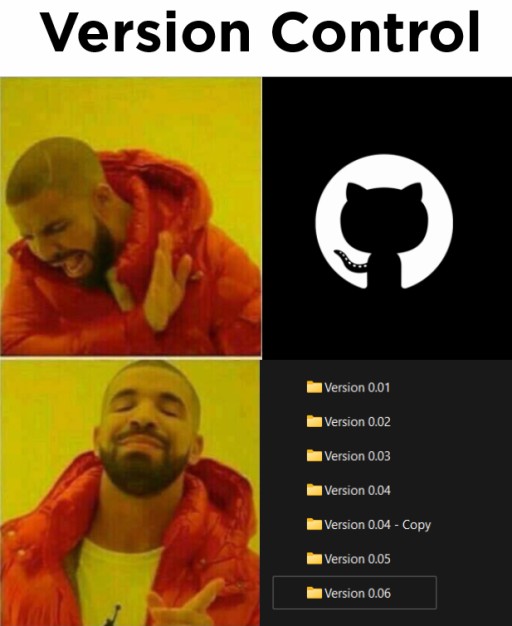
These are exactly the problems version control systems like Git solve.
Video - Git basics in the terminal
This video gives you a solid foundation for working with Git in the terminal - it helps you understand the mechanics hidden behind the IDE's buttons.
The examples in the video are in Java, but that hardly matters - the core Git operations are the same whatever the language.
What Git is - the core concepts

Git is a version control system used to track changes to code during development. It lets you keep different versions of files and coordinate several people working on a shared project.
A repository (or "repo") is where the project's entire history lives: every change and every version of the files.
A commit is a saved snapshot of the project's tracked content, with a message, author information, and links to its parent commits. Uncommitted and ignored files aren't part of that snapshot. The history lets you find and restore a version you saved earlier.
Roughly speaking, each commit is a snapshot of the project that follows the previous one, and together they form a sequential history of changes.
A branch is a name that points to the current commit of one line of development. In the examples the main branch is called main; in your repository the name may be different. That depends on your settings and on how the repo was created.
A develop branch splits off from the main branch, main, for parallel development. Once the work is done, the changes from develop are merged back into main.
Core Git commands - what happens under the hood
Below is a list of the core commands for working with Git in the terminal. We'll be working through the IDE's graphical interface, but it helps to know which commands underlie every operation: these are what Git runs behind each button - and what Claude Code runs when it works with your repository. Think of them as what's going on under the hood.
| Command | What it does |
|---|---|
git init | initializes a new Git repository in the current folder |
git clone | copies a repository from a URL into a new folder |
git status | shows which files are modified, which are staged, and which Git isn't tracking yet |
git add | adds files to the index (staging) for the next commit |
git commit | records the staged changes as a new snapshot in the history |
git push | sends commits from the local repository to the remote one |
git pull | fetches changes and combines them with the current branch according to your settings |
git fetch | downloads changes from the server but doesn't merge them into your branch yet |
git branch | lists, creates, or deletes branches |
git checkout / git switch | switch changes branches; checkout can also check out a single commit and restore files |
git merge | merges the changes from the given branch into the current one |
git log | shows the commit history |
git diff | with no flags, compares working files against the index; staged changes are viewed separately |
git restore | restores the selected files; with no source specified, working files are taken from the index, not necessarily from the last commit |
git reset | changes the index or where the current branch points; the effect depends on the form of the command and the mode |
git stash | temporarily shelves unfinished changes so you can come back to them later |
git remote -v | shows which remote repositories the project is connected to |
git config | Git settings, such as the commit author's name and email |

You don't need to memorize the whole list - at the start it's enough to know that the IDE's actions and the agent's actions are built on Git operations; a single action in the interface may run several commands. E.g. committing via Commit uses git commit, and the Push button is git push.
- Working files
- git add → index
- git commit → history
- git push → server
The diagram shows the outgoing direction: you stage content with add, record it locally with commit, and send the commits with push. The reverse direction, pull, fetches remote commits and combines them with the current branch according to your settings.
This is the very mechanism Claude Code runs for you. When it says it will make a commit and push the changes, what's underneath is git add, git commit, and git push. You see the result in the same IDE window and can check it.
Four states of code
When you use version control, your code conceptually passes through four states:
1. Working Directory. The current project files on your computer, the ones you're editing right now.
2. Staging Area. The prepared content of the next commit. In JetBrains IDEs you can work with changelists or turn on a separate staging mode. The checkboxes in the regular Commit window select what goes into the commit, but they don't mean the content is already in Git's index.
3. Local Repository. Your personal copy of the code's history on your computer. Commits, branches, merges - all of that works here even without internet access.
4. Remote Repository. A central store for code on services like GitHub, GitLab, or Bitbucket. It keeps the code safe and serves as the foundation for teamwork.
When Claude Code asks to start tracking a new file, it moves the file from the working directory to staging - that's the git add command. This stages the file's content as of the moment it was added; any later edits have to be staged again. If the file doesn't need adding (say, it's temporary junk), you're free to say no.
Git vs GitHub - what's the difference
These two get mixed up all the time, so it's worth keeping them apart. Git is a program that runs locally on your computer (even without internet access) and keeps track of file versions. GitHub is a cloud service (a website) that stores remote copies of your Git repositories.
GitHub lets you create repositories, track changes, and work on code together with others. These days a GitHub profile is an important part of a developer's portfolio, something you can show an employer.
Creating your first repository on GitHub

Step 1. Go to https://github.com and sign up.
Step 2. Click the New repository button to create a new repository.
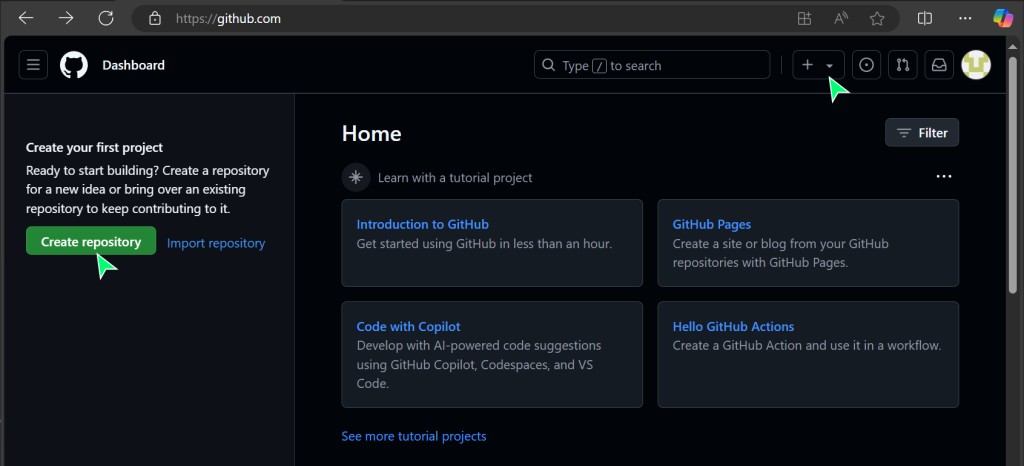
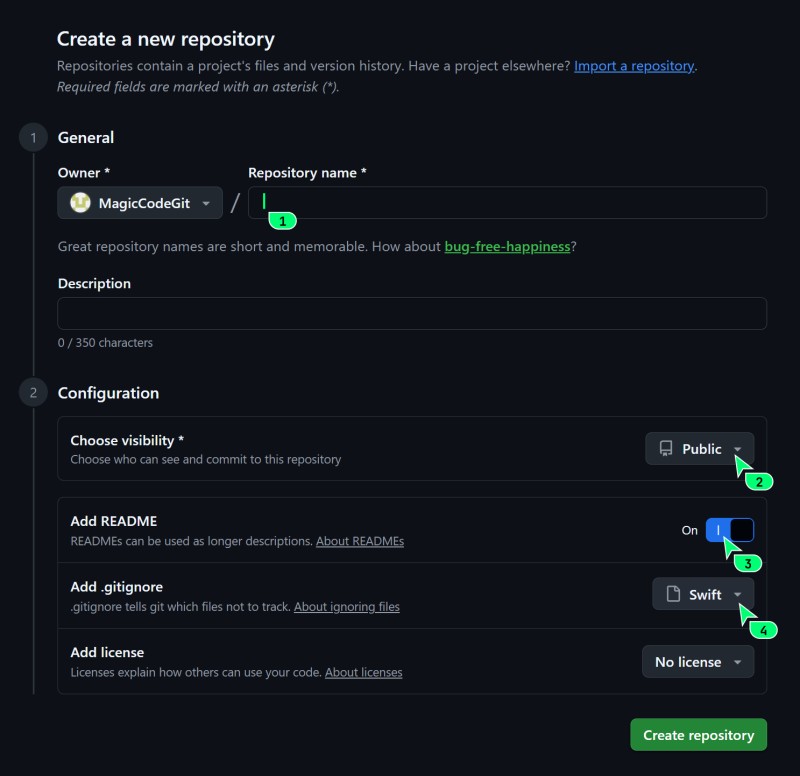
Step 3. Set the repository options:
- repository name - come up with a meaningful name;
- Public or Private - choose the visibility deliberately. Public is open to everyone; Private restricts access. For a personal exercise you don't plan to publish, you can pick Private.
- Add a README file - for a new empty project it's handy to add a README. If you're going to push an existing local history, create an empty remote repository without a README so you don't end up with two unrelated initial histories.
- Add .gitignore - pick a template for your project's technology. The dropdown has ready-made templates for popular languages. This one actually matters: builds and package managers create lots of temporary files and caches that shouldn't clutter the repository, and the template helps Git ignore them;
- Choose a license - you can skip this;
- click
Create repository.
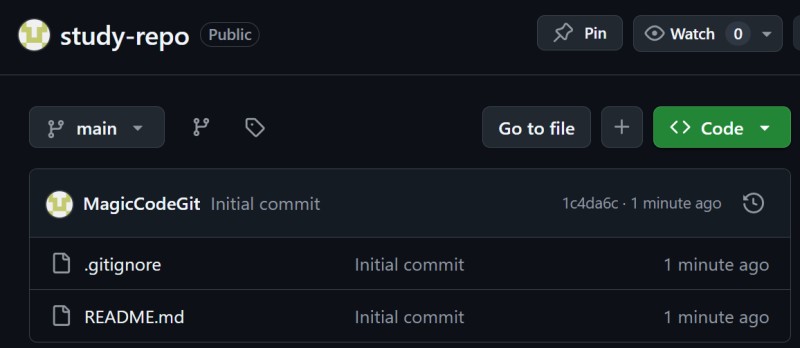
Step 4. Done. your first remote repository has been created.
Installing and setting up Git
From here on, the screenshots show IntelliJ IDEA. Other JetBrains IDEs offer similar operations, but button placement and menu item names depend on the version. Go by the name of the action; you can find it through the IDE's action search.
To work with Git, you first need to install it. If you use a JetBrains IDE and it can't find Git on your system, it will most likely offer to install it for you - honestly, the easiest thing is to accept.
Close the current project via File | Close Project. On the Welcome Screen, click Clone Repository (in some versions the button is called Get from VCS).
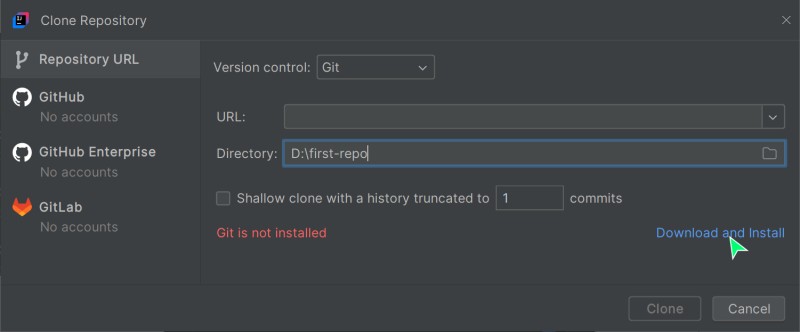
If you'd rather install Git by hand, download it from the official site: https://git-scm.com/downloads.
An important detail
For your first commit, Git needs an author name and email. That identifies the commit's author; it isn't an account login. To link commits to GitHub, use a verified address from your account settings, or the noreply address GitHub gives you if you don't want to make your personal email public.
GitHub links commits to your profile by email. A matching address alone doesn't guarantee the commit shows up in your contribution graph: there are additional conditions for that.
What to install so Claude Code can work with Git and GitHub directly

For local commits and branches, having Git installed is enough: you don't need to sign in to GitHub. To work with a remote repository, set up access to it. GitHub CLI (gh) is an extra tool for PRs and other GitHub features, not a required part of Git.
1. Git. You need it to work with the local history. Install it through the IDE or from the official Git website.
2. GitHub CLI (gh) is GitHub's official command-line tool. Why bother? Through it, Claude Code can create pull requests, read issues, and view check statuses right from the terminal, without switching to the browser. How you install it depends on your operating system.
Instructions for your OS are on the official GitHub CLI page. Install the tool and confirm it's available with gh --version.
If you went with GitHub CLI, run the access setup and follow its prompts. For GitHub.com you can choose HTTPS and sign in through the browser:
# sign in to your GitHub account from the terminal
gh auth login
Claude Code can use git for the history and gh for GitHub features. Installing gh and running gh auth login is only needed if you choose this way of working with GitHub. Creating a PR and pushing commits happen on your instructions, after you've checked what's going to be sent.
main vs master
You'll come across both main and master in repositories. GitHub usually suggests main, while Git, when you initialize a repo locally, goes by its version and the init.defaultBranch setting. Check the actual branch name in your project.
Both names refer to an ordinary branch, nothing magic about either. Match the commands in the examples to the actual branch names in your repository.
How this works with Claude Code
Now that you understand the basic Git concepts, Claude Code's actions are easier to read. Here's what it does with Git on your behalf, and what's worth keeping an eye on:
- runs
git add,git commit,git push, and other commands for you - the same ones behind the IDE's buttons; - offers to start tracking a file (
git add) - you decide whether that file belongs in the history; - proposes a commit with a ready-made message - it's on you to read what it's going to record and either accept it or edit it;
- through GitHub CLI, it can create and comment on a pull request (PR - a proposal to merge a branch into the main one) and view check statuses.
Before you approve, look at which files and changes will go into the commit. Claude Code shows them the same way the IDE does - as a diff. This is where you stay in control: you always know exactly what's going into the project history and up to the server.
GO TO FULL VERSION