This article walks you through the basic cycle you repeat every day: get a copy of the project, save your changes (commit), send them to GitHub (push) and keep unwanted files out with .gitignore. Claude Code goes through the same cycle for you when it works with a repository, so understanding it pays off twice.
The examples and screenshots come from JetBrains IDEs; action names and their placement may differ in your version. Use a separate practice repository for the exercises. In a real work project, follow its rules for branches, commits and pushing.
Cloning a project
You already have a repository on GitHub, and now you need a local copy of it on your computer to start working. That's called cloning.
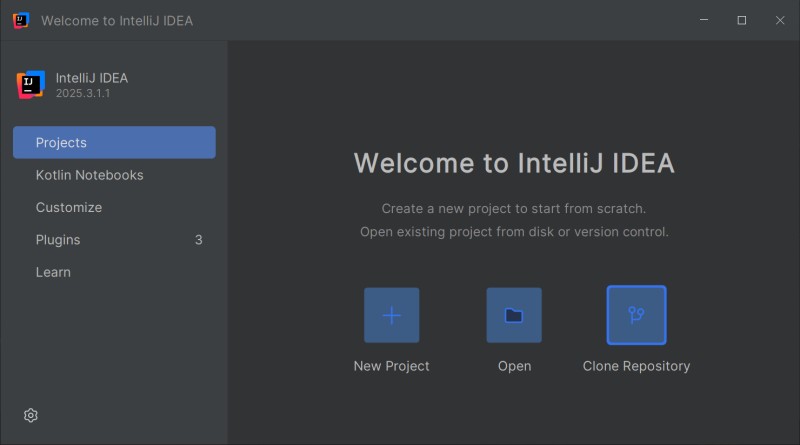
Step 1. Launch the IDE. If a project is open, close it with File | Close Project. On the Welcome Screen, choose Clone Repository (or Get from VCS).
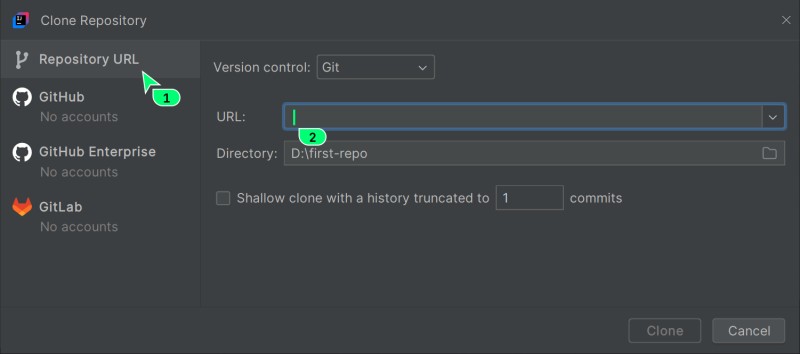
Step 2. Paste the repository URL into the window that opens. Handy when you clone someone else's repository (you just copy the URL from its page on GitHub).
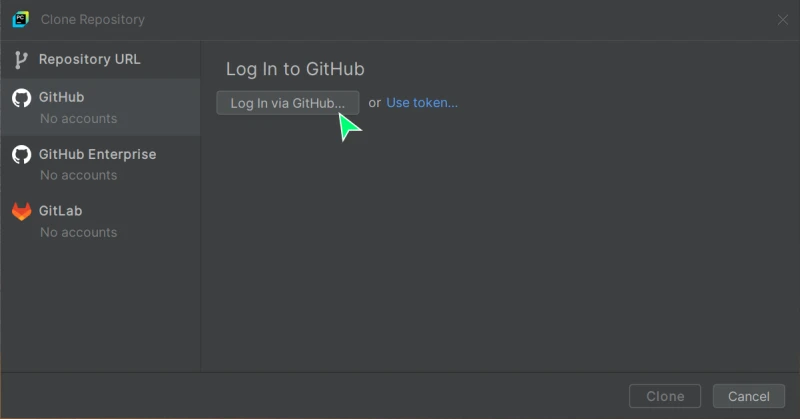
If you're cloning your own repository, the easiest way is to sign in to GitHub right from the IDE with Log in to GitHub. The IDE opens a browser for authorization.
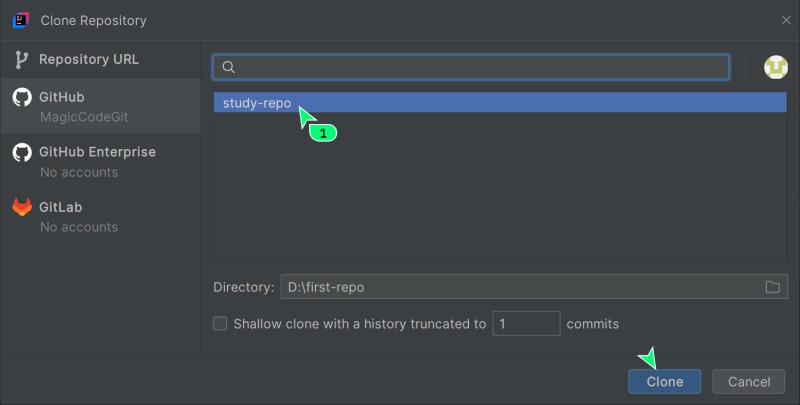
On the page that opens, click the green Authorize JetBrains button. After that you can pick your repositories straight from a list in the IDE. Select the project you need and click Clone.
Step 3. Decide whether to trust the project. For your own repository that you know well, you can choose Trust Project. For an unfamiliar one, look through its contents and the instructions for running it first: trusting a project lets the IDE run the project's actions.
Step 4. Open the project. On Windows the IDE may offer to add antivirus exclusions to speed up indexing. You don't need them to learn Git; don't turn off protection just to clone a repository.
Saving changes - commit
A commit is a snapshot, the saved state of the project at a specific moment. Think of it as a save point in a game: you can always go back to it if something goes wrong. Every commit has a unique identifier and a message that describes the changes.

This is a commit history: each new commit builds on the previous one, and together they form a timeline of how the project evolved.
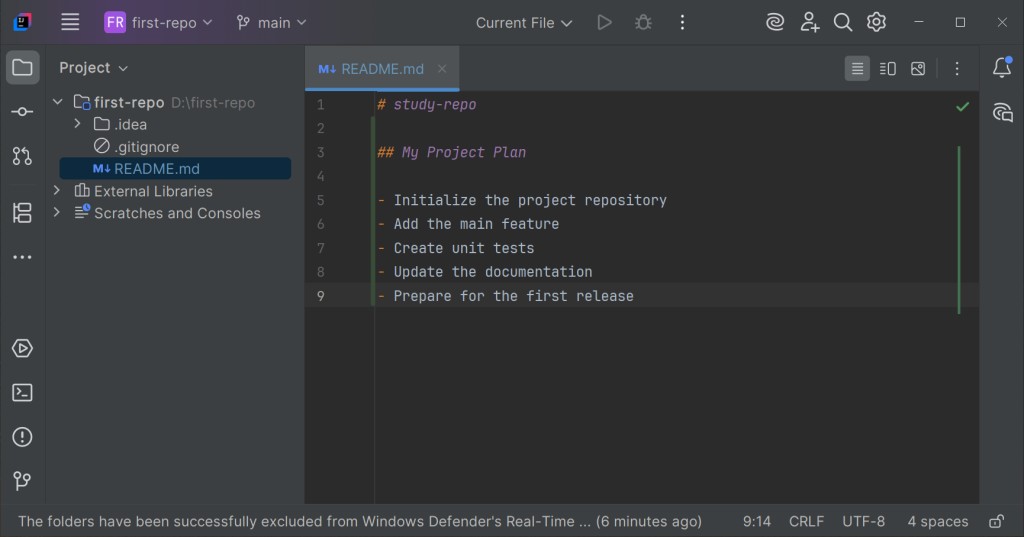
Step 1. Make changes. Open README.md and add a project description. As soon as you start editing, the IDE shows the file name in blue in the Project tool window - the file is modified, but the changes aren't saved in Git yet. Next to the changed lines, the IDE shows a colored bar: green for added lines, blue for modified ones.
Open the Commit tab and look at the modified files. By default JetBrains shows them as changelists; a separate Git staging area can be turned on in the settings. Don't confuse the checkboxes in this window with changes you have already staged in the terminal.
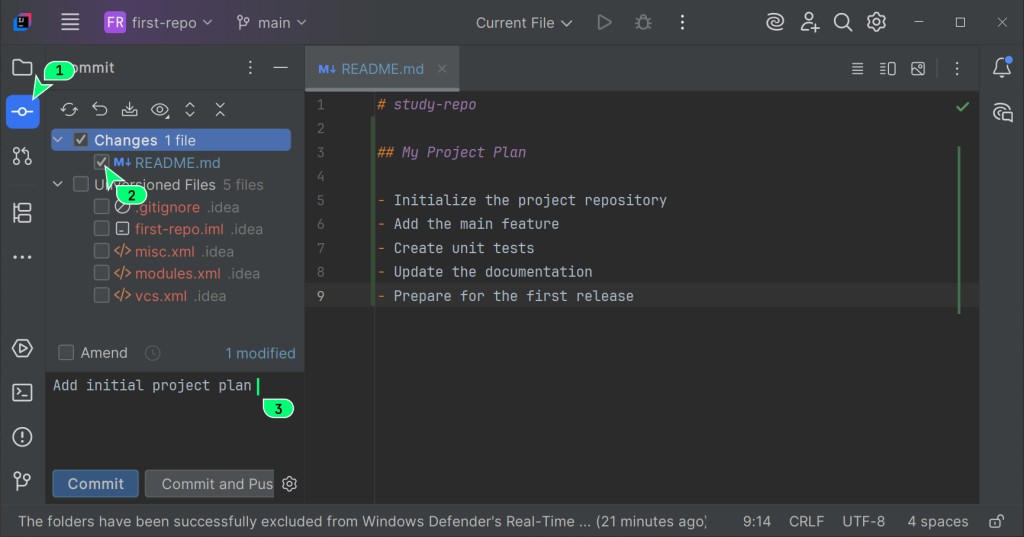
Here's what you're looking at:
- Changes - files Git already tracks that have been modified (in our case
README.md); - Unversioned Files - new files Git sees in the project folder but doesn't track yet.
Step 2. Check the selected diff. New files under Unversioned Files aren't tracked yet. Build output, caches and personal settings are usually excluded with .gitignore. Shared project settings may live in Git, so check the project's rules before you ignore the whole .idea/ folder.
Step 3. Commit. Type a clear message, for example docs: Describe the project in README, check the selected diff and click Commit. If pre-commit checks are enabled, wait for the result. Open Git Log and make sure the new commit contains the file you meant to include.
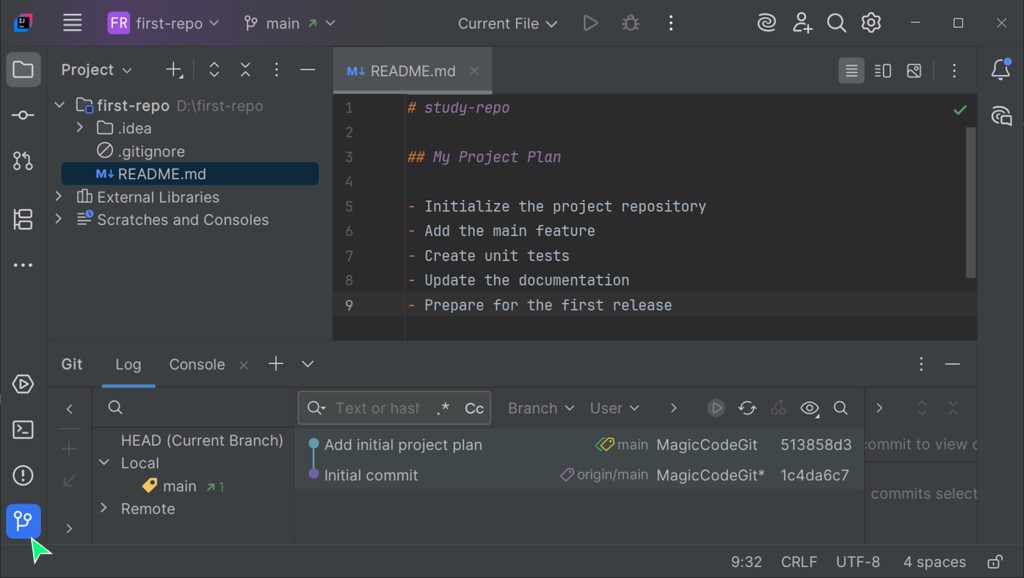
When Claude Code offers to make a commit, what runs underneath is git commit with the selected files and a message. The habit of eyeballing the file list works here too: check that Claude is about to commit exactly what you need, read the commit message, then accept it or correct it.
Sending changes to GitHub - push
So far your commits live only on your computer. To share them with the team or keep them somewhere safe, you need to send them to the remote repository on GitHub.
- Local commits
- git push
- Remote branch
Push updates the selected remote branch with your commits. It doesn't download anyone else's work and doesn't send uncommitted files.
Step 1. Click Push. The Push button sits on the Main Toolbar at the top and looks like an arrow pointing up and to the right.
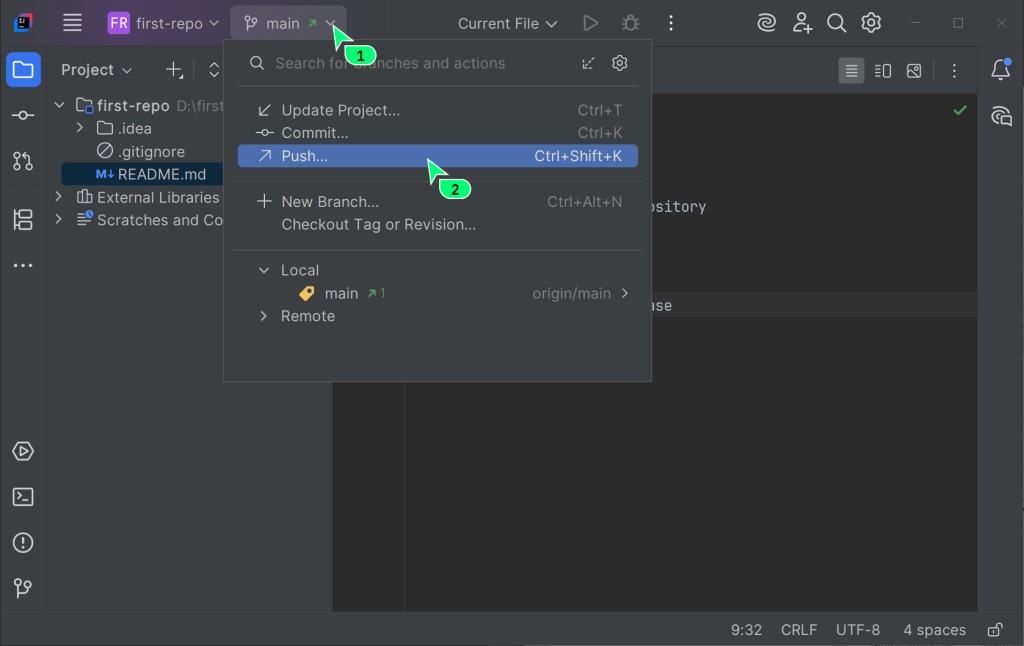
Step 2. Review and confirm. A window opens with all the commits ready to be pushed. Last chance to make sure you're sending exactly what you meant to. Click Push.
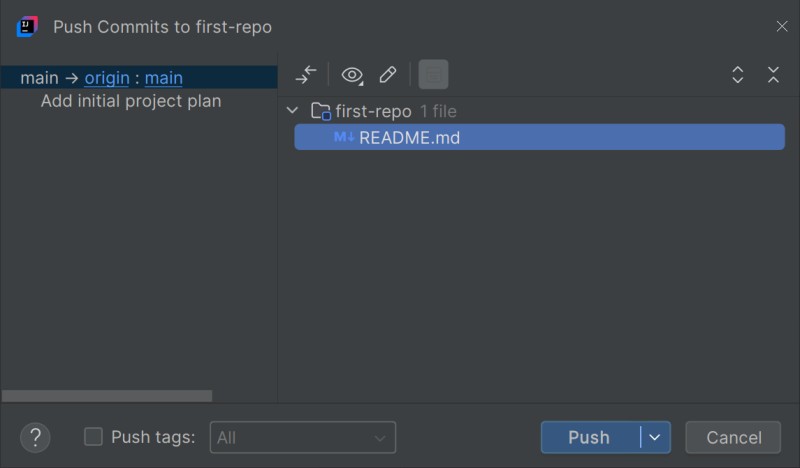
Once the push succeeds, the IDE shows a notification. Check the repository and target branch in it: for this exercise that's origin/main. The exact wording depends on your IDE version.
Step 3. Check the result on GitHub. Open the repository page on GitHub in your browser - your changes and files are there now.
Claude Code can push changes for you (git push). Keep in mind that what goes to the server is whatever you've already committed. So controlling the commit step (what exactly went into the snapshot) also controls what ends up on GitHub.
Git controls in the IDE
The IDE has a dedicated Git tool window plus quick actions on the top toolbar. Think of it as your version control hub. The buttons you'll reach for most:
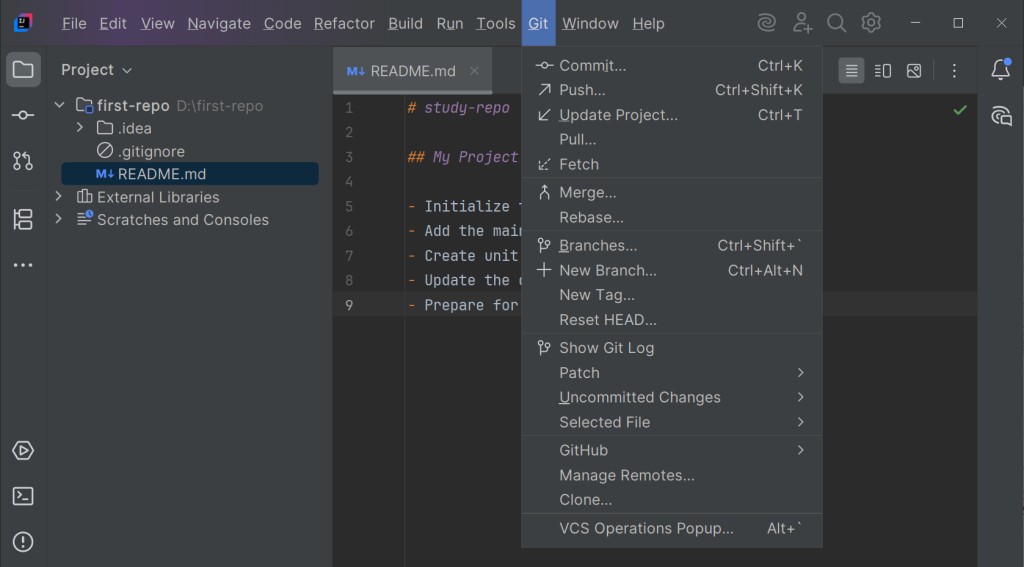
Commit(checkmark) - opens the panel for saving changes;Push(up/right arrow) - the window for pushing commits to GitHub;Branches- the branch widget (in the top-left corner);Show Git Log- the full commit history of the project, your personal time machine.
Getting updates
Update Project fetches changes and integrates them into your local branch; the IDE uses merge or rebase depending on the setting. Before updating, save any unfinished work and check which update method is selected.
Before starting a new task, check the state of your files and whether the branch you need is up to date. If someone else's commits have appeared, fetch them and integrate them the way the project's rules say. An update may require resolving conflicts; it doesn't guarantee there won't be any later.
Ignoring unwanted files - .gitignore
If your project picks up auxiliary files or build output and you don't want them landing in the repository by accident, you need to exclude them. For that, you create a special file named .gitignore in the project root.
What usually gets ignored and why
Almost every stack has files that don't belong in Git, because they are specific to your machine or get regenerated on every build:
- build folders (e.g.
build/,dist/) - compilation output that is easy to recreate; - package manager caches and dependencies (e.g.
node_modules/) - can take up hundreds of megabytes and are specific to your system; - personal IDE settings, such as the state of the workspace window.
.idea/can also hold shared project settings, so ignore the whole folder only if that's the rule your project follows; - operating system files (
.DS_Store,Thumbs.db) - system junk the OS creates on its own.
How to add a file to .gitignore by hand:
Step 1. Say you created a local file notes.txt with rough notes. Right-click it in the project tree.
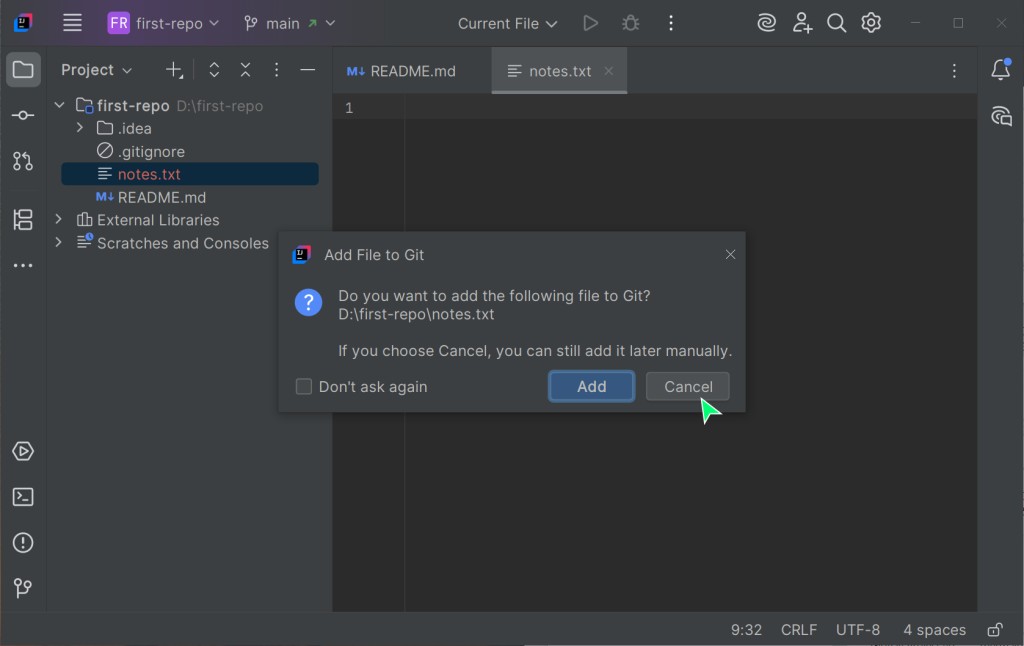
Step 2. Go to Git -> Add to .gitignore -> Add to .gitignore. This adds the selected file to the .gitignore in the project root.
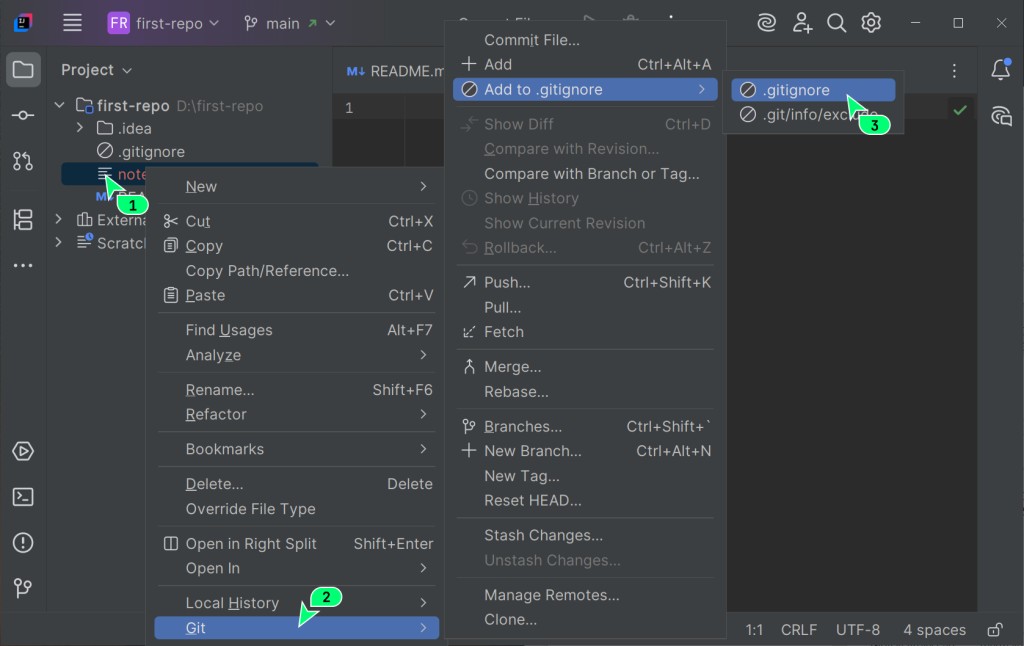
If there's no .gitignore yet, the IDE offers to create one - say yes.
Step 3. The IDE adds the file name to .gitignore automatically, and that's it.
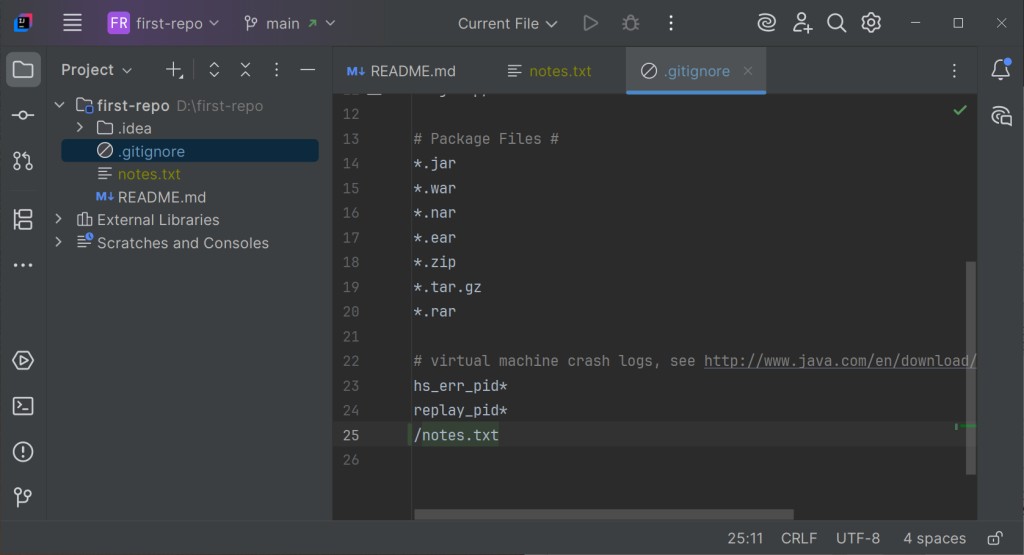
An untracked file that matches the rule usually disappears from the list of files to add; its color in the IDE depends on the theme. This doesn't protect against a forced add, and it doesn't remove anything already saved in the history. Commit the .gitignore itself if the rule should apply to everyone.
If the file is already tracked. Adding it to .gitignore doesn't stop tracking. The command git rm --cached path-to-file removes the file from the index and keeps your working copy; then you commit that change. Earlier versions stay in the history. If the file holds a secret, revoke the access it grants first; ignoring the file is not enough.
.gitignore rules
The file lists patterns for the file and folder names Git should ignore. Blank lines are ignored, and a comment starts with #.

*- matches any number of characters. For example,*.logignores every file with the.logextension;/at the end of a pattern means a directory. For example,build/ignores everything in thebuildfolder;!at the start of a line negates the rule. For example, with the rule*.login place, the line!important.logexempts that file from it; Git starts tracking the file once you add it;**between slashes matches any number of nested folders, including none. For example,logs/**/*.logmatches bothlogs/a.logandlogs/2026/09/a.log.
Sample .gitignore file
# Build and cache folders
build/
dist/
node_modules/

# Personal IDE state (JetBrains)
.idea/workspace.xml

# Operating system files
.DS_Store
Thumbs.db
Ready-made templates
No need to write these files from scratch. there are ready-made templates the community has already tested:
- GitHub's collection of
.gitignorefiles for different languages and frameworks: https://github.com/github/gitignore; - gitignore.io - a web service that generates a
.gitignorefor your tech stack (just enter your language, OS and IDE).
How this works with Claude Code
The daily cycle is exactly what Claude Code can go through on your behalf. Here's what to watch:
- Claude can commit and push on its own - you check what went into the commit and read the message;
- a tidy
.gitignorehelps keep the clutter out, but you still check the selected files before committing (yes, every time); - before an update you check the branch state and any unfinished work, and afterwards the result of the merge or rebase.
Before you agree to a commit or push, look at the diff Claude Code shows you. It's the same check as the checkboxes in the Commit window, except that Claude is the one making the changes. That way only what you actually approved gets into the history and onto the server.
Previous article: Introduction to Git and GitHub · Next article: Branching and merging in Git
GO TO FULL VERSION