So far we've looked at the ideal scenario: you write code, make commits, open a Pull Request. In real life, though, things often go wrong. You forget to add a file, make a typo in the commit message or realize you've gone down the wrong path. Happens to everyone. This article walks through the most common problems and how to fix them with the IDE's tools.
The examples and screenshots come from JetBrains IDEs; action names and their placement may differ in your version. Use a separate practice repository for the exercises. In a real work project, follow its rules for branches, commits and pushing changes.
When Claude Code works in a project, saved history helps you get an earlier result back. But Git doesn't record every keystroke, and uncommitted edits can be lost. Before undoing anything, check the branch, the selected files and whether the copy you need actually exists.
Rollback - rolling back local changes
Scenario: you changed a file, then realized all the edits are wrong, and you want to quickly return it to the state from the last commit.
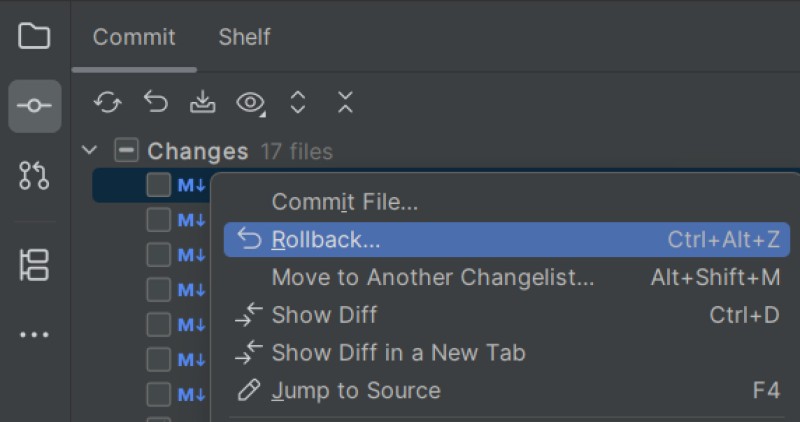
The action you want here is Rollback:
- open the
Committab on the left panel; - find the changed file you want to roll back in the list (or select several);
- right-click and choose
Rollback(or click the curved arrow icon).
The IDE will warn you that the selected local changes will be lost. Look through the diff first and save whatever you need. Confirm Rollback only for edits you really want to throw away, then check the result. This deletes uncommitted work; it doesn't back it up.
Before a Rollback, separate the agent's edits from earlier changes in the same file. Rollback returns the selected files to the last commit (HEAD) and discards both staged and unstaged edits. That isn't the same as git restore without flags, which takes content from the index and changes only the working files.
Amend - adding to the last commit
Scenario: you just clicked Commit and immediately realized you forgot to include an important file (say, an updated test) or made a typo in the message. If the commit hasn't been published yet, you can use Amend. A separate commit with the fix is fine too, especially for history that's already shared.
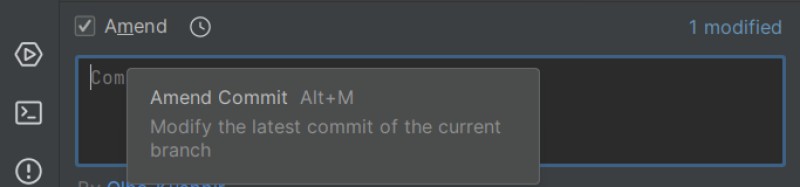
To add to an unpublished commit, use the Amend action (add to or fix the commit):
- in the
Commitwindow, make the fixes in the forgotten file and tick the checkbox next to it; - in the Commit Message panel, find the Amend checkbox (or the gear icon -> Amend Commit) and tick it;
- the IDE pulls in the message of the previous commit, and you can edit it;
- click
Commit.
Amend creates a new commit that replaces the old one, with a different identifier. The old object isn't edited in place. If the earlier commit has already been pushed and other people use it, a separate fix is usually the better choice (and less hassle for everyone).
More on this feature in the official JetBrains tutorial.
Undo Commit
Scenario: you made a commit but have not pushed it yet with Push, and you realize you committed too soon. You want the commit gone from history, but the changes themselves should stay in the editor so you can keep working.

Use the Undo Commit action:
- open the history: the
Git -> Logtab at the bottom; - find the latest commit of the current branch specifically (HEAD), not just the top row of the whole graph, and open its context menu;
- choose
Undo Commit.
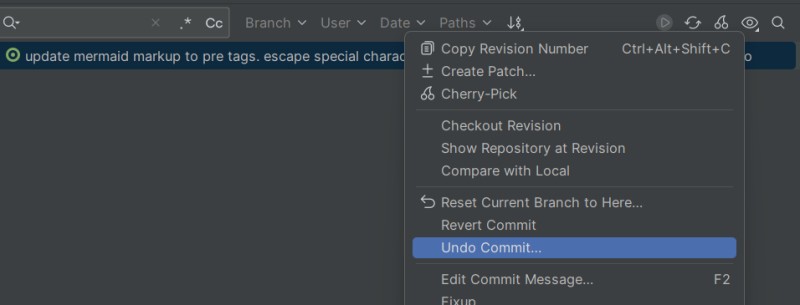
Pick a changelist (usually it's just Default Changelist) and click OK. The commit disappears from history, and the files go back to the Commit window marked as modified. You haven't lost anything and can safely carry on writing code.
Reset - moving the branch and the state of files
The Reset Current Branch to Here... action is a powerful tool that moves your branch pointer to any commit you choose. Depending on the situation, it can gently undo your latest steps or wipe out broken code completely.
Scenario A - undoing the latest local commits
You made several commits locally (before Push) and realized that this whole line of work was a mistake.
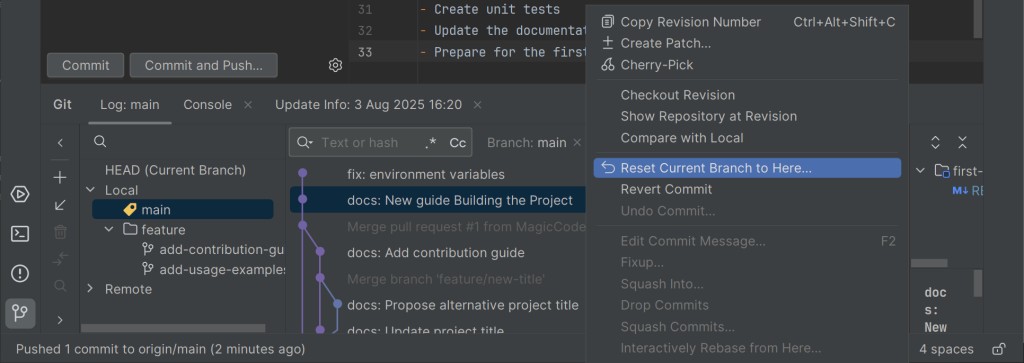
- open the
Git -> Logtab; - find the last good commit you want to land on (the one that came before the run of bad ones);
- right-click it and choose
Reset Current Branch to Here....
Scenario B - resetting to the server state
You want to restore the tracked files from the remote branch. First save the local work you need and run Fetch: the origin/main label reflects what was last fetched, not a constantly updated view of the server. If you're in the middle of an operation with conflicts, sort it out first and either finish or abort it. Hard isn't a cure-all.
- open
Git -> Log; - find the remote branch marker, usually a commit with the purple
origin/mainlabel (ororigin/your_branch_name). This is the last known state of the code on the server; - right-click that commit and choose
Reset Current Branch to Here....
Reset modes
Pick the mode in the reset dialog deliberately. In all three cases the current branch moves to the selected commit, but what happens to the index and the working files differs:
- Soft keeps the working files and the index. Mixed keeps the working files but resets the index to the selected commit, so the difference stays unstaged. These are different modes, even though both let you keep working with the file contents;
- Hard resets the index and the tracked files to the selected commit and destroys their uncommitted edits. Ordinary unrelated untracked files may stay, while paths that get in the way of the restore may be removed. Commits don't disappear from Git's storage right away, but you can't count on rescuing the work later.
What to do after a push
Scenario: you ran push and only then noticed a mistake.
Once a commit reaches the server, it becomes part of the project's shared history. Trying to rewrite that history (with Reset or Amend) can cause huge problems for your colleagues. Imagine they've already pulled your changes and started building their own work on top of them.
The right and safe fix: just make a new commit that fixes the mistake, then do a regular push. Perfectly normal practice. A linear history where the broken code is followed by a clear fix commit keeps the project's evolution transparent for the whole team.
The IDE also has a dedicated Revert Commit action. If you right-click the bad commit in the Git -> Log view and choose Revert Commit, the IDE creates a new "anti-commit" that does exactly the opposite of the bad one (for example, removes the lines it added).
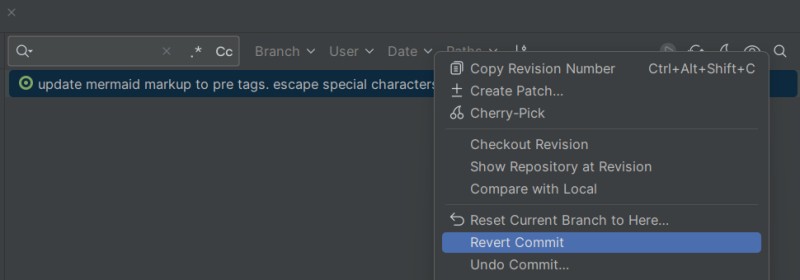
Revert is useful when you need to undo a published change with a new commit. It works for code and for text alike, but it can conflict with later edits. After resolving a conflict, check the result you ended up with; when changes are tangled together, a separate fix is sometimes clearer.
Stash / Shelve - putting changes aside for a while
Scenario: you're deep into coding a new feature, and every file is red and blue. Suddenly your team lead rushes in: "drop everything, we need to fix a bug in main right now". You can't switch to main because you have unfinished conflicting changes. An interim local commit is an option if the project's rules allow it, but if committing the work right now is awkward, you can put it aside.
The solution is to tuck your work away in a virtual box for a while. In Git this is called Stash, and the IDE has a separate mechanism of its own, Shelve (put on the shelf).
- open the
Commitwindow and select the changed files; - choose Shelve Changes...; these steps are for Shelve, while Git Stash is invoked separately;
- give this shelf entry a clear name (future you will be grateful) and click Shelve.
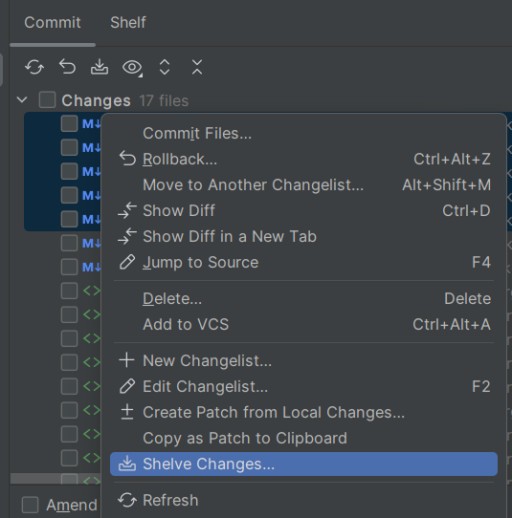
After Shelve, check the files that are left: are all the edits you need really set aside? Now you can switch to main, fix the bug and save the result the way the project's rules say. Then go back to your working branch, open Shelf and choose Unshelve.
For Git Stash, use the separate stash list and restore the entry you need. That's a separate list. A plain stash doesn't include new untracked files without an extra option, so before switching, make sure all the work you need is safe. Restoring can cause conflicts, so check the files again afterwards.
Getting more out of the log
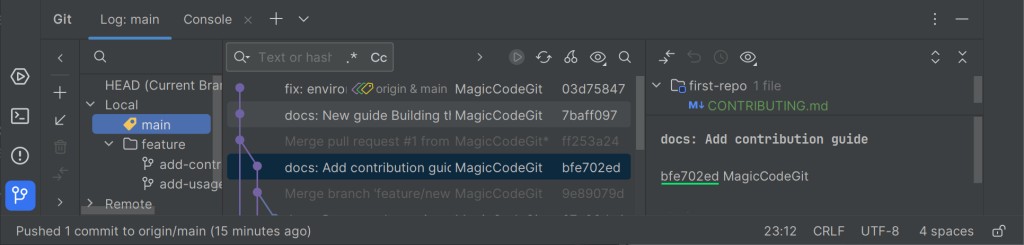
The Git -> Log window is more than a list of commits; it's a powerful tool for investigations.
- Commit hash - a string of letters and digits, for example
a1b2c3d. It's a unique identifier for each snapshot of your code.![A commit hash in the log]()
- you can filter the history by branch, author, date or a word in the commit message - a quick way to find who worked on a particular part and when;
- to find the commit where a specific line of code was added or removed, the
Logwindow can search not only commit messages but also the content of the changes; - right-click the editor gutter (where the line numbers are) and choose
Annotate with Git Blame- the IDE shows, next to each line, who changed it last and in which commit. Then open the commit and the related discussion. Blame only tells you who made the latest edit to a line, not why.
Danger zone - Force Push
We've established that changing pushed commits is a bad idea. But what if you did change your local history anyway (for example, with Undo Commit or Amend), and the server already has the old version? A regular push will fail, because Git protects the shared history from being overwritten.
Force push lets you replace the chosen remote ref even when the new history doesn't continue the old one. It doesn't wipe the whole server: the consequences depend on the refs you push. Branch protection can block this kind of push.
A force push can remove commits that aren't in your local history from the remote branch. That's why rewriting a shared branch needs a separate decision agreed on by the team. For an ordinary fix, use a new commit or Revert.
The typical case where force push is worth discussing is your own branch after an agreed rewrite of its history. Even then, check for new commits from other people. The --force-with-lease option adds a check of the expected state of the remote branch, but you still need to understand which commits will be replaced.
In the screenshot, Force Push sits in the drop-down menu of the Push button. Before using it, check which force-push mode your IDE version applies.
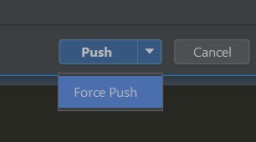
Not 100% sure what you're doing? Then don't use force push. It's safer to create a new commit with the fixes (or use Revert).
The rule is the same for you and for Claude Code: rewriting shared history is dangerous. Don't treat force push as routine, and don't let the agent run it on shared branches. If Claude suggests something that would rewrite history on the server, stop and check whether there's a safe alternative (a new commit, Revert).
Updating the project
Before a new task, check the base branch and any unfinished changes. Pull updates when you need them and read the result of the merge. Update Project doesn't guarantee there will be no conflicts, and it may use merge or rebase depending on your settings.
After the update, check the current branch, the list of commits and the state of the files. If conflicts appear, resolve them before you carry on with the task.
The Git Log context menu
When you open the Git -> Log tab and right-click any commit, a big context menu appears. Let's go through the most useful commands, grouped by what they are for.
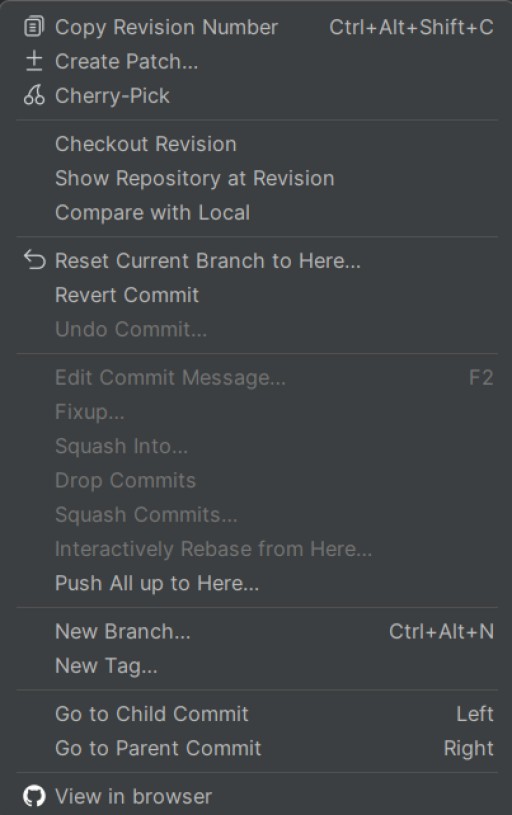
Group 1 - viewing and analysis (safe actions)
Copy Revision Number- copies the commit's unique hash to the clipboard. Handy for sending a colleague a link to the commit or mentioning it in a ticket (Jira, YouTrack);Compare with Local- compares the file as it was in an old commit with what you have in the editor now. A great way to see what this code looked like a month ago;Show Repository at Revision- opens the structure of all project files as they were at the moment of this commit (your current branch doesn't change).
Group 2 - working with branches
New Branch...- creates a new branch straight from the selected commit in the past. Indispensable when you've gone way ahead, realized you broke everything and want to start a new branch from the last working point;Checkout Revision- switches your local project to this commit. You end up in the detached HEAD state: you can run the old code, but new commits won't be attached to any branch. If you made commits you need in detached HEAD, save them to a new branch first. To go back, check out a regular branch (for example,main).

Group 3 - changing and moving commits
Cherry-Pick- lets you pull one specific commit out of another branch and copy it into the current one. Say someone fixed a bug in another branch that blocks your work - you cherry-pick that commit into yours without merging their whole branch;Edit Commit Message...- if the commit hasn't been pushed yet, you can quickly reword its message. easier than Amend if all you need is to change the text.
Group 4 - undoing changes
We covered these commands in detail above:
Reset Current Branch to Here...- moves the current branch to this commit (changing the history reachable from that branch);Revert Commit- creates an "anti-commit" that undoes the changed content with a new local commit, which you then push to the server;Undo Commit...- takes a local commit apart and puts it back into the changes window.
Group 5 - rewriting history
The menu also has commands like Squash Commits... (combine several commits into one), Drop Commits (remove a commit from the middle of history) or Interactively Rebase from Here.... These are tools for fine, surgical work on local history (Interactive Rebase).
While you're still finding your feet, try not to use these commands: they can rewrite the selected commits and the rest of the branch history after them. In real team work they are used to tidy up a rough local branch before handing it over for review (opening a Pull Request).
Git is your safety net
Choose how to recover based on where the work is: uncommitted files, local commits and published history each call for different actions. A saved copy of the version you need and a look at the changes before the operation are worth more than hoping any mistake can be undone.
How this works with Claude Code
When Claude Code works in a project, these tools are your main protection. In practice it comes down to a few habits:
- commit often: every commit is a point to return to. If the agent goes the wrong way, you roll back to the last working state;
- to undo uncommitted edits, first separate the changes you want to keep, then check the scope and source of the restore in Rollback or git restore;
- if the commit is made but not pushed,
Undo Commitbrings the changes back to the editor; - if the mistake is already on the server, a new fix commit or
Revertis safer than rewriting history.
Don't blindly agree to actions that delete data or rewrite history (Reset hard, force push). First look at what exactly Claude Code is about to do. Before a big task, save the state you need and make sure the restore point really contains your work.
Previous article: A pull request from creation to merge · Next article: Creating a repository, rebase, and secrets
GO TO FULL VERSION