In this article you'll learn what a Pull Request (PR) is, why it's a tool for discussing changes, and how to create and view PRs right from the IDE. Along the way we'll also go over three rules of a good commit. This is important groundwork: Claude Code can prepare and comment on a pull request for you, and to use that deliberately, you need to understand what a PR is and why it exists.
The examples and screenshots come from a JetBrains IDE; action names and their placement may differ in your version. For the exercises, use a separate practice repository. In a real work project, follow its own rules for branches, commits and pushing changes.
Why Pull Requests exist
On a team it helps to discuss changes before they land in a shared branch. A pull request ties the proposed diff, the review comments and the check results together in one place. PRs are used in personal projects too, when people want to review their own work before merging.
In a PR-based workflow you start by creating a merge proposal. GitHub calls it a Pull Request; some other platforms call it a Merge Request. The exact process is up to the team.
A Pull Request is a formal request: "please take (pull) my changes from my branch and add (merge) them into the main branch". But it's more than a request. Roughly speaking, it's a whole space for discussing, checking and improving code before it gets into main.
Claude Code can prepare a PR title, a description and a review, for example with the GitHub CLI. Check the draft first. Creating a PR or posting a comment is already a write to GitHub, and it happens only when you ask for it.
The standard Pull Request workflow
Let's go step by step through a typical process for building a new feature.
Before creating a branch, check which branch you're starting from and how its commits compare to the target branch on GitHub. Unrelated local commits must not end up in the new PR. Don't push them automatically just to "sync up": pick the right base for the task and keep the earlier work separate.

Step 1. Create a branch for the new task. In the PR process shown here, work starts on a separate branch. Say we want to add a file with guidelines for contributors - let's create the branch feature/add-contribution-guide.
Step 2. Make your changes and push the branch to GitHub. On the new branch, create a CONTRIBUTING.md file (click Add once it's created) and write a message to other developers in it. Then run Commit and Push with a clear message, for example docs: Add contribution guide.
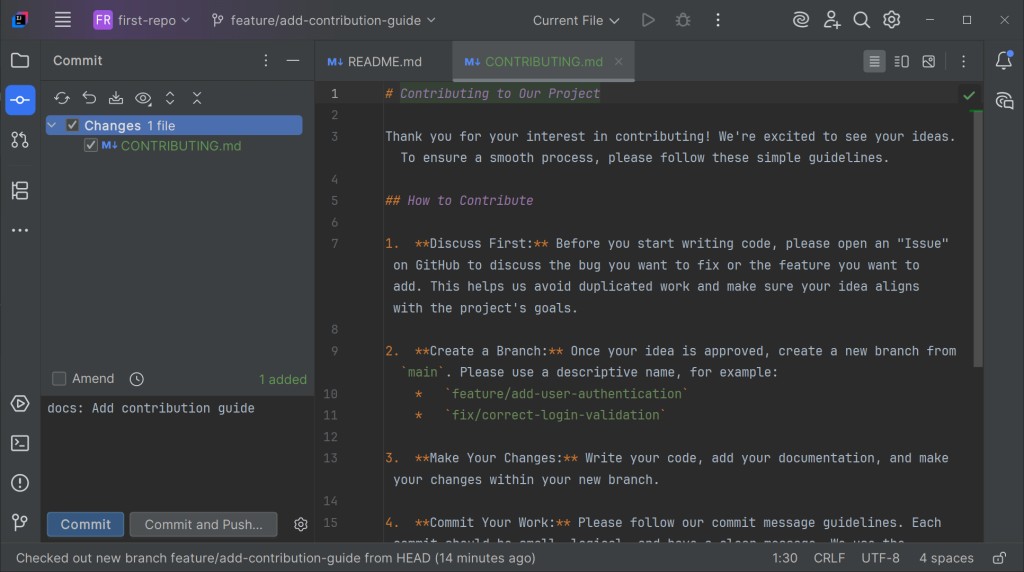
This is the key step. A Pull Request is created from a branch that already exists on the remote server. So before you create a PR, the new branch has to be pushed to GitHub (no way around that).
Creating a Pull Request from the IDE
Check both sides of the comparison: base is the branch you want to merge the changes into, compare/head is the branch with your work. Look through the commit list and the diff before you create the PR.
Now that your branch is on GitHub, you can create a Pull Request.
Step 1. Open the Pull Requests tab. Find the Pull Requests tab on the left sidebar of the IDE. Open it and click the + icon (or the Create Pull Request button).
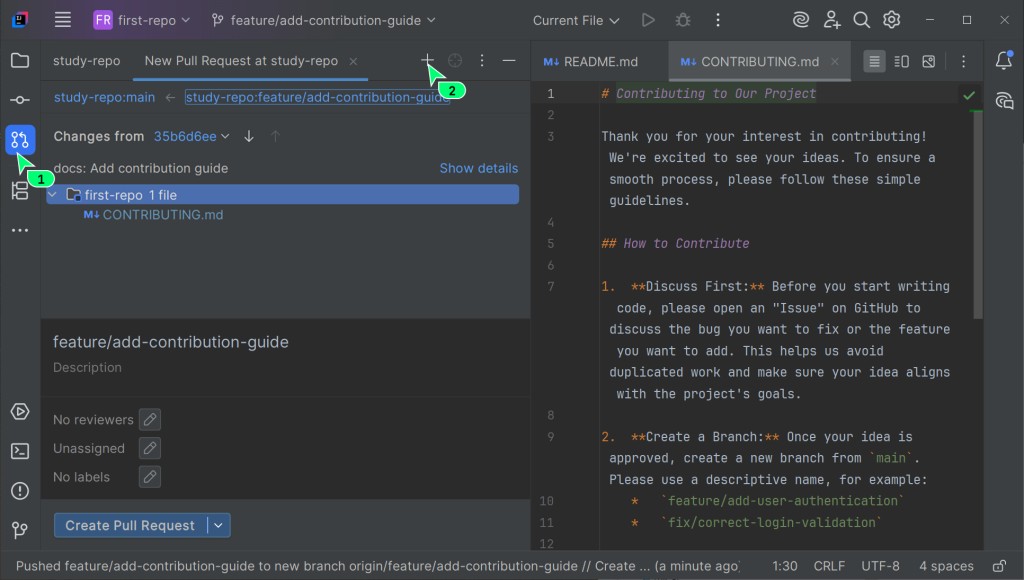
Step 2. Fill in the PR details. The IDE opens a handy form, and your job is to fill it in properly. Here's what matters most:
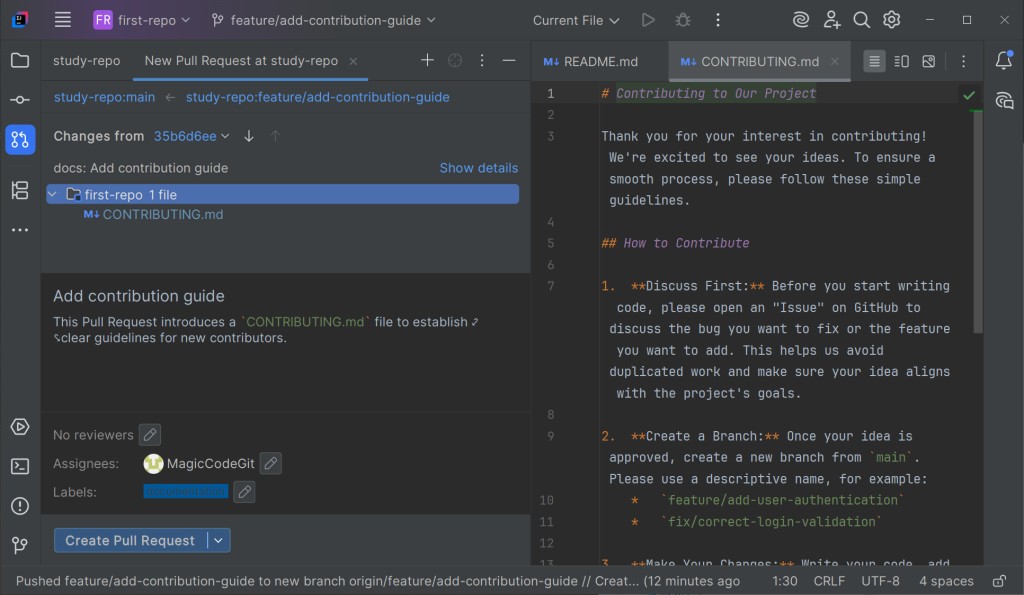
- title - the IDE often fills in the branch name or the last commit message here; make sure the title is short, clear and describes the gist of the changes;
- description - explain to your colleagues in detail what exactly you did and why;
- Reviewers - the people you ask to check the changes. Whether their approval is required depends on the repository rules;
- Assignees - usually you put yourself here as the author and the person responsible for fixes after the review.
Before clicking Create Pull Request, check base, head and the diff one more time. If the work isn't ready for review, you can create a Draft PR when that option is available. Both a regular PR and a draft are already visible to anyone with access to the repository.
Code review - checking and discussion
Once the PR is created, the most important stage begins: code review. Colleagues can open your PR, look at all the changes and leave comments.
All the discussions are visible right in the IDE, in the Pull Requests tab. If someone comments on a line of code, you get a notification and can reply without switching to the browser.
What if you're asked to make changes? Easy. you don't need a new PR. Make the changes on the source branch of this PR, create a new commit and push it. The Pull Request on GitHub updates automatically and adds the new commits to the existing discussion.
Claude Code can take part in code review: go through the PR changes and leave comments. That works well as a first pair of eyes - but the final decision and the responsibility for the code stay with you and the team.
Wrapping up - merging and deleting the branch
When every comment is addressed and the team approves the changes (you get an "approval"), the Pull Request can be merged. Usually a senior developer does that, or you do it yourself if you have those permissions in the repository.
Step 1. Merge. Check the comments, the required approvals and the check statuses. If the rules and your permissions allow the merge, pick one of the available methods (merge, squash or rebase) according to the project rules and confirm it. The changes land in the PR's target branch, main in our example.

Step 2. Delete the branch. After the merge the feature branch is no longer needed, and it's worth deleting so the repo doesn't fill up with clutter. GitHub offers to do it for you with the Delete branch button.

After the merge, switch to main locally, pull the updates and make sure the PR's result is there. Then you can delete the local task branch if no work you need is left on it. If the IDE won't let you delete it the usual way, find out why first, especially after a squash or a rebase.
Three rules of a good commit
A good commit isn't only about the right message but about what goes into it, too. To keep the change history clean and useful, stick to three simple rules.
Rule 1 - write clear messages
Your commits are messages to the team and to your future self. A history full of nothing but "fix" or "update" is pretty much useless. One common format is Conventional Commits. It uses this structure:
<type>: <short description>
The type is a short word describing the category of the change:
feat- a new feature;fix- a bug fix;docs- documentation changes;style- formatting edits that don't affect the logic;refactor- code changes that neither add a feature nor fix a bug;test- adding or fixing tests;chore- routine tasks (updating dependencies, configuring the build).
Examples:
- Bad:
fixed bug - Good:
fix: Correct user login validation - Bad:
readme - Good:
docs: Update installation instructions
Ask Claude Code to use the message format your repository has adopted. Conventional Commits is optional if the team has chosen another convention.
Rule 2 - one commit, one logical change
Don't try to squeeze a bug fix, a new feature and a refactoring of old code into one commit. A commit like that is hard to review and almost impossible to revert without pain. Each commit should do one specific thing.
- Bad: a single "Update user page" commit that adds an avatar field, fixes name validation and changes the button colors;
- Good: three separate commits:
feat: Add avatar upload to user profilefix: Correct username validation logicfeat: Update button colors on user page

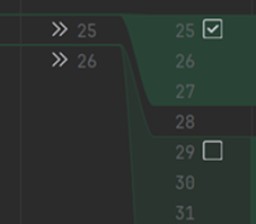
If you got carried away and changed too much in one file, the IDE lets you commit only part of it: in the Commit window you can expand the file and tick only the fragments (chunks) that belong to the task at hand.
Rule 3 - check the result of your changes
Before merging, run the checks that fit the change and look at what they actually returned. A documentation edit and new logic call for different sets of checks.
If the repository already has automated checks set up, the PR shows their statuses. A green check mark means the specific checks that ran have passed, not that the code is proven bug-free. Look at what ran and what was left unchecked. Setting up automation is a separate topic.
How this works with Claude Code
The PR is where Claude Code is especially useful. Here's what to keep an eye on:
- Claude can create a pull request from your branch with a ready-made title and description - you check the text before the PR is created on GitHub;
- it can go through the PR changes and leave comments as a first pair of eyes;
- it helps write commit messages that follow the project rules;
- it can help read the results of checks that are already set up and point out what went unchecked.
A PR exists so that code gets checked before it reaches main. Even if Claude Code wrote the description and did part of the review, the final approval and the responsibility for the merge rest with a person. Read what exactly is being merged before you click Merge.
Previous article: Branching and merging in Git · Next article: Undoing and recovering changes in Git
GO TO FULL VERSION