Branches let you keep several lines of work going in one project at the same time without them getting in each other's way. In this article you'll see what branches are and why you need them, and learn how to create them, switch between them, merge changes and calmly resolve merge conflicts with your IDE's tools. This is exactly the foundation you need to follow what Claude Code does when it works with your repository on a separate branch.
The examples and screenshots are from a JetBrains IDE; action names and their location may differ in your version. Use a separate practice repository for the exercises. In a real project, follow its rules for branches, commits and pushing changes.
What branches are and why you need them
A branch gives a name to a separate line of commits. Creating a branch doesn't copy the project folder and doesn't save uncommitted files. In a regular working folder, Git swaps the files to match the selected branch when you switch; unfinished changes may come along with you or block the switch.
A new branch, feature/new-idea, splits off from the main branch, main, for a separate line of development. Once the work is done, it gets merged back into main.
Imagine you want to seriously rework something in your project or run a risky experiment. What would you do without Git? Most likely, you'd copy the whole project into a new folder and work there. If you liked the result, you'd move it over to the main folder. If not, you'd delete the copy, and that's it.
The copy analogy helps you picture separate versions of the work, but technically a branch is a pointer to a commit. It's easier to see with a book:
- you have a finished manuscript (that's your main branch,
main); - you want to write an alternative ending (you create a new branch, e.g.
feature/new-idea); - you write the new ending without touching the main text of the manuscript (you work in the new branch);
- if the new ending turns out better, you replace the old one with it (you merge the branches -
merge); - the old draft with the ending you no longer need can be deleted (you delete the branch).

Ask Claude Code to show you the current branch and any existing changes first. Create a separate branch if that matches the project's rules. Saved commits give you a point to return to; deleting a branch name doesn't, by itself, undo file edits or restore the original state.
Creating a new branch and working in it
Step 1. Open the branch menu.
On the main toolbar, next to the project name, there's a widget that shows the name of the current branch (main by default). Click it and choose + New Branch.
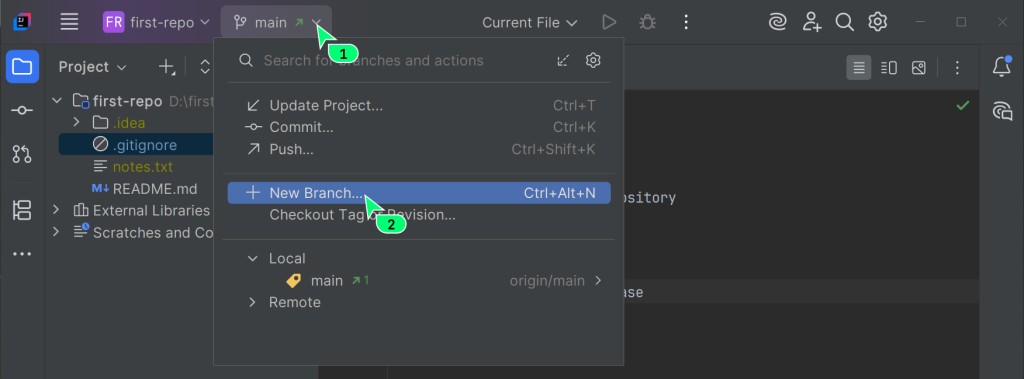
Step 2. Name the new branch.
It's good practice to name branches after the task you're working on. Something like feature/add-usage-examples.
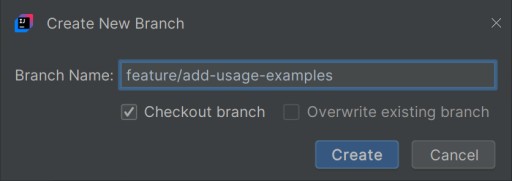
If Checkout branch was checked when you created the branch, the IDE will switch to it. Check its name in the widget before you edit any files (easy to forget, honestly).
Step 3. Make your changes and commit them.
Add a section with usage examples to README.md. Review the changes and commit them the usual way: a saved snapshot will appear in the new branch's history.
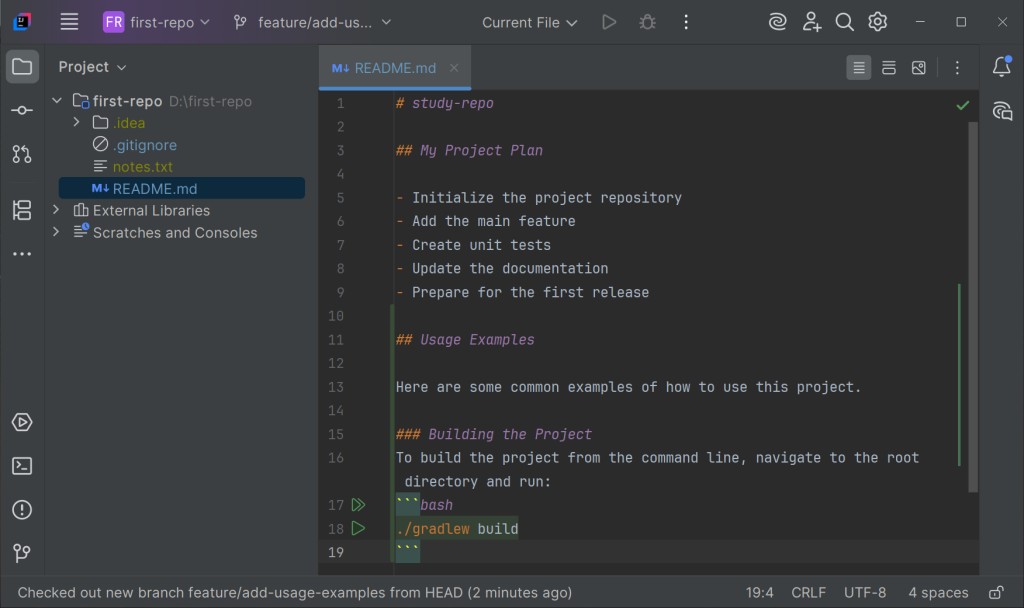
When Claude Code offers to make a commit, that's exactly what it does: it records the current changes as a point you can come back to later. Before you agree, read the commit message. It describes what's changing, and it's easy to edit.
Switching between branches
Your usage-examples changes are now safely stored in the feature/add-usage-examples branch. Let's go back to the main branch, main, and see what's there.
Step 1. Click the widget with the current branch name in the top-left corner again.
Step 2. In the Local or Recent list, select the main branch and click Checkout in the submenu that appears.
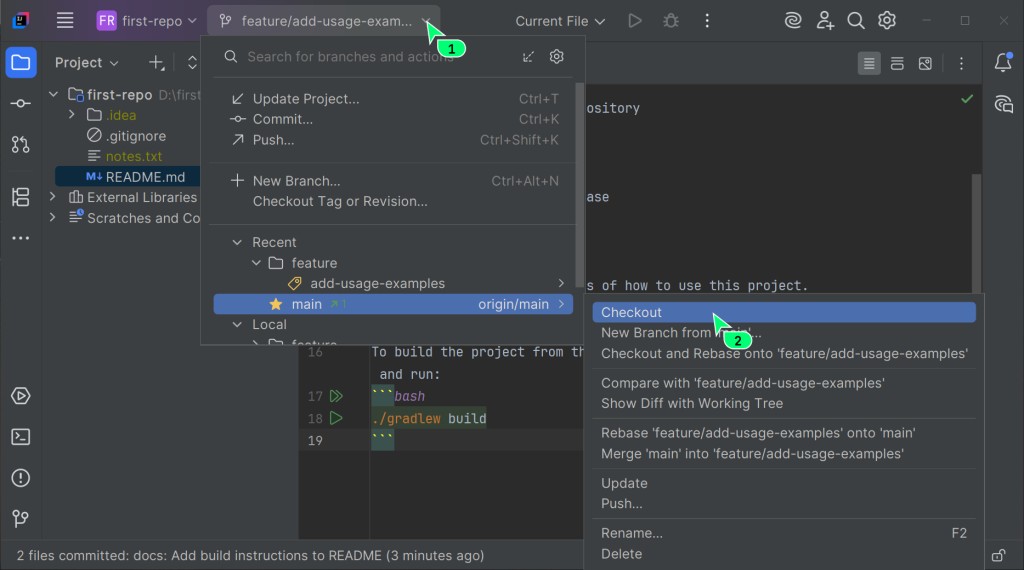
Step 3. Check the result.
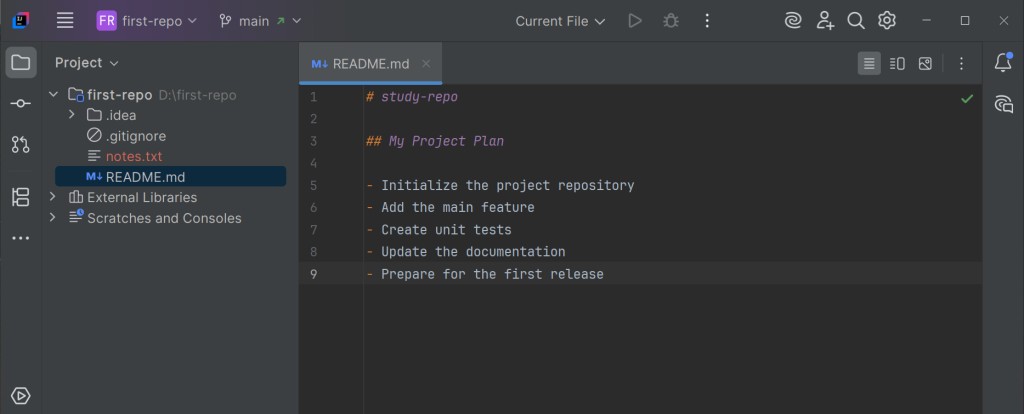
Once you've switched, open README.md. The usage examples section is gone. Well, not gone: it just stayed in the other branch. This way you can work on a new feature without touching the stable version in the main branch.
Merging branches
merge combines the history of the selected branch with the current one. If main hasn't moved since the branch split off, a fast-forward is possible: main moves to C3 without a new commit. If the lines have diverged, a regular merge creates a commit with two parents.
In the linear case shown here, main can move to C3. The feature/add-usage-examples branch also points to C3 for now; you don't need to delete its name to merge.
So, you've finished your task in the feature/add-usage-examples branch and want to bring those changes into the main project.
Step 1. Switch to the target branch.
Make sure you're on the branch you want to bring the changes INTO. in our case, that's main.
Step 2. Run the merge.
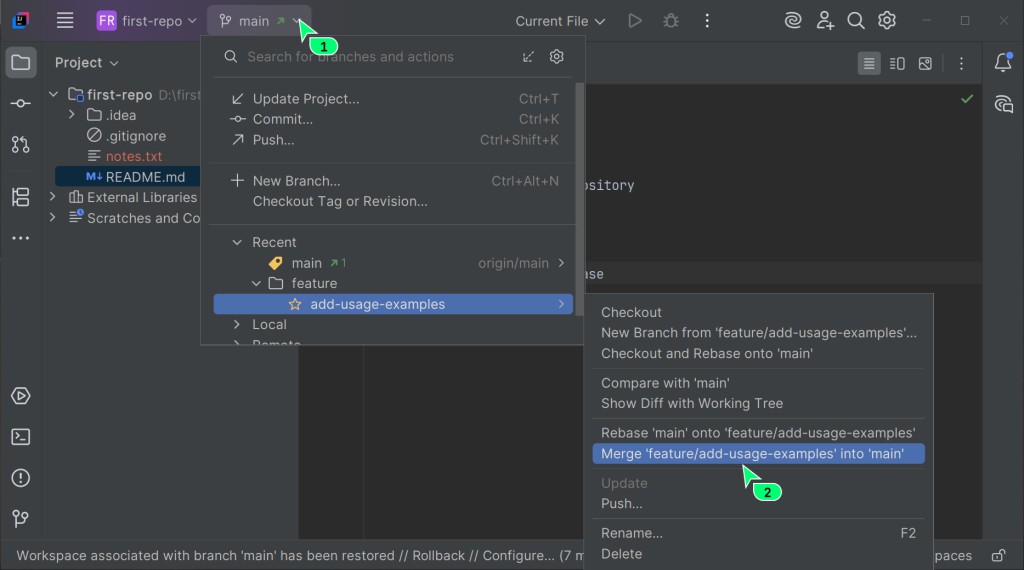
Click the branch widget again. In the list, select the branch you want to take the changes FROM (feature/add-usage-examples), and in the submenu choose Merge 'feature/add-usage-examples' into 'main'.
Step 3. Check the result.
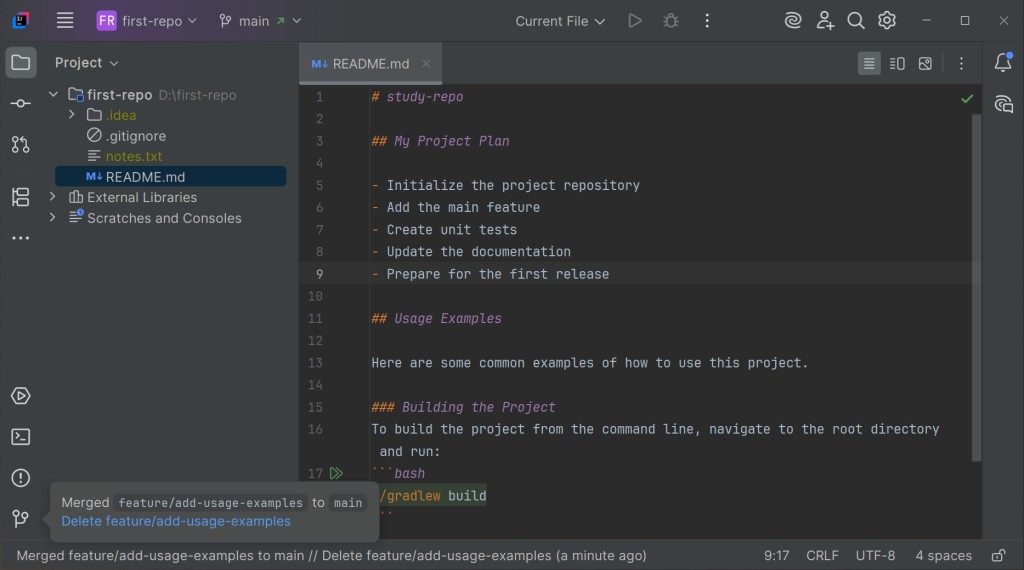
Now README.md on the main branch has your new examples section. Done. Your work is merged into the main version of the project.
Merge conflicts
A conflict means Git couldn't combine the changes automatically. A common case is different edits to the same lines; it also happens when a file is deleted in one branch and modified in the other. How you resolve it depends on what the result needs to be.
This is where your IDE's built-in tools (CLion or IntelliJ IDEA) really shine. Resolving conflicts in the terminal is not exactly fun, but the built-in three-way merge tool turns it into a clear, simple process.
Both branches got commits on top of their common ancestor, C1. Diverging history on its own doesn't guarantee a conflict: one only happens when Git can't combine the changes automatically. In the exercise below, two different texts replace the same original line.
Let's set up a conflict:
- make sure you're on the
mainbranch and have no uncommitted changes or new files in the Commit window; - create a new branch,
feature/new-title, but don't switch to it yet. Make sure the Checkout branch checkbox is cleared; - now, still on
main, change the first line ofREADME.mdto "My Awesome Project" and make acommit; - switch to the
feature/new-titlebranch. You'll see that the first line ofREADME.mdis still the old one here - that's the state of the file at the time the branch was created. Change that same line to "My Super Project" and make acommit; - go back to the
mainbranch and mergefeature/new-titleinto it.
Now Git will see that both histories changed the same spot. It will show you a window for resolving the conflict (Merge Conflicts).
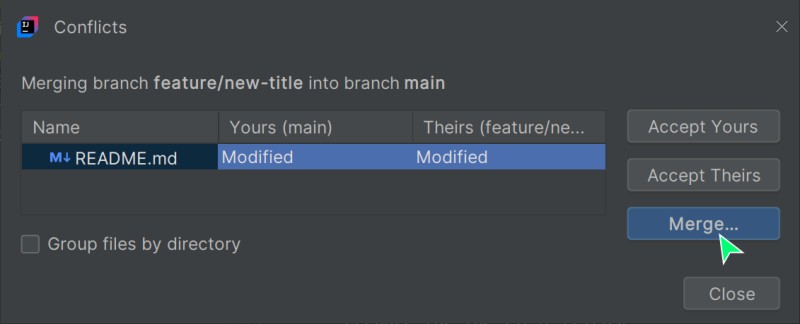
Click Merge to open the conflict resolution tool. Here's what you see:
- on the left (Your changes) - the version of the file from your current branch (the one you're merging into,
main); - on the right (Changes from branch) - the version of the file from the branch you're merging in;
- in the center (Result) - the final version of the file, which you put together by hand.
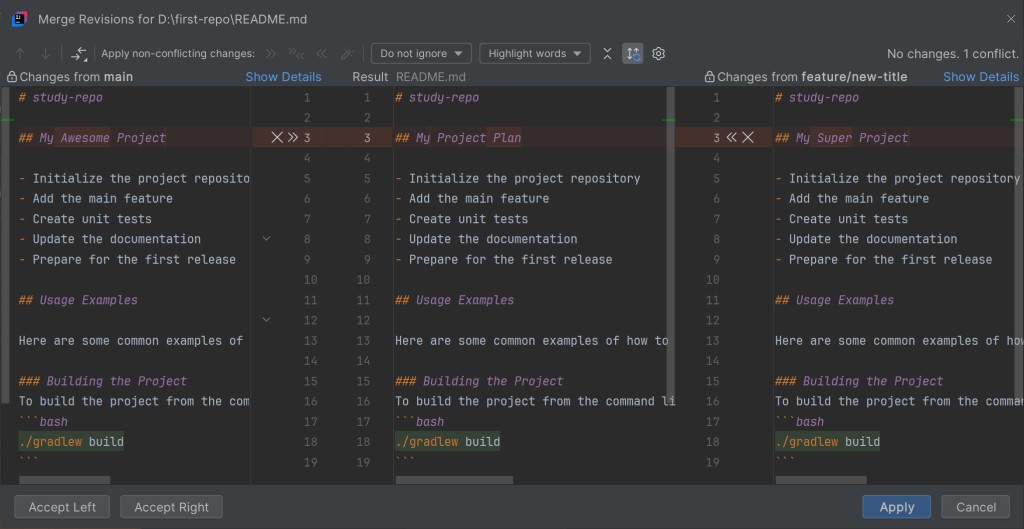
You can click the >> or << arrows (or the crosses to reject) to accept one version or the other as a whole. You can also just type the correct text in the center pane.
Check the result in the center pane and click Apply or whichever button finishes the merge. Then look at the Git status: if the merge isn't committed yet, commit it through the IDE. Resolving the conflicting lines and completing the merge are separate steps. And make sure the resulting code actually does what it should.
If a conflict comes up while you're working with Claude Code, nothing is broken: Claude may stop and ask for your help, or suggest how to untangle the changes. You resolve it with the same three-way IDE tool as any other conflict.
Why there's sometimes no conflict
If the exercise doesn't produce a conflict, check which commit the second branch was created from and whether both sides really replaced the same line in different ways. Git can automatically combine compatible edits even in branches that have diverged. Another case is a linear history, where a fast-forward is possible:
Here's how that plays out:
- you have some commit on
main(say, C1); - you make a new commit on the
mainbranch with the text "My Awesome Project". Themainbranch now points to commit C2; - you create the
feature/new-titlebranch from wheremainis now - the new branch also starts at commit C2; - you make a commit on
feature/new-titlewith the text "My Super Project". That branch moves ahead and points to commit C3; - you go back to
main(which is still at commit C2) and mergefeature/new-title.
Git sees that main is a direct ancestor of feature/new-title: no new commits showed up in the history of main while you were working in the other branch. So it simply fast-forwards the main pointer to commit C3, with no conflicts.

The history of main continues straight into the history of feature/new-title without diverging, so Git just fast-forwards main - no conflict.
Viewing the change history
To get a better sense of what's going on in your project, it helps to look at its history.
Open the Git tool window (usually an icon on the left sidebar or at the bottom of the IDE window) and select the Log tab or Show Git Log on the Git toolbar. You'll see a graph of all your branches and commits. It makes it easy to trace which branch split off from which and where they were merged.
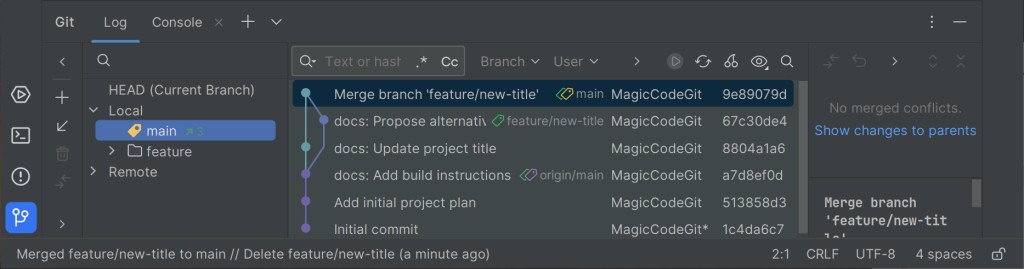
Here you can click any commit to see which changes went into it, who made it and when. A real time machine for your code, basically.
Claude Code's changes end up in this history once they're committed as ordinary commits. In Git Log they sit right next to yours: you can open any commit and check exactly what changed.
How this works with Claude Code
Now that you understand branches, it's easier to follow what Claude Code is doing when it works with your repository. Here's what it handles for you with branches, and what to keep an eye on:
- it creates a separate branch if the task and the project's rules call for one;
- it suggests a
commitat key points - you read the diff and decide whether to accept it or adjust it; - it helps you find the right saved commit and pick a way back, taking uncommitted changes into account;
- if there's a merge conflict, it may ask for your help (and you resolve it with the same IDE tool);
- it can prepare and comment on a pull request (a PR is a proposal to merge a branch into the main one; Claude Code can create it with GitHub CLI, for example).
Look at the diff before you agree - especially when Claude offers to delete files or run a merge. That way you always know exactly what goes into the project's history.
Previous article: Everyday work with Git · Next article: A pull request from creation to merge
GO TO FULL VERSION