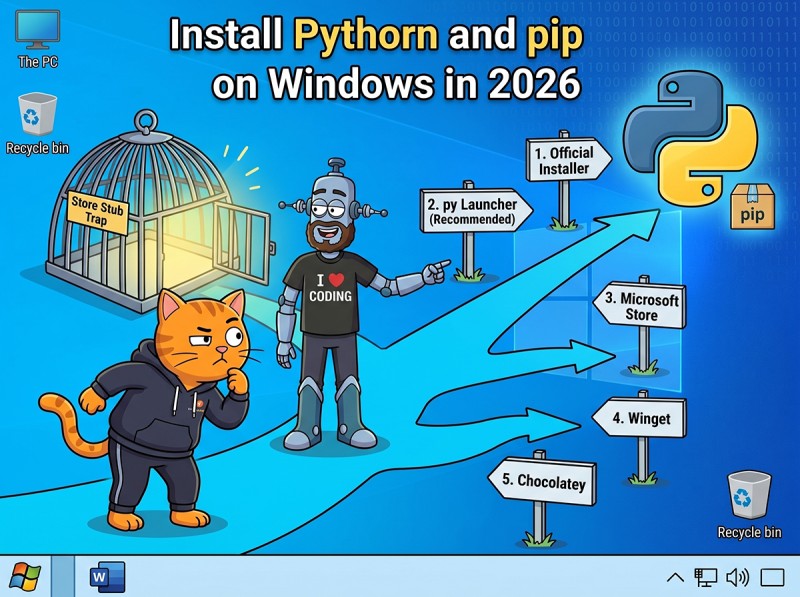
The Windows Python install story changed in late 2024: Python 3.14 shipped with a new Python Install Manager (pymanager), the traditional MSI installer was marked deprecated for Python 3.16 and beyond, and the Microsoft Store version has been quietly losing favor. Add the famous "typing python opens the Store" trap and the question "how do I install pip on Windows in 2026" suddenly has five answers, not one. This guide walks the five paths, explains why pip is already there in every modern install, fixes the Store Stub trap, and shows the py launcher patterns every Windows Python user should make automatic. It's one of 10 explainers in our Python Environment Setup pillar page.
Key Takeaways
Pip is bundled. Every Python install since 3.4 ships pip. You don't install pip separately; if it's missing, run py -3 -m ensurepip --upgrade.
Python Install Manager (pymanager) is the 2026 default. Shipped with Python 3.14, handles multiple versions, ages out the old MSI installer for Python 3.16+.
The Store Stub trap is solvable. Windows ships fake python.exe in PATH that opens Microsoft Store. Turn off App Execution Aliases for python.exe and python3.exe.
Always use py over python. The py launcher reads version requests (py -3.13) and shebangs; plain python depends on PATH order.
Five paths, one recommendation. pymanager for most users, python.org MSI if you want the classic installer, uv if you also want a fast package manager, Microsoft Store for learners, Scoop for CLI-first developers.
Five install paths, one recommendation (pymanager), and the Store Stub fix everyone should do once on a fresh Windows install.
The Short Version: Pip Is Already There
If you have Python 3.4 or newer installed, you have pip. The Python installer puts both python.exe and Scripts\pip.exe in the same directory. The only ways pip can actually be missing:
Python isn't installed (you typed python and got the Microsoft Store; see the Store Stub fix below).
You ran a custom installer that explicitly excluded pip.
Pip was uninstalled by hand or by a corporate-managed image.
For all three, the bootstrap is the same:
# Use py launcher to target the latest Python 3:
py -3 -m ensurepip --upgrade

# Or for a specific version:
py -3.13 -m ensurepip --upgrade

# Verify:
py -3 -m pip --version
ensurepip is built into the standard library and reinstalls pip into the Python you point it at. It works on every Python from 3.4 onward.
Released with Python 3.14, pymanager is the new official Windows installer. It handles multiple Python versions, knows how to update them in place, and integrates with the py launcher so version switching is one command.
# Get pymanager from Microsoft Store or python.org:
# https://www.python.org/downloads/

# After install, manage versions:
pymanager install 3.13
pymanager install 3.14
pymanager list                # show installed
pymanager use 3.13           # set the default
pymanager uninstall 3.12
pymanager update 3.13         # in-place update to latest patch
The traditional python-3.X.Y.msi installer is being phased out. The Python team announced no MSI installer will be produced for Python 3.16 or later. If you're setting up a fresh machine in 2026 and don't have a strong reason for another path, this is the one.
Path 2: python.org Classic MSI Installer
The familiar Windows installer EXE you've used for a decade. Still works, still recommended in some workflows, and a known quantity for corporate-managed deploys.
# Download from https://www.python.org/downloads/windows/
# python-3.13.X-amd64.exe

# IMPORTANT during install:
# [x] Add python.exe to PATH       (check this)
# [x] Install for all users         (your call)
# Customize installation:
#   [x] pip                         (default, leave on)
#   [x] py launcher                 (default, leave on)
#   [x] Install for all users
#   [x] Add Python to environment variables
The "Add to PATH" checkbox at the bottom of the installer screen is the single most consequential decision. If you uncheck it, you'll spend the next hour wondering why python doesn't work in your terminal. Always check it on a development machine.
Path 3: Microsoft Store Python
The simplest install: open Microsoft Store, search for Python, click Get. The package is functionally the same Python, but with three caveats:
Sandboxed filesystem writes. Microsoft Store apps can't write directly to %TEMP%, %APPDATA% shared locations, or the registry hives. The Store version redirects writes to a private per-app copy. Most scripts work; some installers and IDE integrations don't.
Auto-update without warning. Microsoft Store can update Python under you when an extension uses a feature that changed.
Mildly different py launcher behavior. Store Python registers differently with the py launcher.
It's a fine choice for learning Python and running scripts. For real development, switch to pymanager or the python.org MSI.
Path 4: Scoop (CLI-First Developers)
Scoop is a community Windows package manager. The Python install is portable (everything lives in your user directory), needs no admin rights, and is simple to script.
scoop install python              # install latest Python 3
scoop install python311           # install a specific version
scoop list                        # show installed
scoop update python               # update
Good for developers who already drive their toolchain from the command line. Pip works normally inside Scoop-installed Pythons; the install lands in your user directory, so PEP 668's externally-managed marker doesn't apply (see our externally-managed-environment guide).
If you're going to install something that manages packages anyway, uv can also install and manage Python for you. One tool, three jobs (Python install, venv, pip).
# Install uv first (one-line):
powershell -ExecutionPolicy ByPass -c "irm https://astral.sh/uv/install.ps1 | iex"

# Then manage Pythons:
uv python install 3.13
uv python install 3.14
uv python list
uv python pin 3.13              # write .python-version in the current dir

# Create a project that uses your installed Python:
uv init myproject
cd myproject
uv add requests
This is the cleanest path for a fresh dev machine in 2026 where you don't want a system-wide Python at all. uv installs each Python to your user directory; the PEP 668 marker never applies; the uv run command sidesteps venv activation entirely. See our venv vs uv vs Poetry decision guide for the broader case.
The Store Stub Trap (Fix It Once)
Windows 10 and 11 ship with two placeholder files in your PATH:
These aren't real Python. They're App Execution Aliases: zero-byte stubs that, when run, open Microsoft Store at the Python page. Microsoft added them so beginners typing python get a helpful nudge instead of an error. If you already installed Python from python.org or pymanager, these stubs still win the PATH race because WindowsApps sits early in your user PATH.
The Fix
Press Win + I to open Settings.
In the search bar, type Manage app execution aliases.
Find the two rows labeled "App Installer python.exe" and "App Installer python3.exe".
Toggle BOTH to OFF.
Open a NEW PowerShell or Command Prompt window (existing terminals still have the old PATH cached).
Verify the Fix
where python
# Should print only your real Python paths:
# C:\Users\<you>\AppData\Local\Programs\Python\Python313\python.exe
# (NOT C:\Users\<you>\AppData\Local\Microsoft\WindowsApps\python.exe)

python --version
# Should print your real Python version, NOT open Microsoft Store
If where python still shows the WindowsApps path, the stub didn't get disabled. Make sure both python.exe AND python3.exe are off; Settings sometimes only catches one of them per click.
The py Launcher: Your Windows Habit
The py launcher is a small Windows program installed by every modern Python that knows about every Python on your machine and routes commands to the right one.
py                              # latest Python 3.x
py -3                           # latest Python 3.x
py -3.13                        # specifically Python 3.13
py -3.14                        # specifically Python 3.14
py -3 -m pip install requests   # pip install for latest 3.x
py -3.13 -m venv .venv         # make venv with Python 3.13
py -3.14 my_script.py           # run script with Python 3.14
py --list                       # show every Python py knows about
py --list-paths                 # with full paths
This is the Windows equivalent of python3 on Linux/macOS, but better: py handles version selection, knows about pymanager-installed Pythons and python.org-installed Pythons, and reads version hints from shebang lines.
Shebang Routing
A line at the top of a Python script tells py which Python to use:
Running py my_script.py reads that shebang and launches Python 3.13 specifically. This is portable Windows-friendly behavior; the script works the same way on Linux/macOS too because /usr/bin/env resolves the same way.
The .python-version File
If you put a file named .python-version in your project root with a version string:
3.13
Both py launcher (in recent versions) and uv read it and use the requested Python automatically when you run scripts from inside that directory. This is the cleanest cross-platform pattern for "this project needs THIS Python."
Installation Path Comparison
Path
Multi-version
Auto-updates
PATH-clean
Sandbox limits
Best for
pymanager
Yes (built-in)
Yes (per-Python)
Yes
No
Most new users (2026 default)
python.org MSI
Manual
Manual download
Yes
No
Classic experience, corporate
Microsoft Store
One version slot
Yes (Store)
Yes
Yes (annoying)
Learners
Scoop
Per package
scoop update
Yes (portable)
No
CLI-first developers
uv
Yes (built-in)
uv python install
Yes
No
You also want fast pip
Common Windows Pip Errors
"pip is not recognized"
Either Python isn't on PATH, or you have Microsoft Store Python and the stub still owns the alias. Use py -3 -m pip instead of plain pip. If that works, your real Python is fine; the issue is PATH ordering.
"No module named pip"
Rare but real. Bootstrap with:
py -3 -m ensurepip --upgrade
If that fails, your Python install is broken; reinstall via pymanager.
"Could not find a version that satisfies the requirement"
Almost always a Python version compatibility issue. Run py -3 --version to confirm which Python you're on; some packages don't yet ship wheels for the latest Python. Try py -3.13 if you're on 3.14 and need a package that doesn't have a 3.14 wheel yet.
"externally-managed-environment"
Wait — that's a Linux/macOS error, not a Windows one. If you're seeing it on Windows, you're running WSL or a similar Linux-on-Windows environment. The fix is the same as the standalone case: make a venv. See our externally-managed-environment guide.
"WindowsApps\python.exe ... opened Microsoft Store"
The Store Stub trap. Disable App Execution Aliases for python.exe and python3.exe in Settings (steps above).
Verifying Your Install: The Three Commands
After any Windows Python install, run these three to confirm a working setup:
If all three print version info without errors, your install is healthy and you're ready to make a venv and start working.
Frequently Asked Questions
Do I need to install pip separately on Windows in 2026?
No. Every modern Python install on Windows ships pip already bundled. That's been true since Python 3.4. If pip is missing, the most likely cause is that Python isn't actually installed (the python command runs the Microsoft Store stub instead) or you're invoking the wrong Python. Run py -3 -m ensurepip --upgrade to bootstrap pip into the version py launcher selects, which fixes most cases without a reinstall.
What is the Python Install Manager (pymanager)?
Python Install Manager is a new tool that ships with Python 3.14 and replaces the traditional Windows MSI installer for newer Pythons. It's a version manager built by the Python team: install multiple Python versions side by side, switch between them with py launcher, and update each one in place. The traditional MSI installer is being deprecated and will not be produced for Python 3.16 or later, so pymanager is the path forward. It installs through Microsoft Store or directly from python.org.
Why does typing python on Windows open the Microsoft Store?
Windows 10 and 11 ship with placeholder python.exe and python3.exe files in your PATH that exist only to send you to the Microsoft Store to install Python. They're called App Execution Aliases (Store Stubs). If you've already installed Python from python.org but typing python still opens the Store, the Store Stub is winning the PATH race. Fix it by opening Settings, searching for Manage app execution aliases, and turning OFF both python.exe and python3.exe aliases. After that, your real Python installation takes over.
Should I use the py launcher or python on Windows?
Use py. It's the Windows-specific launcher that ships with Python and explicitly handles multiple installed versions. py runs the latest Python, py -3.13 runs Python 3.13 specifically, py -3 -m pip install requests installs into the latest Python 3.x. Plain python depends on PATH order and breaks the moment you install a second Python or run a different shell. For Windows-only scripts, py also reads shebangs like #! /usr/bin/env python3.13 and picks the matching interpreter. Plain python only works correctly when there's exactly one Python on PATH.
Is the Microsoft Store Python installer good enough?
It works for learning Python and running scripts. It's restricted in three real ways: Microsoft Store apps can't write to system locations (registry, %TEMP%, Program Files), Python from the Store writes to a private redirected copy of those locations instead. Add-ons that expect a normal Python install (some IDEs, some C extensions) get confused. And the py launcher behavior is slightly different. For learning and most projects, the Store version is fine; for serious development, install pymanager or the python.org MSI directly.
The Bottom Line: pymanager + py Launcher + Store Stub Off
The 2026 Windows recipe is short. Install Python via pymanager (or python.org MSI if you prefer the classic). Turn off the python.exe and python3.exe Store Stubs in Settings. Use py -3 and py -3 -m pip as your default commands, never bare python and pip. pip is already there; you don't install it separately. For everything that comes after the install, see our multiple Pythons on one machine guide, ModuleNotFoundError fix, or browse the full Python Environment Setup pillar page.
Start Coding Python Without the Installer Chase
CodeGym's Python track runs in a browser-based WebIDE. No installer, no PATH games, no Store Stub. Open the lesson, start typing code, the AI validator grades it instantly. 800+ hands-on tasks across 62 levels and an AI mentor when you hit an error. First level free; full plan on the pricing page.
Start learning Python (free) →


GO TO FULL VERSION