1. What is an IDE
IDE (Integrated Development Environment) is not just a trendy word programmers like to repeat. It is a whole combine of development tools: a code editor, a compiler, a debugger, a hint system, project management, and even a built-in coffee machine... well, okay, that last one does not exist yet.
Why is an IDE more convenient than a text editor + command line?
When you write code in a regular editor (Notepad or Vim), you have to manually run compilation, look for errors in the console, and sometimes even remember which folder contains the file you need. An IDE does all of that for you — and a little bit more:
- errors are visible immediately, not after compilation;
- the IDE suggests methods, variables, and sometimes even seems to read your mind;
- no need to switch between windows;
- you can instantly jump to the desired class, function, or file;
- integration with version control systems (Git);
- adding external libraries takes just a couple of clicks.
If writing code in a regular editor is like assembling IKEA furniture blindfolded, then an IDE is like assembling the same furniture with an experienced craftsman and a full set of automatic tools.
2. Overview of popular IDEs for Kotlin
In the Kotlin world, choosing a development environment is a bit different than for other languages. Since the language was designed specifically for modern programming, there are a few main tools:
| IDE | Operating systems | Free | Key features and advantages |
|---|---|---|---|
| IntelliJ IDEA | Windows, Mac, Linux | Free (single edition) | Market leader, native environment from the language creators (JetBrains), perfect out-of-the-box Kotlin support, powerful code completion. |
| Android Studio | Windows, Mac, Linux | Free | Google’s official IDE for Android app development. Built on top of IntelliJ IDEA. |
| VS Code | Windows, Mac, Linux | Free | Lightweight editor, starts quickly. Requires third-party plugins for Kotlin; not a full IDE. |

IntelliJ IDEA
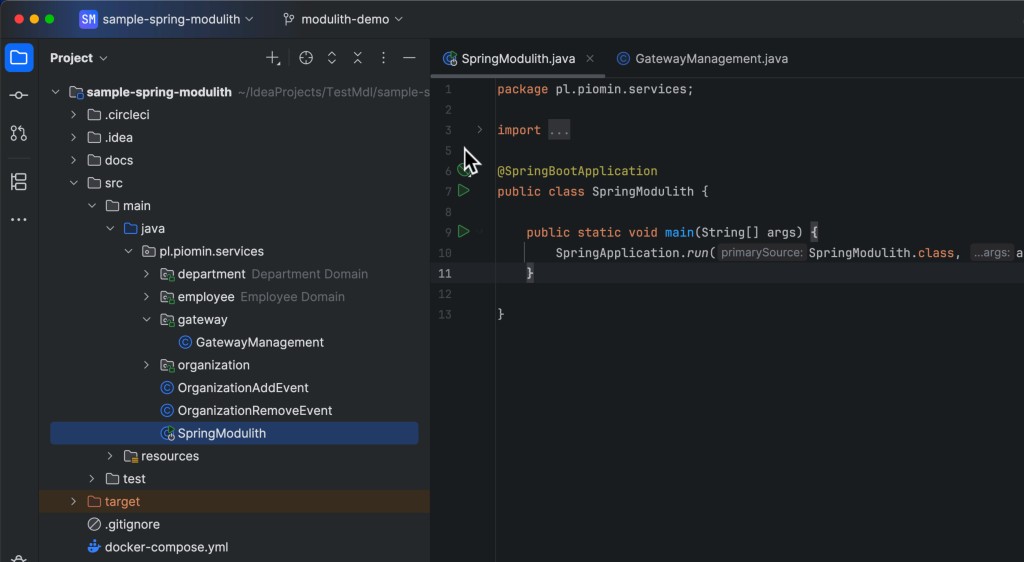
- Recommended for our course and for all beginners.
- Starting with version 2025.3, it became a single product: everything you need for development is available for free without limitations.
- The Kotlin language and IntelliJ IDEA are developed by the same company (JetBrains). This means new language features appear here immediately and work flawlessly.
- Support for the latest language versions (including the new ultra-fast K2 compiler).
- A powerful system of hints, code completion, and refactoring (automatic safe code rewriting).
- A pleasant modern interface (New UI) that does not intimidate beginners.
Android Studio
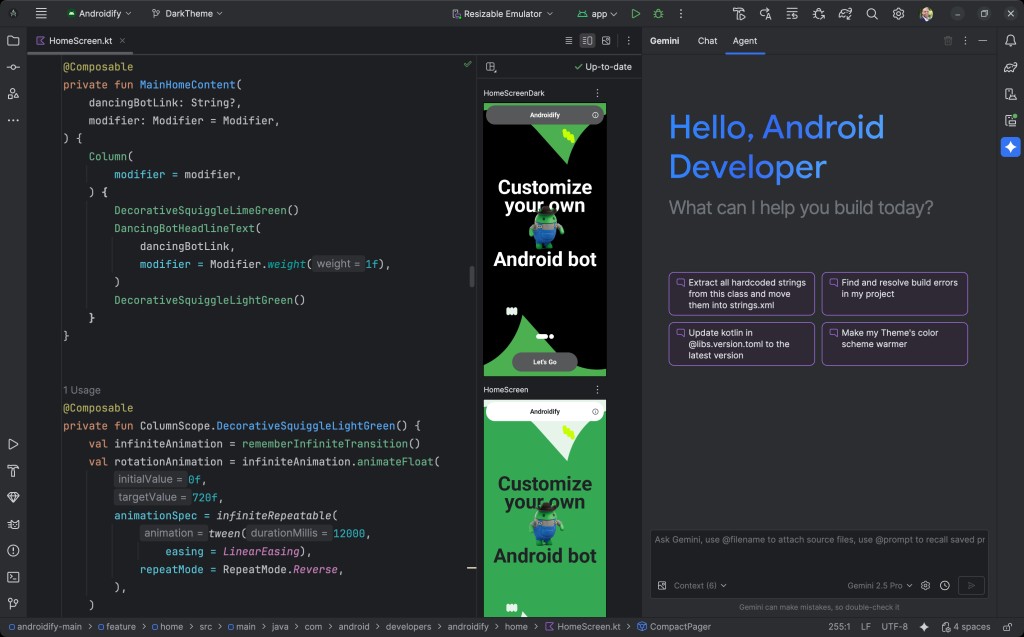
- If you plan to build mobile apps for Android, this will be your main tool in the future.
- It is based on the IntelliJ IDEA core, so the interface and hotkeys will feel familiar.
- Optimized for the specifics of mobile development (phone emulators, screen layout tools).
- For learning basic console Kotlin (Kotlin/JVM) within our course, it is overkill and more “heavyweight” than the regular IDEA.
Visual Studio Code (VS Code)
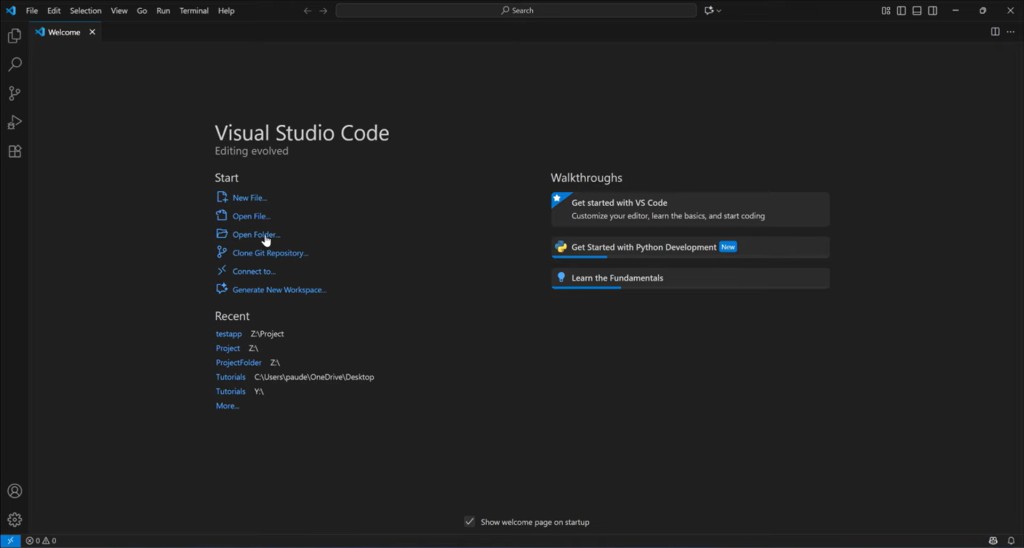
- This is more of a “super editor” than a full IDE out of the box.
- To work properly with Kotlin, it requires installing additional extensions (for example, Kotlin Language Server).
- Great for working on low-end computers or for writing simple scripts.
- For deep learning and serious server-side development on Kotlin/JVM, it often falls behind IntelliJ IDEA in code analysis quality and configuration convenience.
3. An alternative for quick tests
Sometimes you need to check just a couple of lines of code — for example, to remember how a specific function works, or to quickly test a math formula. Launching a full IDE or creating a new project for that can be unnecessary.
In such cases, play.kotlinlang.org helps a lot. It is the official online sandbox from the language creators.
- Pros: works right in the browser, requires no installation, lets you run code instantly, and makes it easy to share via a link (very convenient if you want to show your code to a mentor).
- Cons: it is not an IDE. There is no project structure, advanced hints, debugger, or the ability to add third-party libraries or read files from your computer.
For full-scale learning and working on projects, the sandbox is not suitable, but as a “write-check-forget” tool, it is perfect.
4. Why we choose IntelliJ IDEA
If you ask any professional Kotlin developer, “Where should I start?”, in 99 out of 100 cases they will recommend IntelliJ IDEA. Why?
- Perfect synergy: the tool and the language are from the same creators.
- Beginner-friendly: you do not spend hours installing plugins — create a project, and everything works.
- Advanced Git integration.
- Smart static analysis (the IDE “understands” your code).
JetBrains Junie AI agent
IntelliJ IDEA includes JetBrains Junie — not just a smart assistant, but a full-fledged AI agent.
Unlike regular code completion, Junie understands the context of your entire project. It can independently find the cause of an error, suggest how to modernize old code, or even generate tests.
Junie is a powerful tool, but for a beginner it is a double-edged sword. Use it to ask for an explanation of a difficult part of the code (“Junie, what does this line do?”), but try to write solutions yourself. In an interview, you will not have an AI agent with you.
Code completion
People sometimes say, “IDEA writes code for you.” That is, of course, an exaggeration... but when you see code completion in action for the first time, you will understand why developers love this tool so much.
Code completion example
You simply start typing a word, and the IDE immediately suggests options to finish it. For quick selection of the needed option, the Tab or Enter key is most often used.
printl // IDEA will suggest options: println, print, etc.
readl  // will suggest readln(), readlnOrNull()
5. Code analysis in an IDE: errors before compilation
When people say “IDE shows errors,” beginners often think about the moment you run (compile) the program. In reality, IntelliJ IDEA performs static analysis — it continuously reads and analyzes your code while you type, even before you press the Run button ▶.
Let’s take an example. Suppose you declared a variable for age, but accidentally tried to assign a string to it instead of a number:
fun main() {
    val age: Int = "Twenty" // Type error!
}
In a regular text editor, you would only find out when you tried to run the program. In IntelliJ IDEA, the string "Twenty" will be underlined in red instantly. The IDE will explain in plain language: Type mismatch: inferred type is String but Int was expected (Type mismatch: Int was expected, but a string was found).
This is not the program being picky — it is real help that prevents you from running code that is guaranteed not to work.
6. Early diagnostics: the problem is visible before it becomes a mystery
One of the most painful situations at the start of learning is: “I pressed Run, it does not work, and I do not understand where.” The IDE turns invisible errors into obvious ones.
For example, a common mechanical typo in a function name:
fun main() {
    prinln("Hello, Kotlin!") // missing the letter 't'
}
The name prinln will immediately turn red. This is incredibly important psychologically: you catch the typo right away, with your eyes, before your brain starts inventing complicated theories about why “Kotlin broke.”
Besides red errors (which prevent the program from running), the IDE shows warnings (in gray or yellow). For example, you created a variable but never used it. The program will run, but the IDE will highlight the variable name in gray, hinting: “Looks like some clutter was left here, or you forgot to finish the logic”. Getting into the habit of paying attention to the development environment’s hints is one of the main steps from intern to Junior developer.

GO TO FULL VERSION