1. The src folder — where your code lives
If a Kotlin project were a house, then the src folder (from source) would be a cozy living room where all the main residents gather. This is exactly where all source files with code go—not in the project root, not in the settings folder, and not on your desktop (even if you really want to).
Why separate source code from everything else?
- The
srcfolder contains only the files you write by hand: .kt. - Everything that appears during the build process (compiled .class files that the JVM reads) is placed into other folders like out, build, etc.
- This makes navigation easier, keeps the project cleaner, and makes the IDE happier.
Example structure of a simple project:
MyFirstProject/
├── .idea/           # IntelliJ IDEA service files, do not touch
├── out/             # compiled .class files appear here
├── src/             # this is where your source code lives!
│   └── Main.kt
├── MyFirstProject.iml
└── README.md
src folder. Don’t put images, music, or secret recipes there—for that, there are other folders.
2. Packages package
When your code outgrows a single Main.kt file, Kotlin convention is to group files into “packages”—like folders in a file system, but for code. Packages help you:
- Avoid name conflicts. If your project has two different
calculate()functions but they are in different packages, they won’t interfere with each other. - Structure code logically. For example,
com.kotlin.lesson05,com.kotlin.utils.
Package declaration syntax
On the very first line of each Kotlin file, you write:

package com.kotlin.lesson05
This means: all contents of this file belong to the com.kotlin.lesson05 package.
An important best-practice rule:
Unlike Java, the Kotlin compiler allows you to place a file with package com.kotlin directly in the root of the src folder. But doing this is strongly discouraged! The official Kotlin Style Guide requires that the folder structure on disk strictly matches the package name. That is, the path to the file should look like this:
src/com/kotlin/lesson05/Main.kt
How to create a package in IntelliJ IDEA
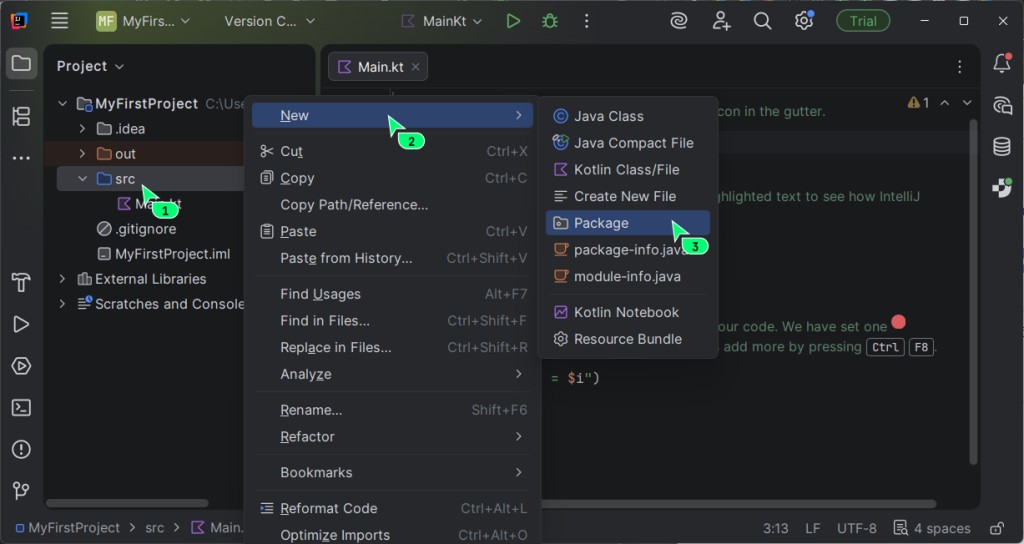
- In the Project tool window, right-click the
srcfolder. - Select New → Package.
- Enter a name, for example: com.kotlin.lesson05 (the IDE will create the required nested folders automatically).
- Now create a new file inside this package: right-click the com.kotlin.lesson05 folder → New → Kotlin Class/File → enter a name, for example,
Utils.
Example:
src/
└── com/
    └── kotlin/
        └── lesson05/
            └── Utils.kt
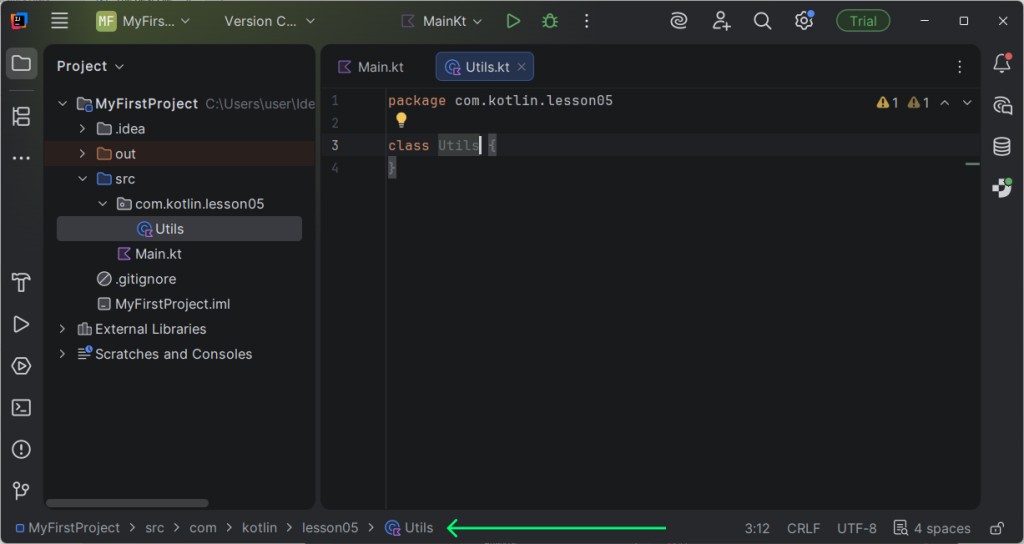
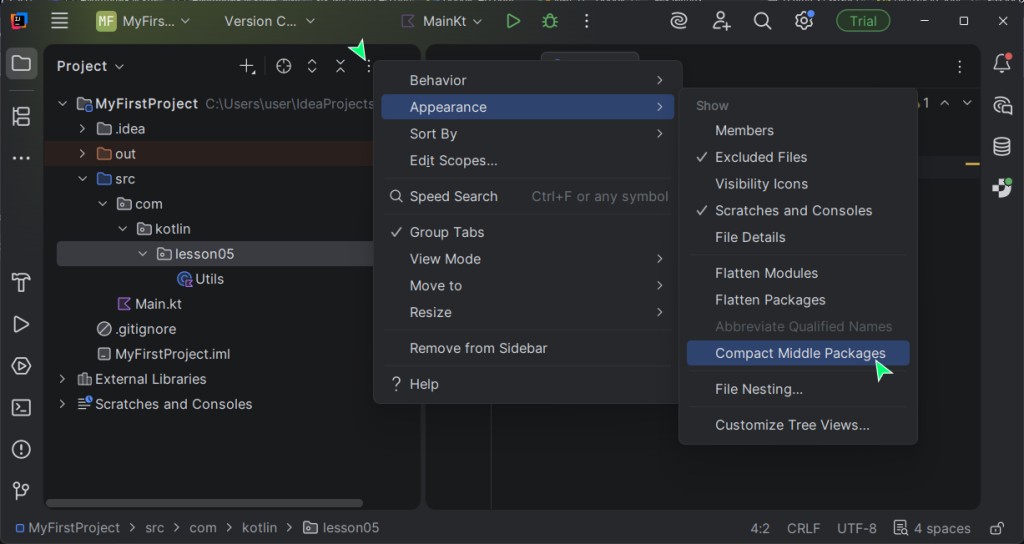
Pay attention to the path to your file in the panel at the bottom. Remember that when creating the project we checked Use compact project structure? This is how it works.
If you disable compact mode, you will see empty folders.
Why can’t you just put everything into src?
If you mix all files together, the project will quickly turn into a “junk pile,” where finding the right function is harder than finding a laptop charger in a student dorm. Use packages—this makes it much easier to navigate the project.
3. Fully qualified name
Every function or tool from the Kotlin standard library also lives in its own package. For example:
- The math function for finding the maximum max() is in the kotlin.math package. Its fully qualified name is kotlin.math.max.
- The random number generator Random is in kotlin.random. The fully qualified name is kotlin.random.Random.
So, fully qualified name = package name + dot + function/class name.
Let’s try using this in code to find the maximum of two numbers:
fun main() {
    val a = 10
    val b = 20
    val maximum = kotlin.math.max(a, b)
    println("Maximum number: $maximum")
}
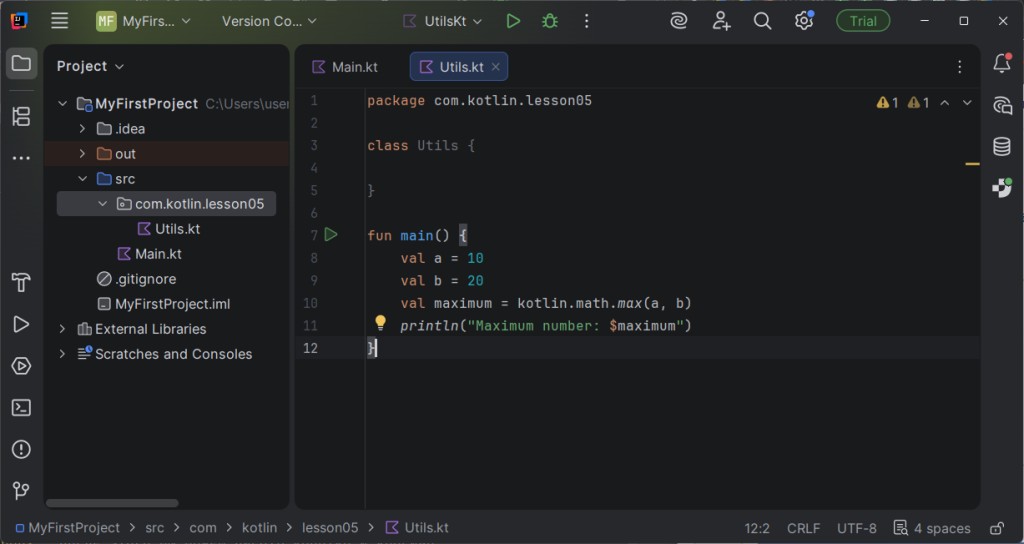
Here we explicitly write kotlin.math.max. The compiler understands exactly which function we are calling.
4. The import operator
Writing the full long name every time is terribly inconvenient. That’s exactly why Kotlin has the import operator (import).
If we write at the very top of the file, right under package:
import kotlin.math.max
This means: “In this program I will use the max function from the kotlin.math package.” After that, we can write short and clean:
val maximum = max(10, 20)
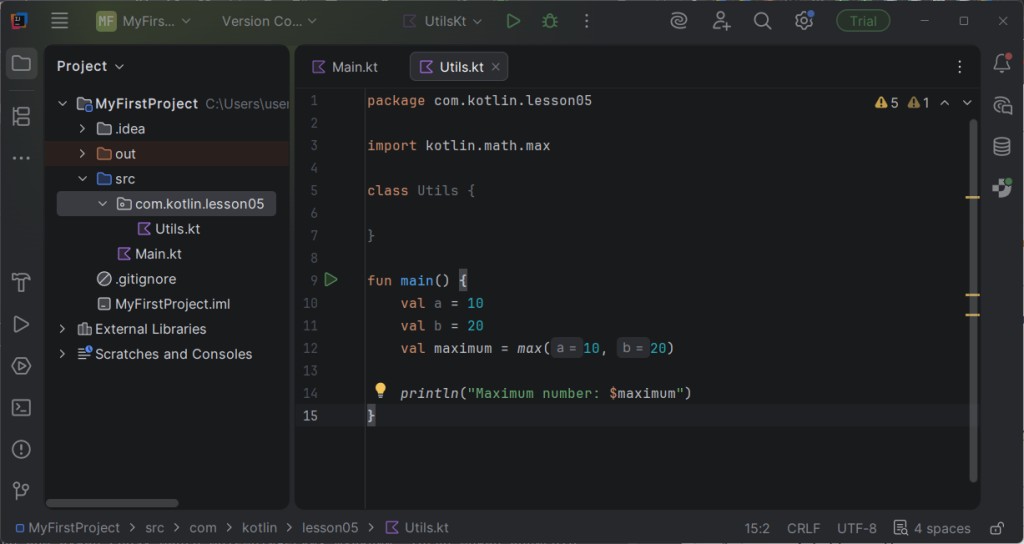
Regular import
We specify the exact tool we want to use:
import kotlin.math.max
import kotlin.random.Random
Import the entire package *
Sometimes we need many math functions at once. Then we can write an asterisk:
import kotlin.math.*
This means: “Allow using EVERYTHING from the kotlin.math package without a fully qualified name.”
Default Imports
You’ve probably wondered: “Wait, but we already used println(), readln(), and the String type without any imports! How did that work?”
The thing is, Kotlin takes care of you. In every file, it “invisibly” adds so-called default imports. Packages like kotlin.*, kotlin.io.* (where input/output functions live), and kotlin.collections.* are imported by default. That’s why the most common commands are available right away “out of the box.”
5. Classpath — how the JVM finds your code
Classpath is the “route” the Java Virtual Machine (JVM) uses to look for your compiled programs before launching them. You can think of it as a list of folders where the JVM will search for the required .class files (the ones Kotlin turned your code into).
By default IntelliJ IDEA does everything for you. It automatically adds the folder with compiled code—for example, out/production/ProjectName—to the classpath. That is, if you wrote code in the com.kotlin.lesson05 package, IDEA will explain to the virtual machine where to find it.
You don’t need to configure it manually yet, but if you see a strange console error like “ClassNotFoundException”, know that the problem is somewhere in the build paths.
6. Organizing code in a project
Kotlin does not have the rule “One class = one file”
If you’ve ever heard about Java, you know its strict rule: the public class name must match the file name. In Kotlin, programming is much more convenient: a single file can contain as many functions or classes as you want.
Kotlin’s main rule is logical grouping. If you have math-related functions, put them in a file named MathUtils.kt.
src/com/kotlin/lesson05/MathUtils.kt
package com.kotlin.lesson05

fun calculateSum(a: Int, b: Int): Int {
    return a + b
}

fun calculateDifference(a: Int, b: Int): Int {
    return a - b
}
The file name should be meaningful. Names like aaa.kt or Test2.kt will be tolerated by IDEA, but you will get confused by them in a couple of days.
Where to store resources (images, text files)?
- If your program needs to read text from an external file, resources are usually placed in a separate folder in the project root, for example resources or data.
- In IntelliJ IDEA you can tell the project this is an important folder: right-click the folder → Mark Directory as → Resources Root.
Example of a correct structure:
MyFirstProject/
├── src/
│   └── com/kotlin/lesson05/
│       └── Main.kt
├── resources/
│   └── config.txt
7. Common mistakes when working with project structure
The word package is not written on the first line
In Kotlin, the package declaration must be the first meaningful line in the file (comments before it are allowed, but code or imports are not). If you write imports first and then the package, the compiler will throw an error.
Folder structure does not match the package
If the beginning of the file says package com.kotlin.lesson05, but the file physically sits directly in src, IDEA will underline the package name in yellow, warning about the mismatch. Remember best practices: folders should reflect packages!
Manually moving files via Windows/macOS Finder
If you moved a .kt file to a different folder using the regular file manager on your computer, the package line inside the file will not update by itself, and the project will break. Do moves (Drag and Drop) only inside the Project tool window in IntelliJ IDEA—the smart IDE will update all packages and paths for you!

GO TO FULL VERSION